Import data
Import is how you get an existing business into EyeOnTask without typing it in. It is mostly a setup job, and it is worth doing before anyone starts working in the system rather than after.
Settings → Import Data.
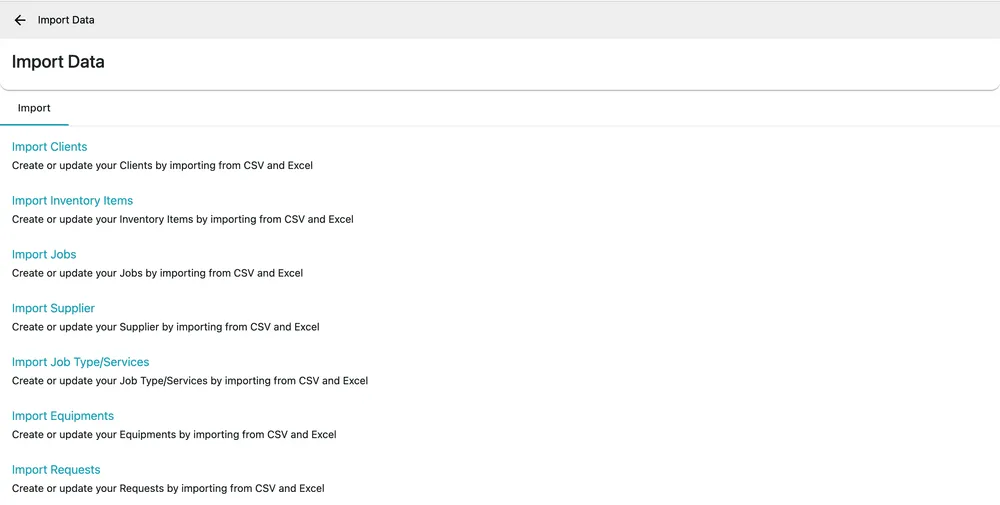
Settings → Import Data
Two ways to do it
Section titled “Two ways to do it”Fill in the templates yourself. Download the CSV or Excel template for a module, put your data in it, upload it. That is the rest of this page.
Or send us the files as they are. If the data is unusual, or your old system’s structure does not fit the templates, Assisted import on the same screen takes your raw files and the support team does the migration for you. See assisted import.
What can be imported
Section titled “What can be imported”| Import | Brings in |
|---|---|
| Clients | Your customer list, with their addresses and contacts. |
| Inventory Items | Your stock list. See how inventory works. |
| Jobs | Work already booked. |
| Supplier | Who you buy from. See suppliers. |
| Job Type/Services | Your price list for labour. See job type/services. |
| Equipments | Units you or your clients own. See how equipment works. |
| Requests | Enquiries already logged. |
All seven take CSV and Excel, and all seven create or update — an import is not only for the first load. Running one again against the same records updates them, which is how a bulk price change or a re-import of a corrected spreadsheet is done.
The order to do it in
Section titled “The order to do it in”Records refer to each other, so import them in dependency order:
- Clients and Suppliers — nothing depends on anything else.
- Job Type/Services and Inventory Items — the things a job is made of.
- Equipment — needs the clients it belongs to.
- Jobs and Requests — need clients, services and equipment to exist.
Importing jobs before clients leaves you with jobs attached to nobody, and no quick way to reattach them.
Before you import
Section titled “Before you import”Two things are worth doing first.
Set the lists up. Client types, job categories, product categories and brands — a spreadsheet column full of values EyeOnTask has never heard of imports badly. Create the lists, then import against them.
If you use QuickBooks or Xero, sync from there first. Bring your clients and items in from the accounts package before importing anything else, so both systems agree on who your customers are and what you sell from the start. See Xero or QuickBooks. Then import the rest.
Try a small file. Ten rows first. Check what arrived, in the module itself, before you send five thousand.
How long it takes
Section titled “How long it takes”Starting fresh, with nothing to bring over: setup is quick — the lists above, your people, and you are working.
Moving from another system: it depends on how much data there is and how many kinds of it, but it is usually a couple of days, and at most a week.
Related
Section titled “Related”- Assisted import — send your raw files and have the team migrate them
- Bulk updating items — the item list’s own export/edit/import round trip
- How settings work