Customer portal settings
Settings → Customer Portal AI V2 is where the portal is built. Everything your customers see is decided here.
The screen has three parts: a menu of portal pages down the left, a phone preview in the middle that is live and clickable, and the settings of whichever page you are on down the right. Change something and the preview changes with it; Update saves.
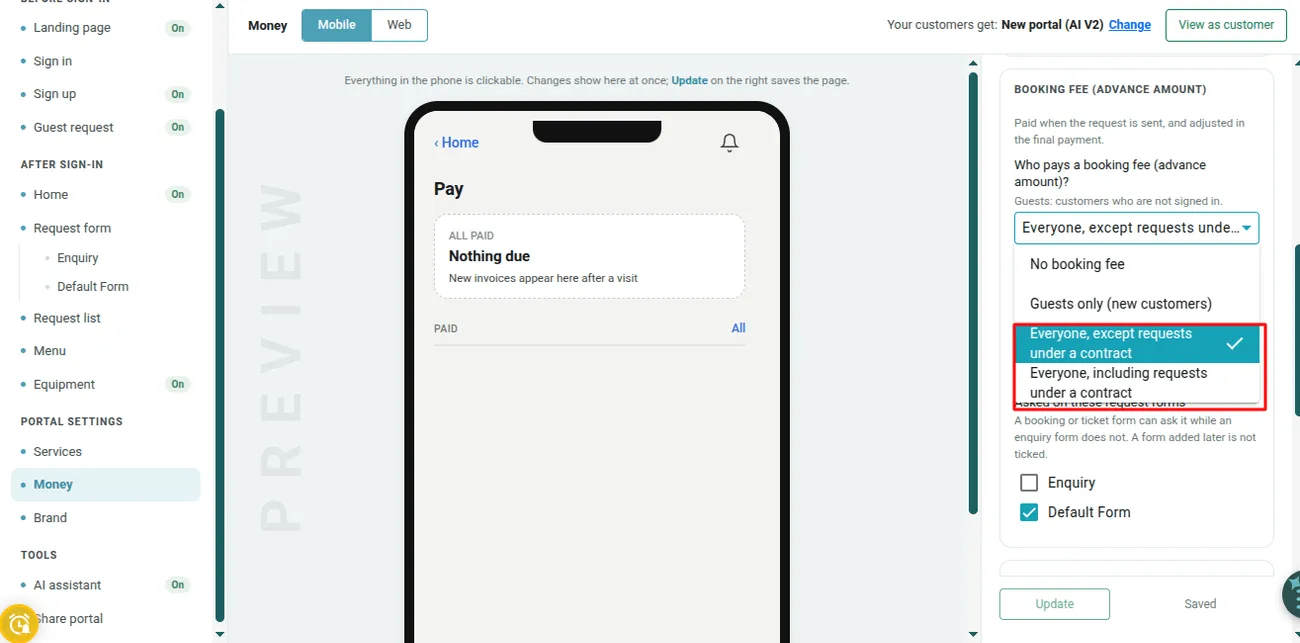
Settings → Customer Portal AI V2 → Money
What each page controls
Section titled “What each page controls”| Group | Page | What it decides |
|---|---|---|
| Before sign-in | Landing page | The public page: tagline, About us, cover photo, and whether it is public at all |
| Sign in / Sign up | The sign-in page, whether Create account is offered, and which fields it asks for | |
| Guest request | Whether people without an account can send a request, and what they are asked | |
| After sign-in | Home | What a signed-in customer sees first — next visit, payments due, equipment |
| Request form | One entry per request form: which steps it asks, including Location and Contract, and the wording of each | |
| Request list | What a customer sees on a request — visit details, photos, job card, feedback, Book again | |
| Menu, Equipment | The account menu, and the equipment list | |
| Portal settings | Services | The order services appear in, the name customers see, hiding one, and the words customers use for it |
| Money | Service prices, the booking fee, and invoices — see booking amount | |
| Brand | Logo, colour, tagline, About us, cover photo | |
| Tools | AI assistant | The Say what you need box — see the assistant |
| Share portal | The portal link: Copy, Email, a QR code, and View as customer |
Sharing the link
Section titled “Sharing the link”Share portal is how the link reaches people. Copy puts it on the clipboard, Email opens your mail app with it, and the QR code is for a van, an invoice or a shop window — a customer photographs it and lands on your portal.
View as customer opens the portal as one of your clients sees it. Worth doing after any change, because the preview shows one page at a time and the real thing shows the lot.
Back, at the top left, returns to Settings.