Creating a request from an email
From the Inbox, each email can go one of three ways: Create request, Attach to REQ-…, or Dismiss.
Creating a request
Section titled “Creating a request”Click Create request. Add Request opens already filled in from the email. Check it, change anything you like, and click Save. The email is then marked as made into a request.
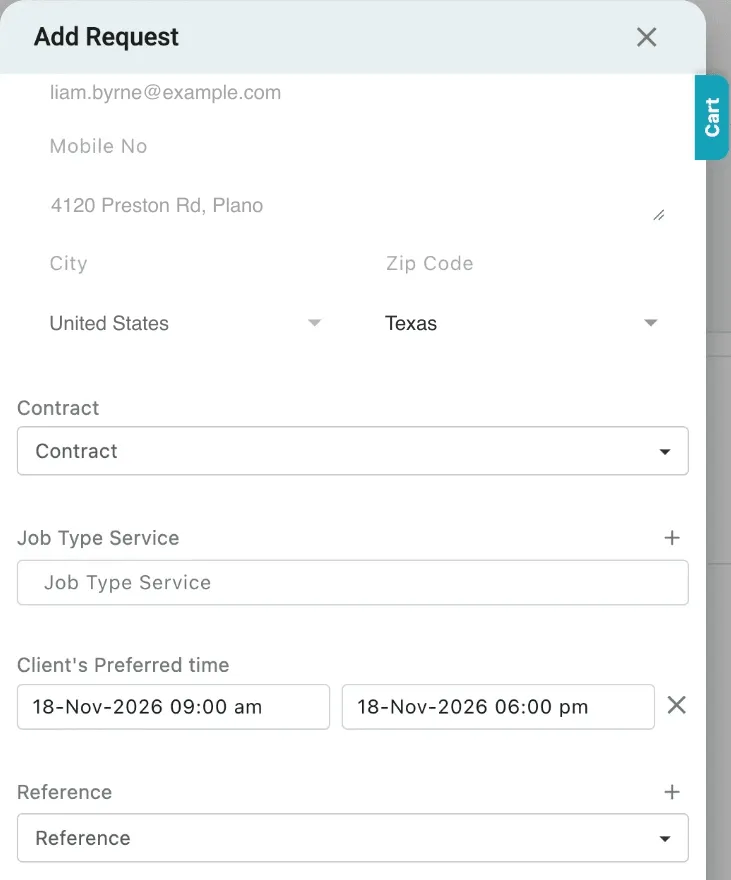
Inbox → an email → Create request
A request made from an email follows the same rules as one typed by hand: the request form, services, contract and closed days all work the same way. It uses 10 AI Credits — see AI Credits.
Changing the request form tab keeps what was filled from the email.
What is filled in
Section titled “What is filled in”| Field | What is filled in |
|---|---|
| Client | The client whose contact sent the email, with its site and contact. A sender whose email or phone is on several clients is asked about: pick one, or Create anyway for a new client. |
| New client | The sender’s name and email, and the mobile, address and postcode written in the email — an “Address:” line or the signature, even split over two lines. Save for future use follows your company setting. |
| State and city | The state named in the address. The city only when it is clear; otherwise it stays empty. With no state in the address, your company’s state is shown, and that is what is saved. |
| Form | The request form the email fits. An urgent (emergency) form only when the customer says it is urgent. |
| Services | Only the services the customer asks for. |
| Equipment | One of the client’s units named in the email, or a new one, noted as new, not on file. |
| Preferred time | The date and part of the day asked for — never in the past, and only on days your company is open. “First week of December” is 1–7 December. A date given for the visit (“Preferred installation date”, “visit on”) is used over any other date; a date a reply or quote is wanted by (“please respond by 28 November”) is not the visit date. |
| Place inside site | One of the site’s places, or the room the email names (“kitchen”, “Floor 2 › Server room”). An area or a street is never a place. |
| Contract | For a known client, the contract of the request’s site, or the client’s only contract. Its services go into the cart at the contract’s rate. |
| Description | The subject and the email’s words, each line once. |
| Attachments | The email’s files go with the request. |
Nothing is guessed. When the words are not clear about a point, AI decides that point only. If neither is sure, the field stays empty for you to fill in.
If the customer asks for a day your company is closed, that date is not filled in — pick an open day in Preferred time.
Adding an email to a request you already have
Section titled “Adding an email to a request you already have”Attach to REQ-… is for an email about a request you already have — a reply, or more photos. The email’s text and files join the request’s messages instead of making a new request. It uses 10 AI Credits.
Dismissing an email
Section titled “Dismissing an email”Dismiss is for an email that should not become a request: a thank-you, junk, or a Gmail forwarding confirmation. It leaves the Inbox and uses no AI Credits.
Right after dismissing, click Undo in the message at the bottom — it shows for 5 seconds — to bring the email back.
Already handled
Section titled “Already handled”If a colleague already handled the email, or you did in another tab, you see This email was already handled, or This email is not in the Inbox any more. Refresh the Inbox.