Sending a request from the portal
A customer presses + New request and is taken through a few short steps, one question at a time. Which steps a form asks is set per form in the portal settings, so the form a plumber uses need not ask what a lift company’s does.
Down the right, Your request lists what they have answered so far, each with Edit.
| # | Step | What it asks |
|---|---|---|
| 1 | What is this about? | Which request form. Skipped where you have only one. |
| 2 | Contract | Only for a signed-in customer with active contracts, on a form that asks it. |
| 3 | What do you need? | The services, with a quantity against each, and up to five photos. |
| 4 | Tell us a bit more | Your own questions from the form — dropdowns, dates, numbers and the rest. |
| 5 | Address / site | Only where the customer has more than one site. |
| 6 | Where is it? | The place inside the address. Off by default — see location. |
| 7 | When should we come? | The days and parts of the day you are open, worked out below. |
| 8 | All set? | The estimate, the booking amount, and the button that sends it. |
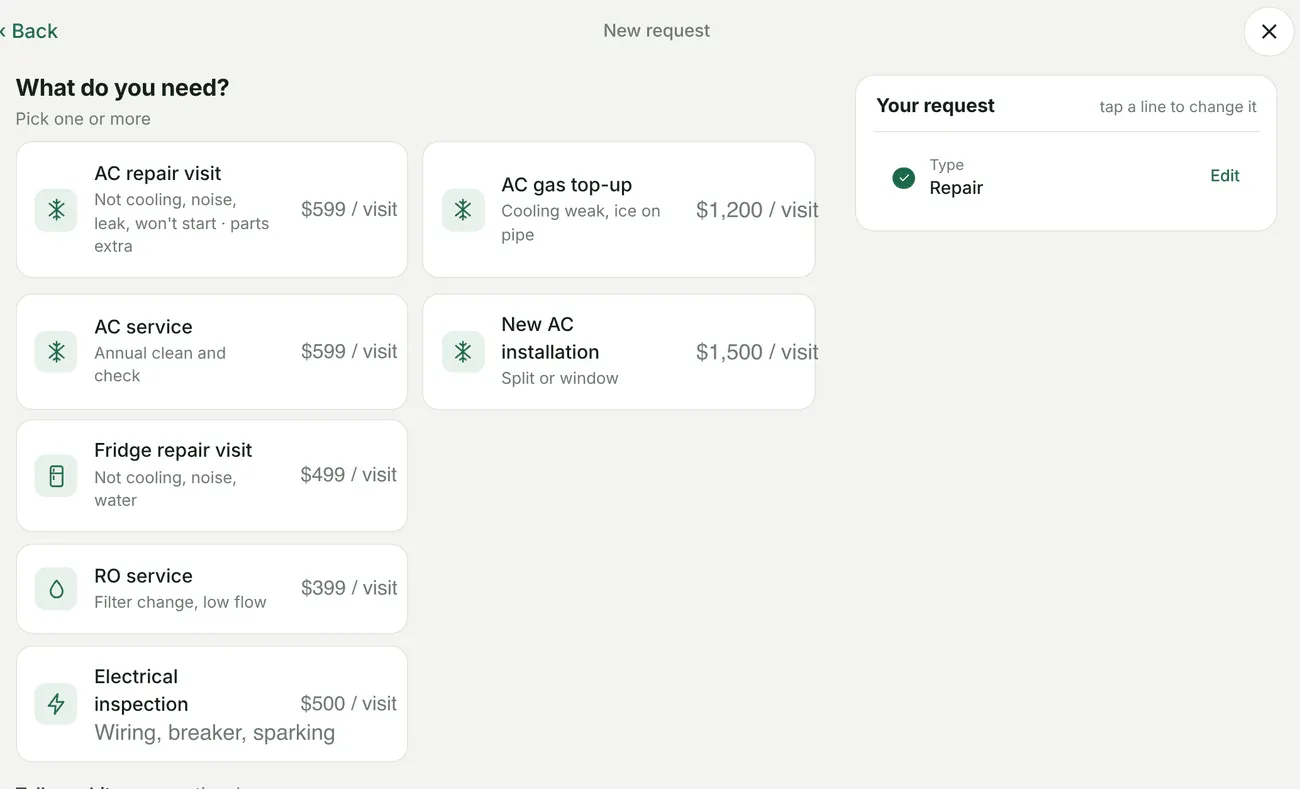
New request → What do you need?
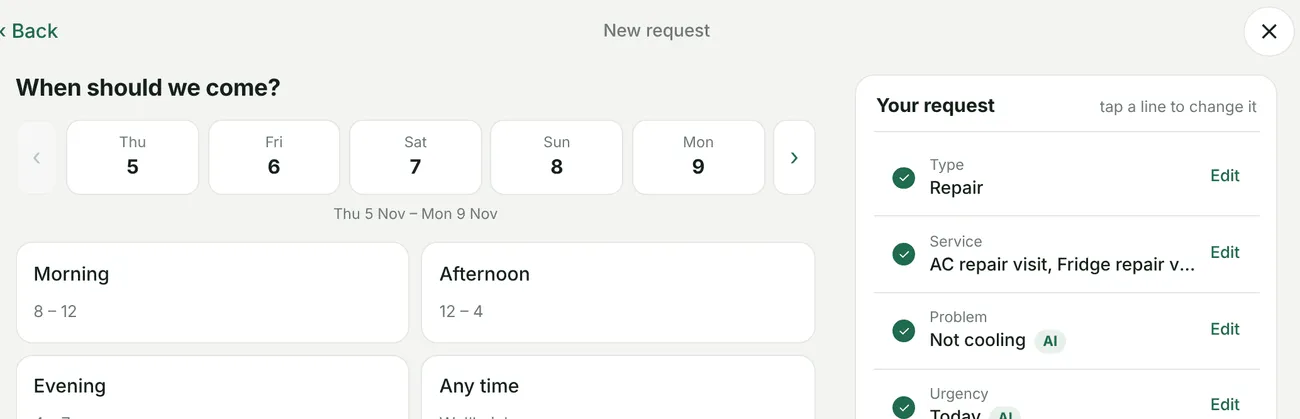
New request → When should we come?
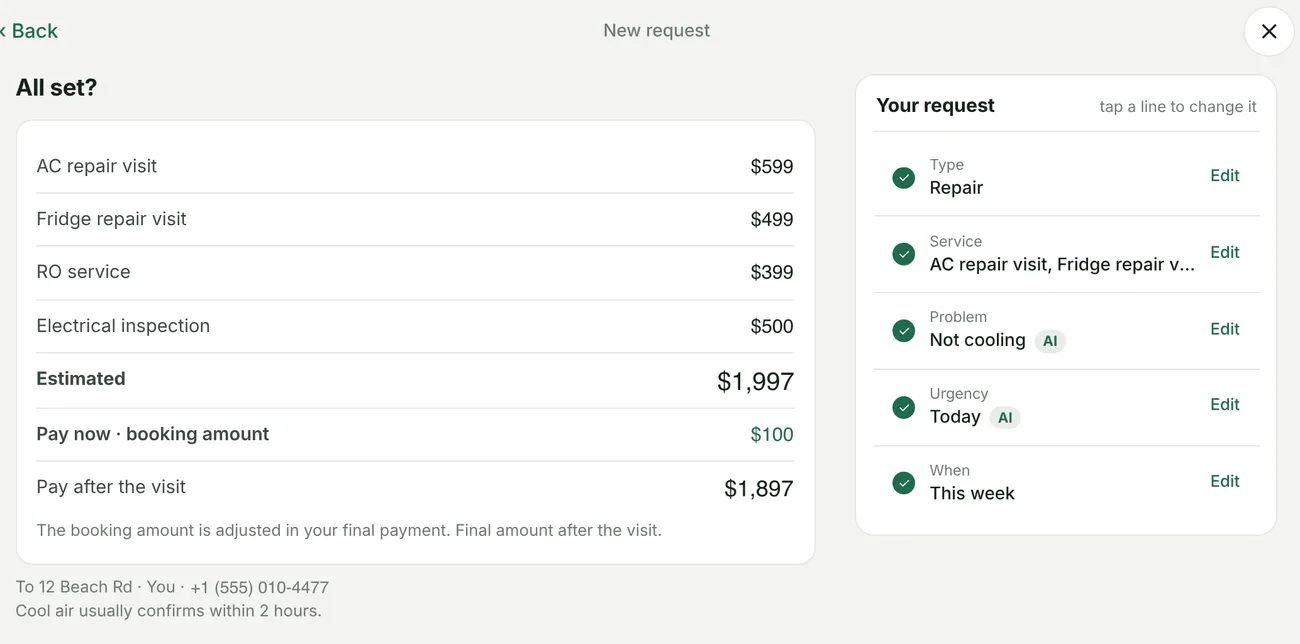
New request → All set?
The days and times they are offered
Section titled “The days and times they are offered”This comes from Settings → Company → Availability, so the portal offers the hours you actually work.
- With no availability set, the parts are Morning 8–12, Afternoon 12–4, Evening 4–7, and Any time.
- With availability set, each part is cut to that day’s hours. Open 9 to 7 gives 9–12, 12–4 and 4–7; a Saturday that closes at 2 has no evening at all.
- Closed days cannot be picked, and a few hours off close the parts they fall in.
- Today stays available only while an hour of a part is left. At three in the afternoon the evening can still be picked and the afternoon cannot. After you close, the first day offered is tomorrow.
- Booking lead time, where you have set one, moves the first day that can be chosen.
A part that has passed is greyed rather than hidden, so the customer can see why their day starts where it does.
Sending it
Section titled “Sending it”All set? totals the services — with tax where the services carry it — and shows the booking amount if the form asks for one. The button reads Send request, or Send & pay where there is money to take.
On Send & pay a new tab opens straight away, before the request is saved, because a browser will block a tab that opens later. The payment page loads into it once the request is through. On a phone it opens in the same tab.
If the payment page cannot be opened at all, the request is still sent — the customer is told “Request sent. The payment page could not be opened: use Pay on the request.” Nothing is lost, and the money can be taken from the request card.