The portal for signed-in customers
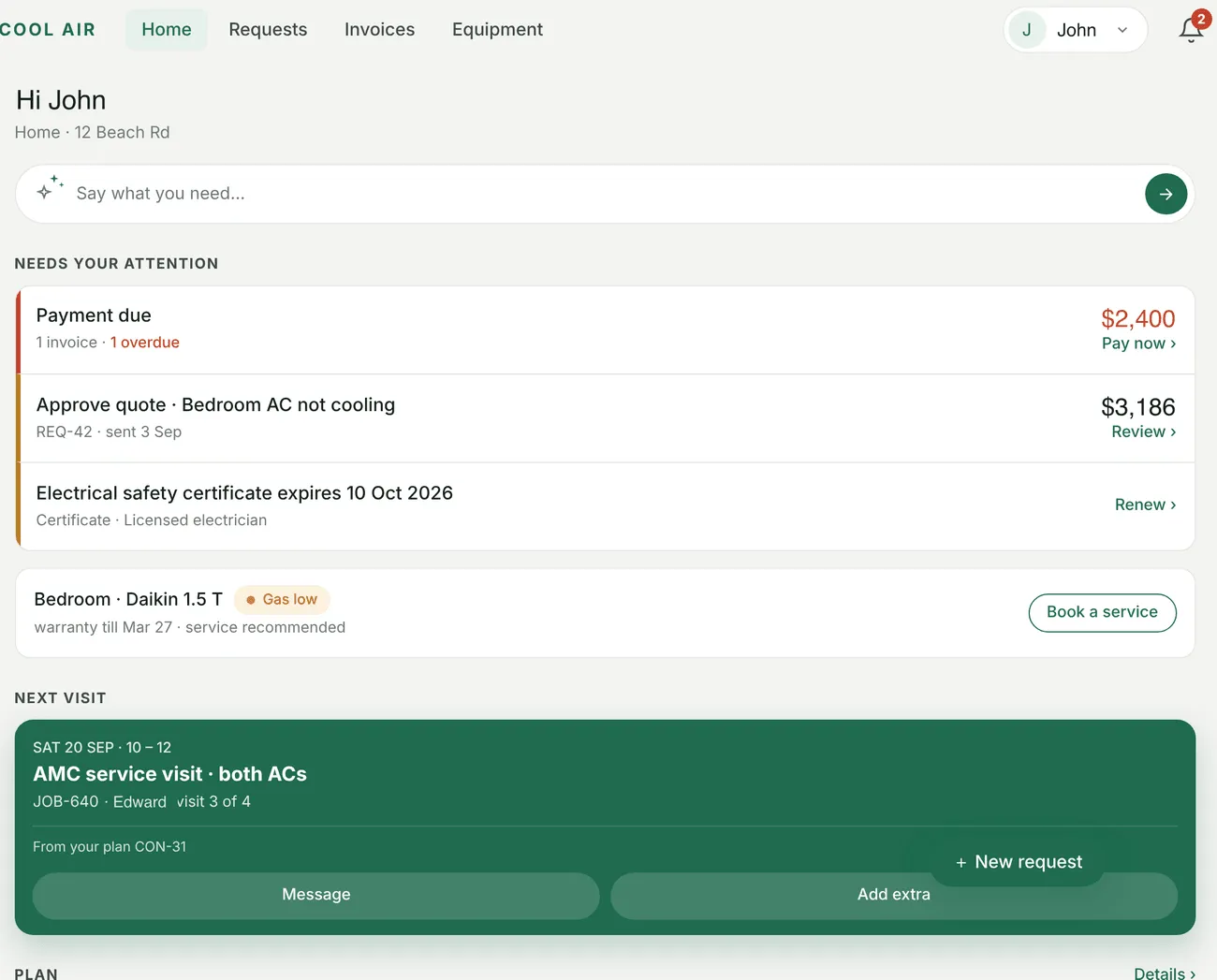
The portal → Home
Home opens with the Say what you need… box and then the things that want the customer’s attention: a payment due, a quote to approve, a document about to expire. Below that sit their equipment, their next visit — with Message and Add extra on it — their plan, and + New request.
It is built to answer the question a customer would otherwise ring about: when is somebody coming, and do I owe you anything?
Requests
Section titled “Requests”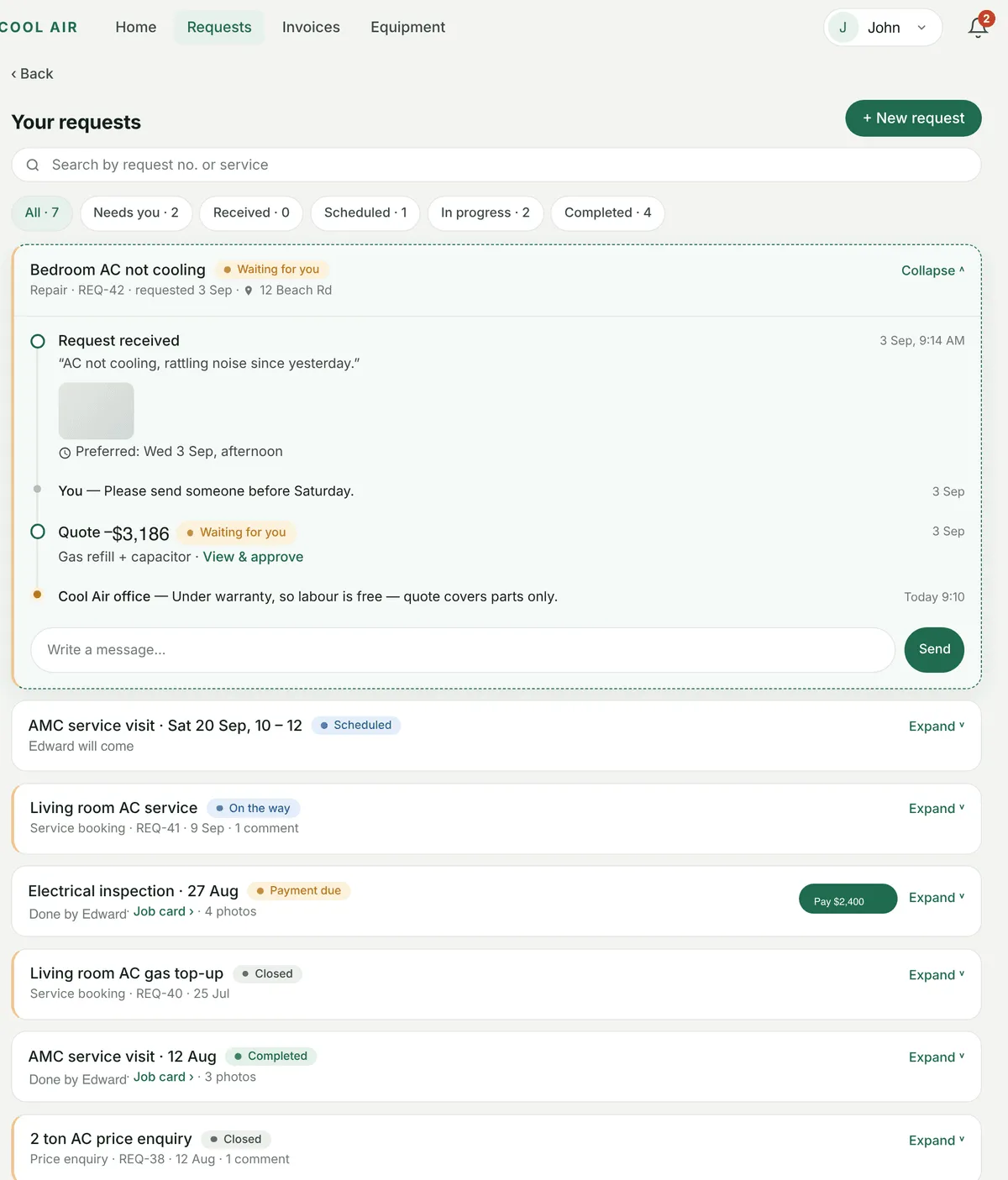
The portal → Requests
Each request is a card, and opening it tells the story in order: the request arriving, the visits with their technician, photos and report, the quotes, the invoices, and the messages between you.
- Messages appear without the customer reloading anything, so a reply from your office lands while they are looking at it.
- Invoice on the story opens that invoice.
- Edit request is offered until your office starts work on it. After that the customer is asked to send a message instead — which is right, because by then somebody is already acting on what it said.
- Pay booking amount shows on the card while one is due.
Pay, equipment and tracking
Section titled “Pay, equipment and tracking”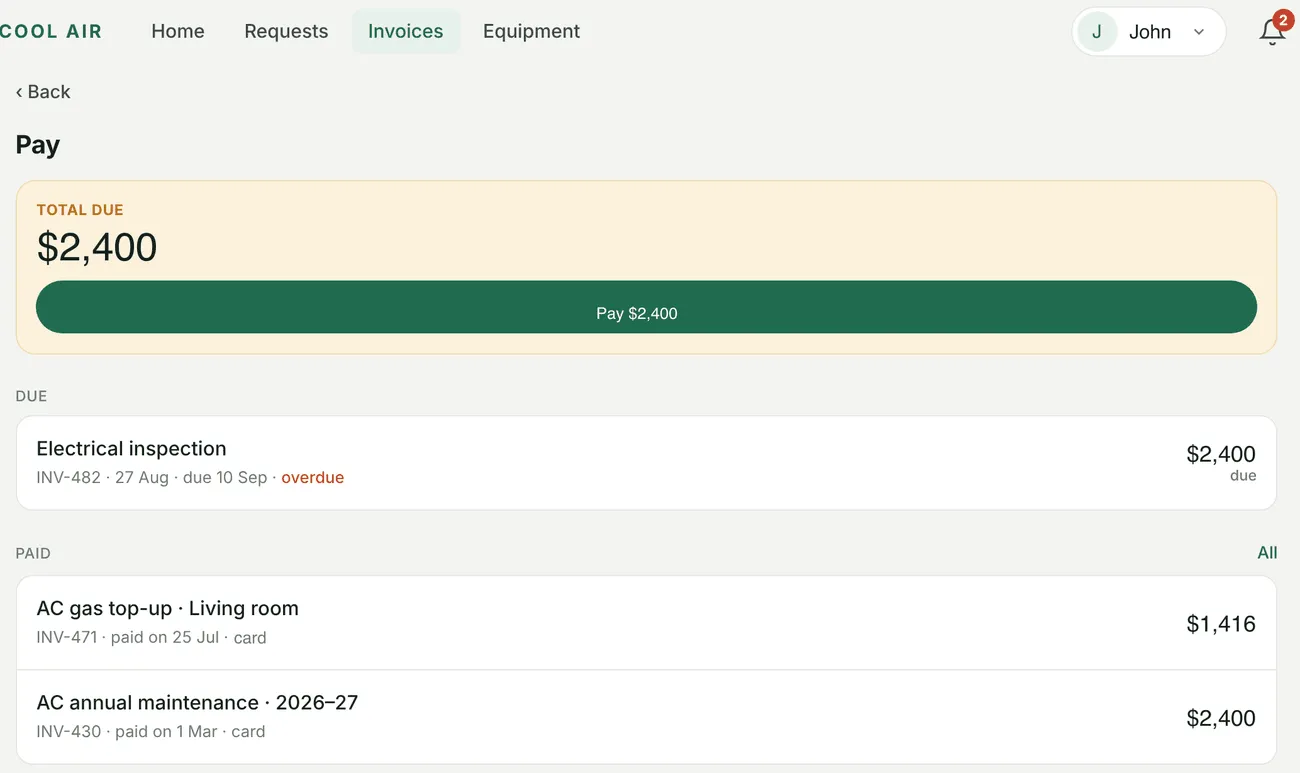
The portal → Pay
Pay lists invoices due and paid, with a Pay button where you have Stripe or PayPal connected and invoices are switched on in the portal settings.
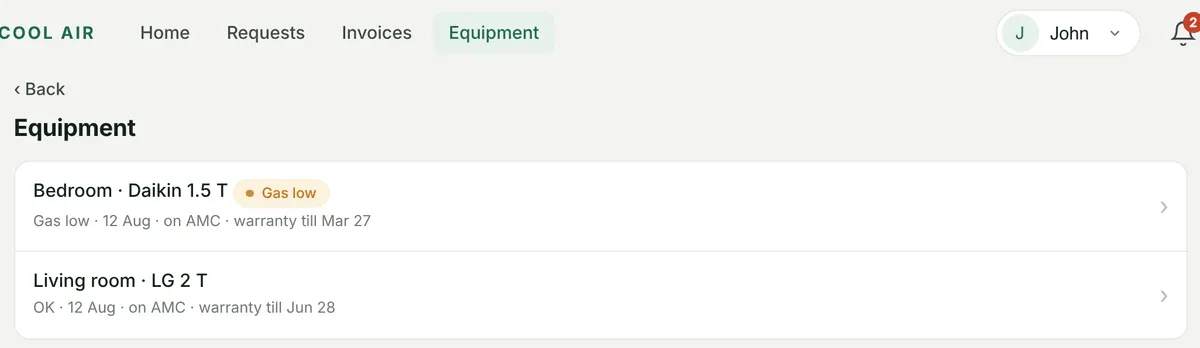
The portal → Equipment
Equipment is the customer’s own units. Opening one shows its History — every visit made to it. A unit nobody has been to yet says so rather than showing an empty list.
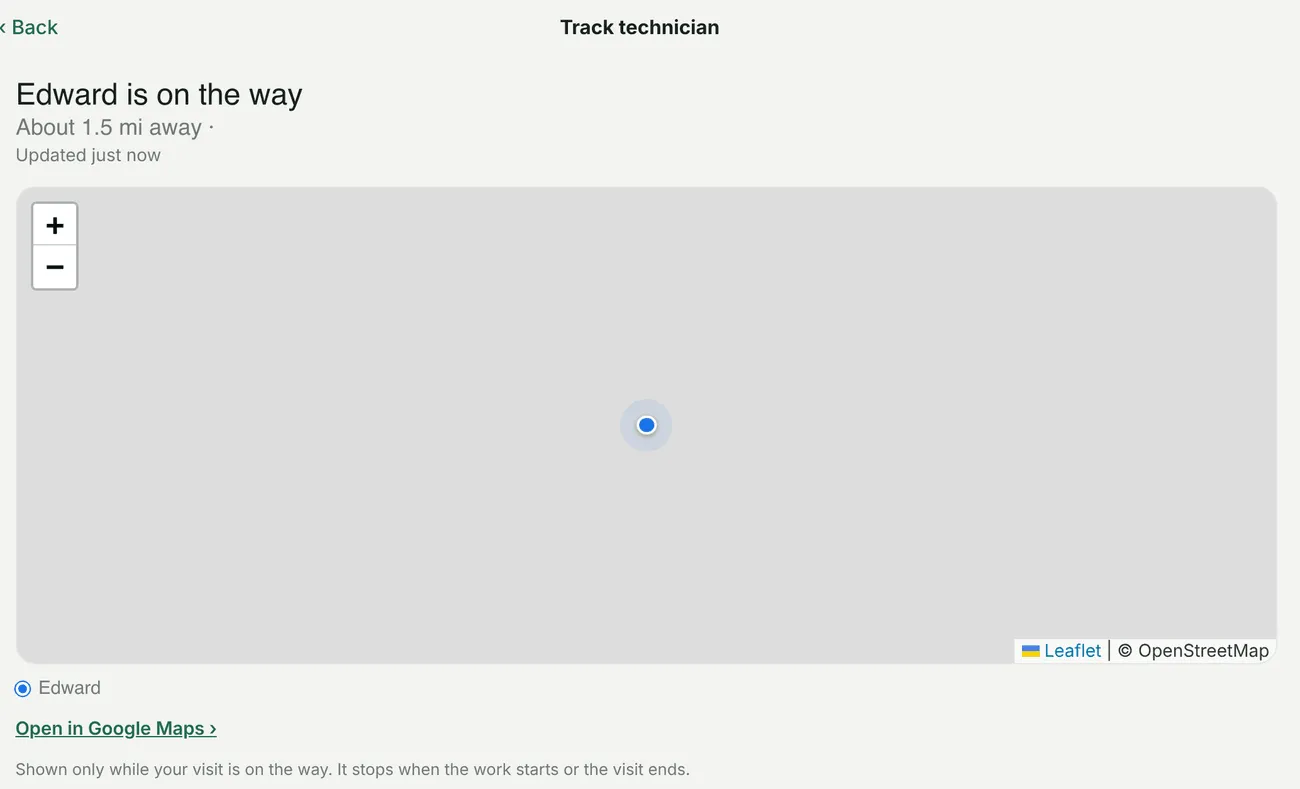
The portal → Track technician
Track technician puts the person on a map while they are on the way. A position that has gone stale is drawn in grey with Last known position · N min ago, rather than pretending it is current.
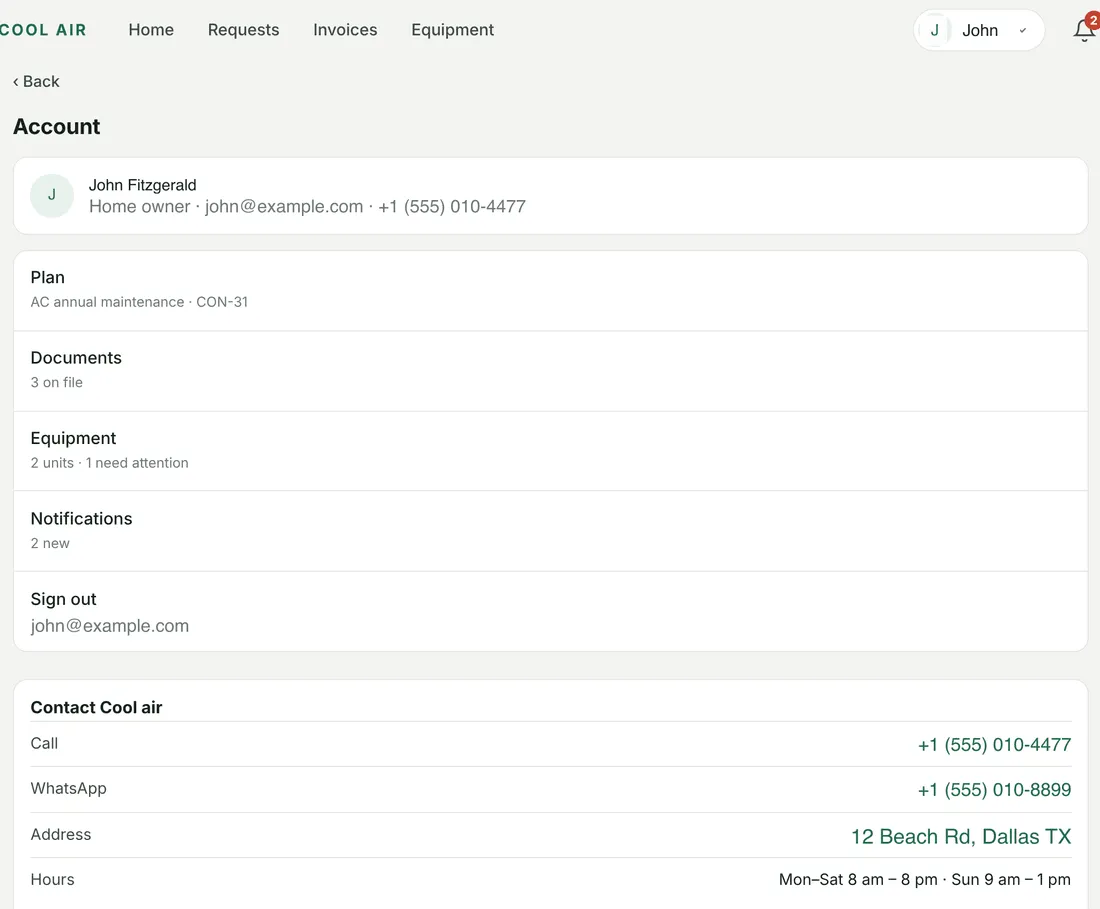
The portal → Account
The account menu holds the rest: their details, their sites, and signing out.