How do I add comments for a Request?
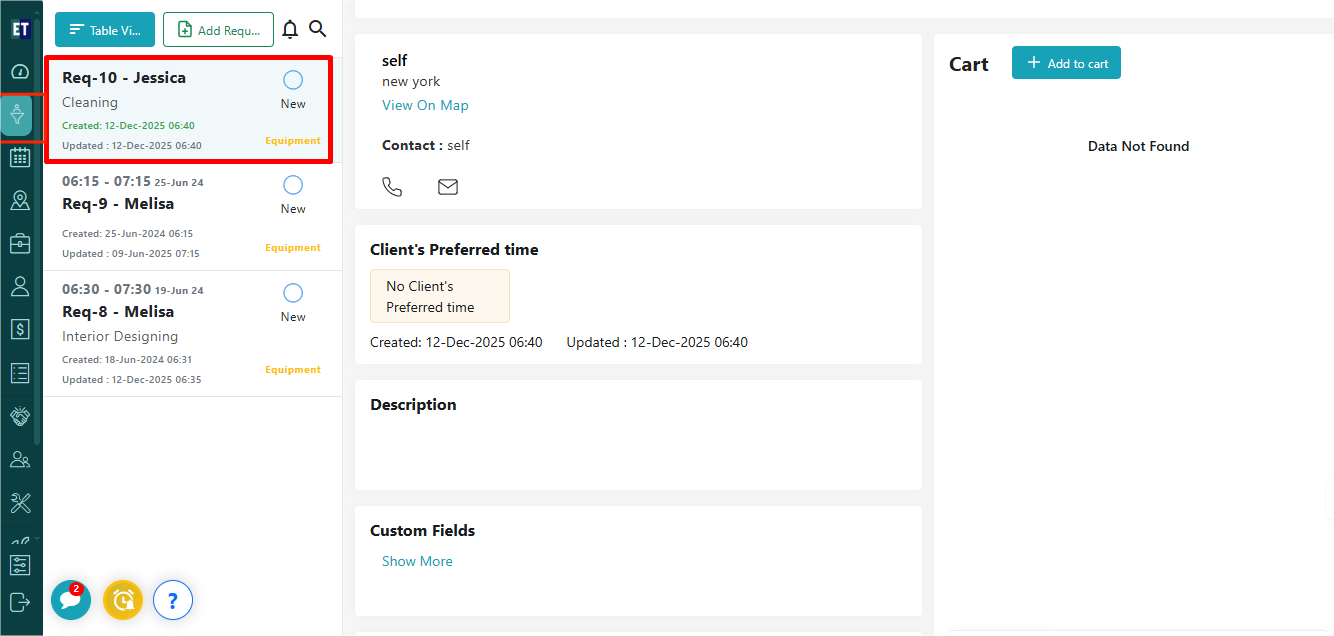
Go to the Request Icon from the main menu, select the Request in which you want to add comments.
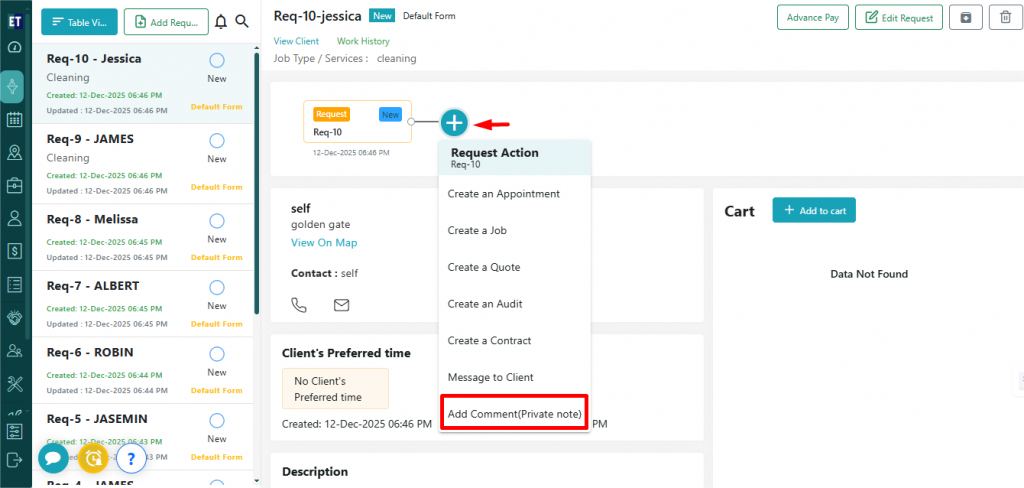
 After selecting Request, a new window will open where you will find the “+” icon available in the Timeline view. On clicking “+” sign, a dropdown list will appear, then click on Add Comment(Private note).
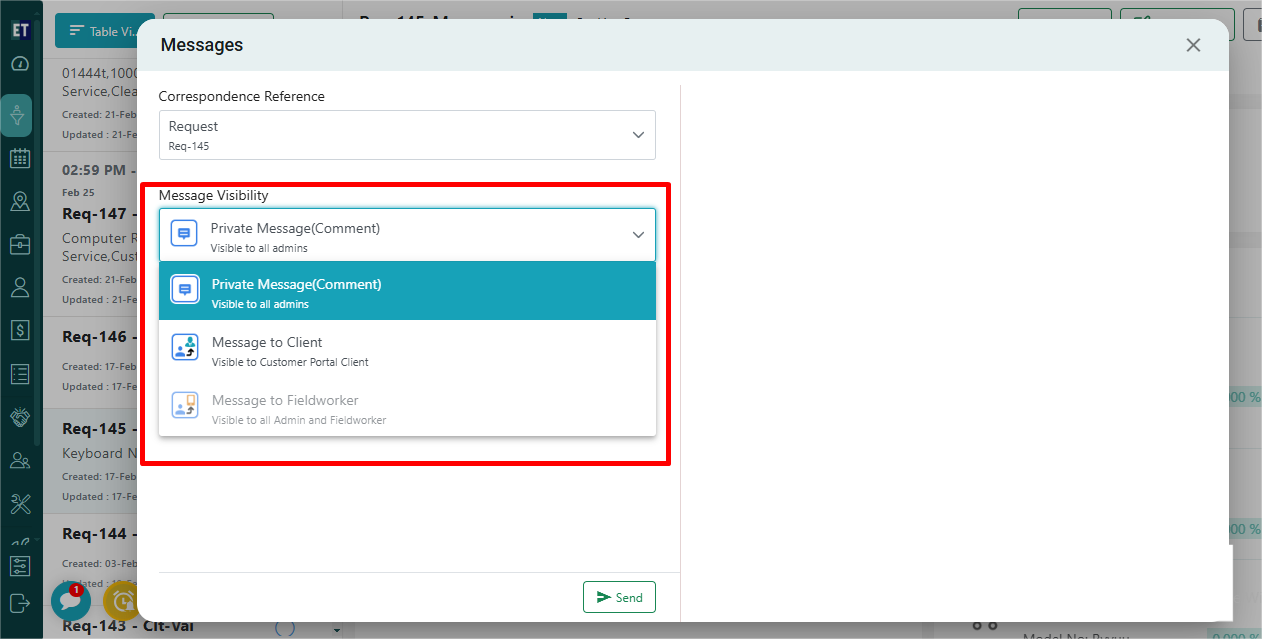
 On clicking Add Comment(Private note), a pop window will appear. In the message visibility window, you can select to whom the message/comment will be visible and you can select between two options - 1) Private Message(Comment) Visible to all admins 2) Message to Client Visible to Customer Portal Client.
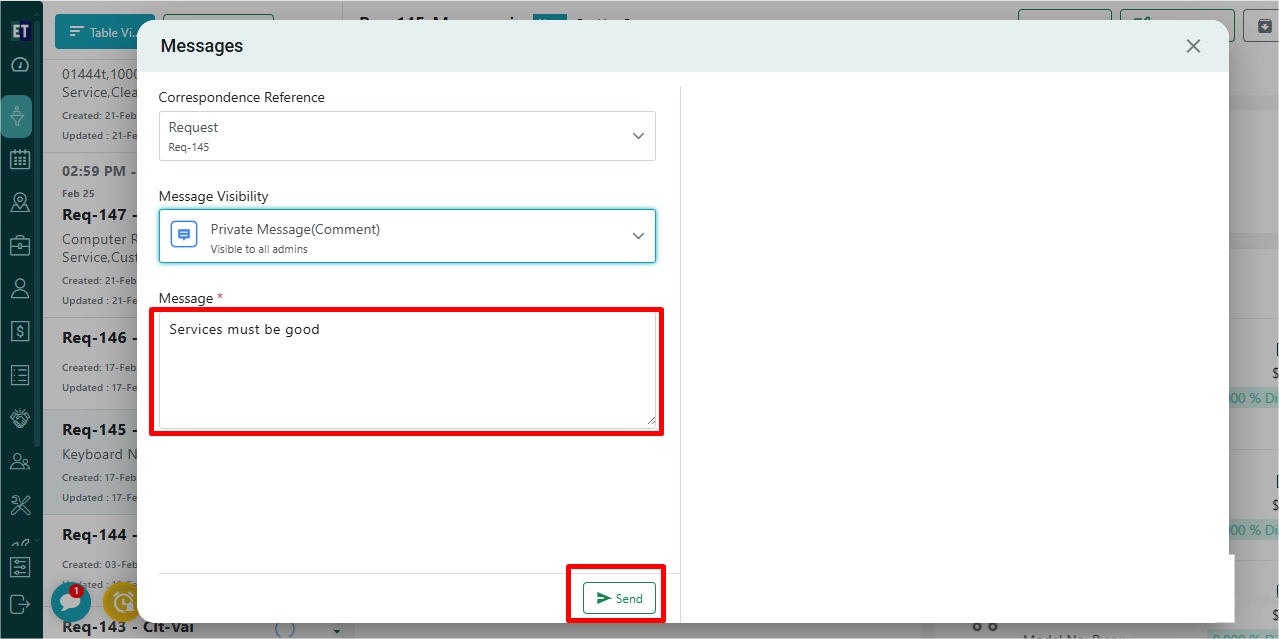
 After selecting, mention the comment in the text box and click on Send button.
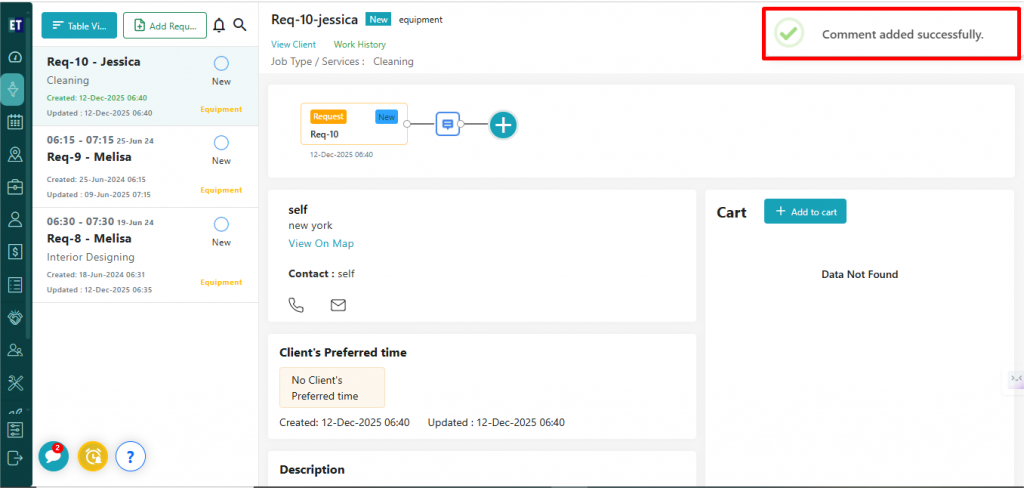
 Clicking on the Send button will show you the success notification on the right corner of the screen.
After selecting Request, a new window will open where you will find the “+” icon available in the Timeline view. On clicking “+” sign, a dropdown list will appear, then click on Add Comment(Private note).
On clicking Add Comment(Private note), a pop window will appear. In the message visibility window, you can select to whom the message/comment will be visible and you can select between two options - 1) Private Message(Comment) Visible to all admins 2) Message to Client Visible to Customer Portal Client.
After selecting, mention the comment in the text box and click on Send button.
Clicking on the Send button will show you the success notification on the right corner of the screen.