How do I manage permissions of a fieldworker?
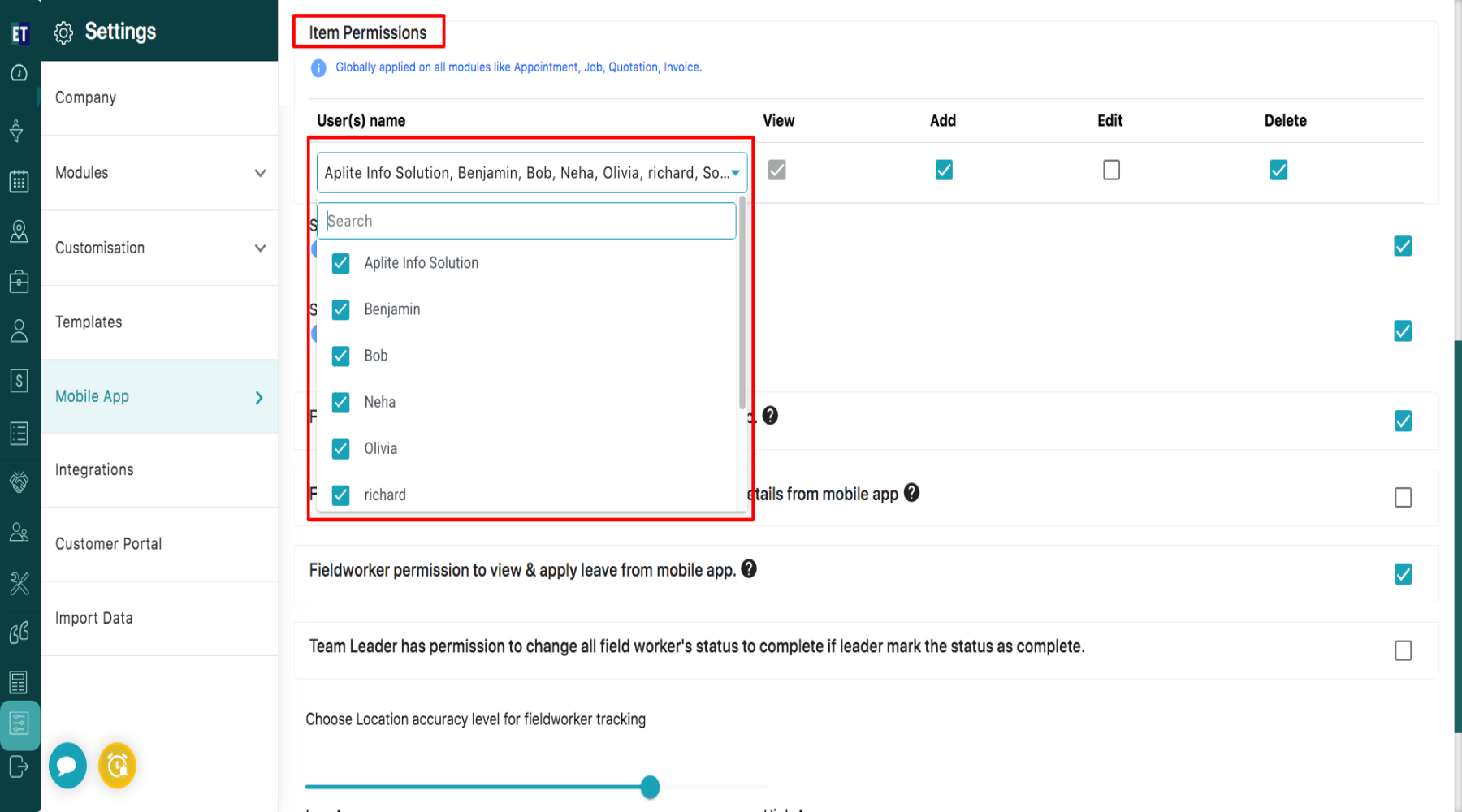
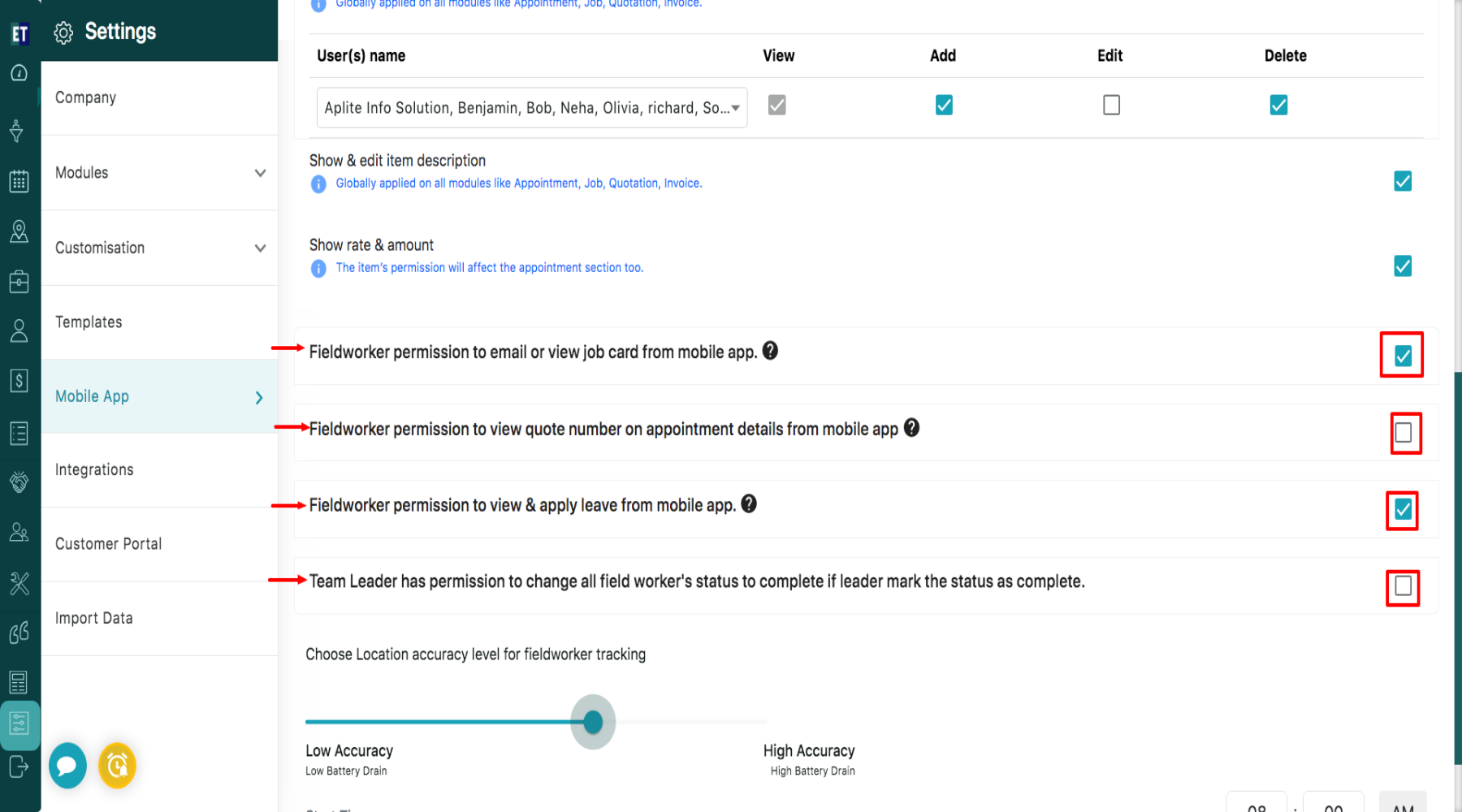
- In the Item Permission section, you can select the fieldworker from User(s) name dropdown and enable the View, Add, Edit, and Delete checkboxes to grant fieldworkers access to view, add, edit, or delete items on the mobile application for Appointments, Jobs, Quotations, and Invoices.
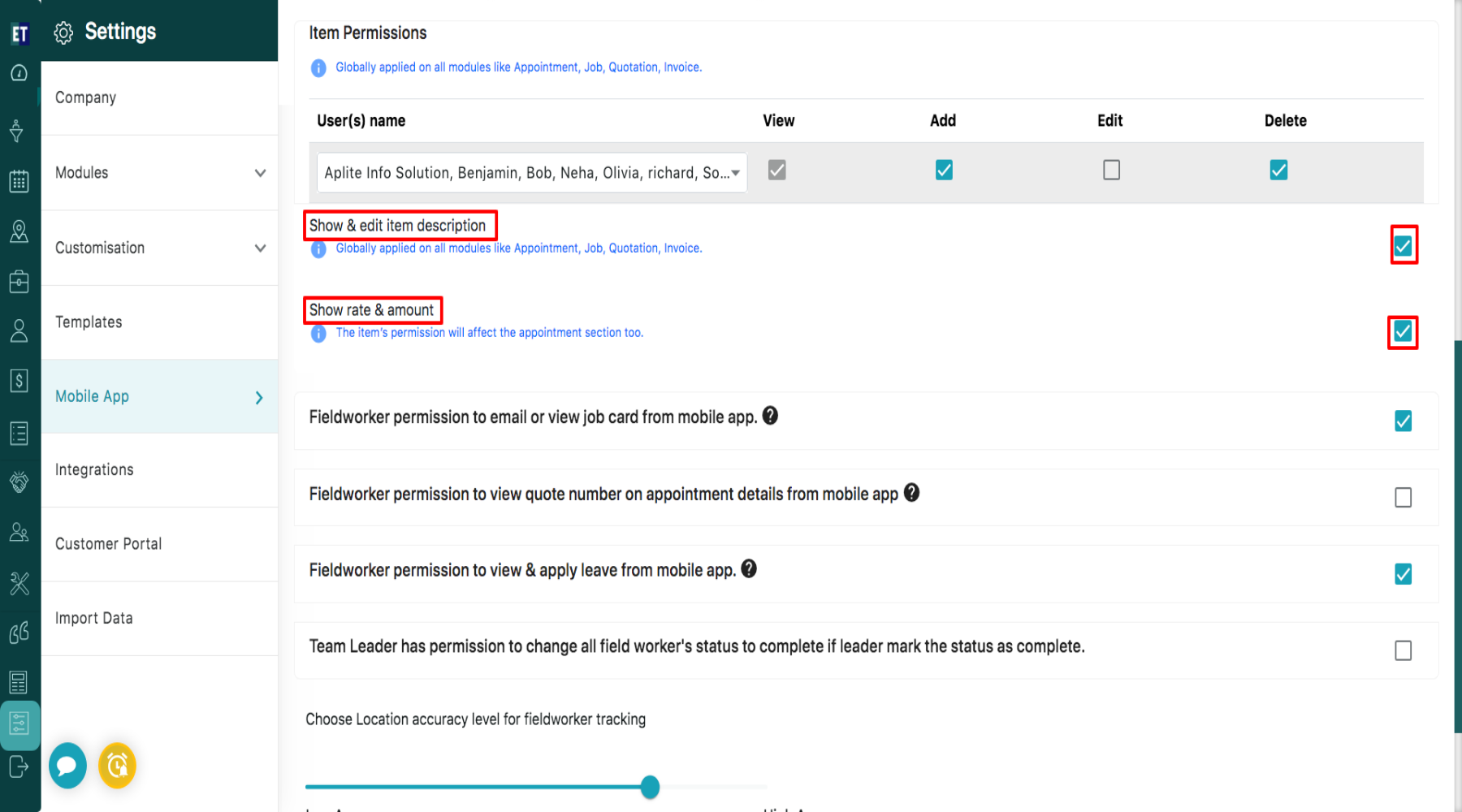
 a) Under item permission, you can enable Show & Edit Item Description to allow fieldworkers to view and edit item descriptions in the mobile application. This setting is applied globally across all modules, including Appointments, Jobs, Quotations, and Invoices.
b) You can also enable Show Rate & Amount to allow fieldworkers to view item rates and amounts in the mobile application. This permission will also apply to the Appointment section.
2. Fieldworker permission to email or view job cards from mobile apps – Enable this option Allows fieldworkers to email or view the Job Card from the mobile app.
3. Fieldworker permission to view quote number on appointment details from mobile app – Allows fieldworkers to view the quote number in appointment details.
4. Fieldworker permission to view & apply leave from mobile app – Enable this option allows fieldworkers to view and apply for leave from the mobile app.
5. Team Leader has permission to change all fieldworker’s status to complete if leader marks the status as complete – Enable this option Allows the Team Leader to mark all assigned fieldworkers’ statuses as completed when the job is completed.
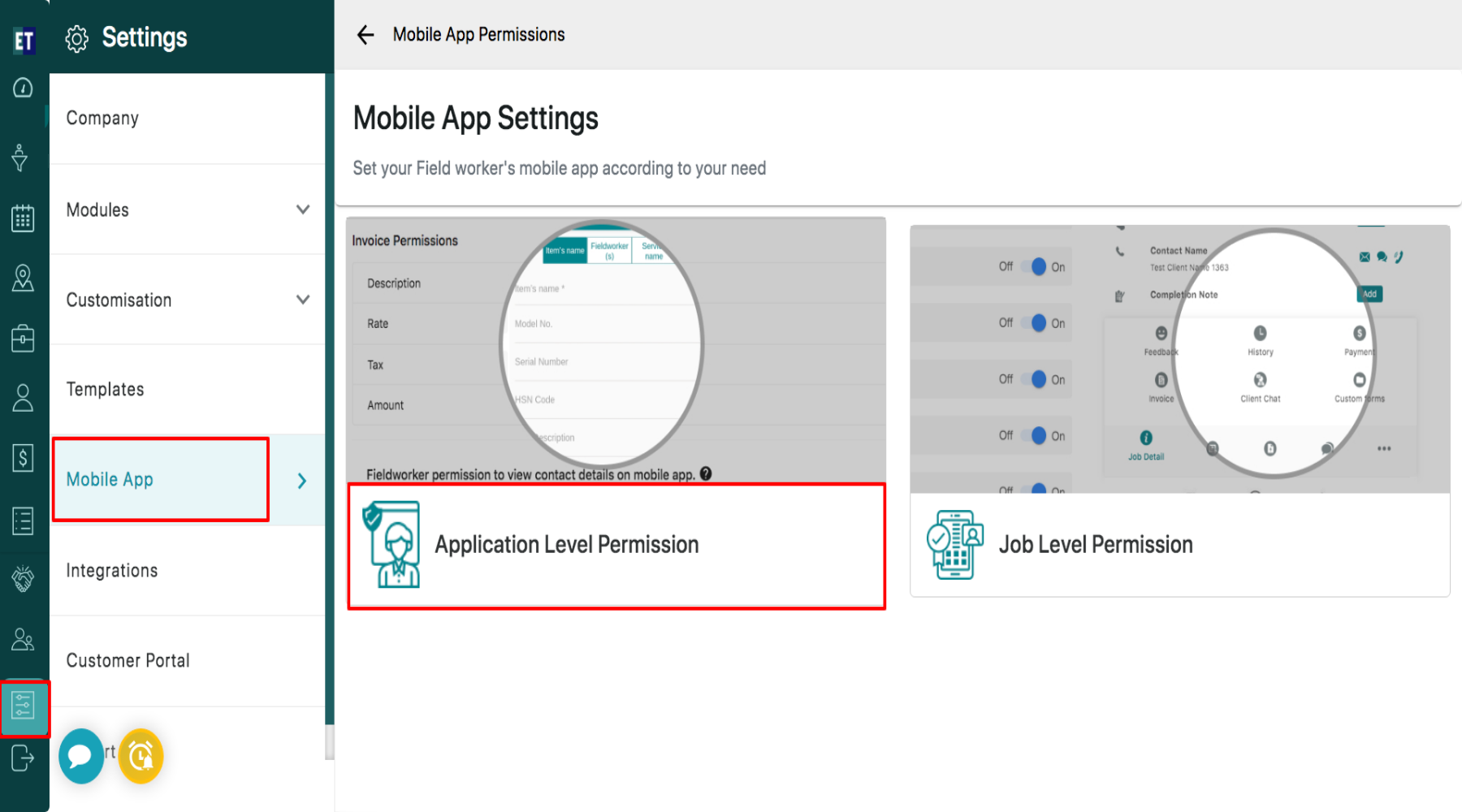
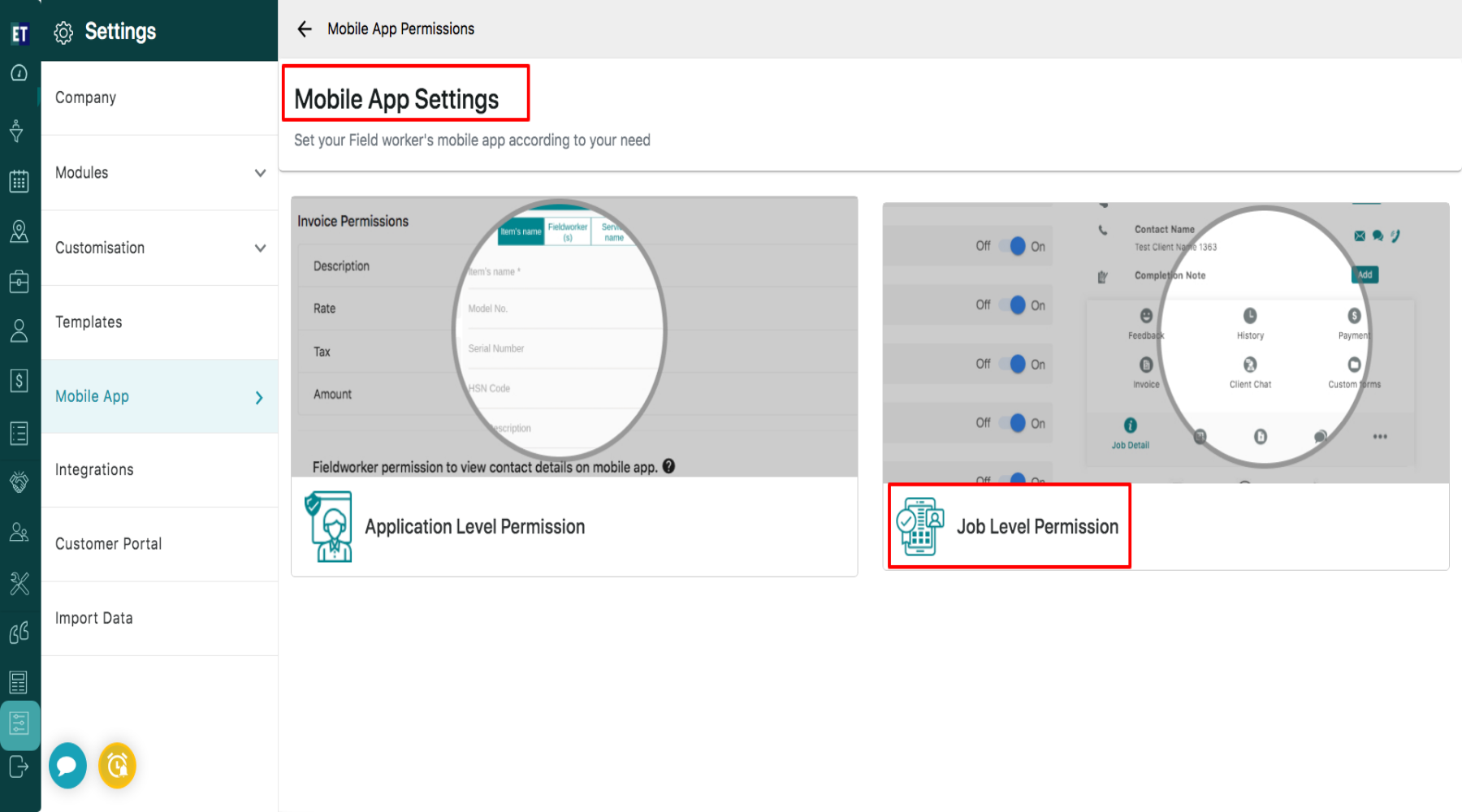
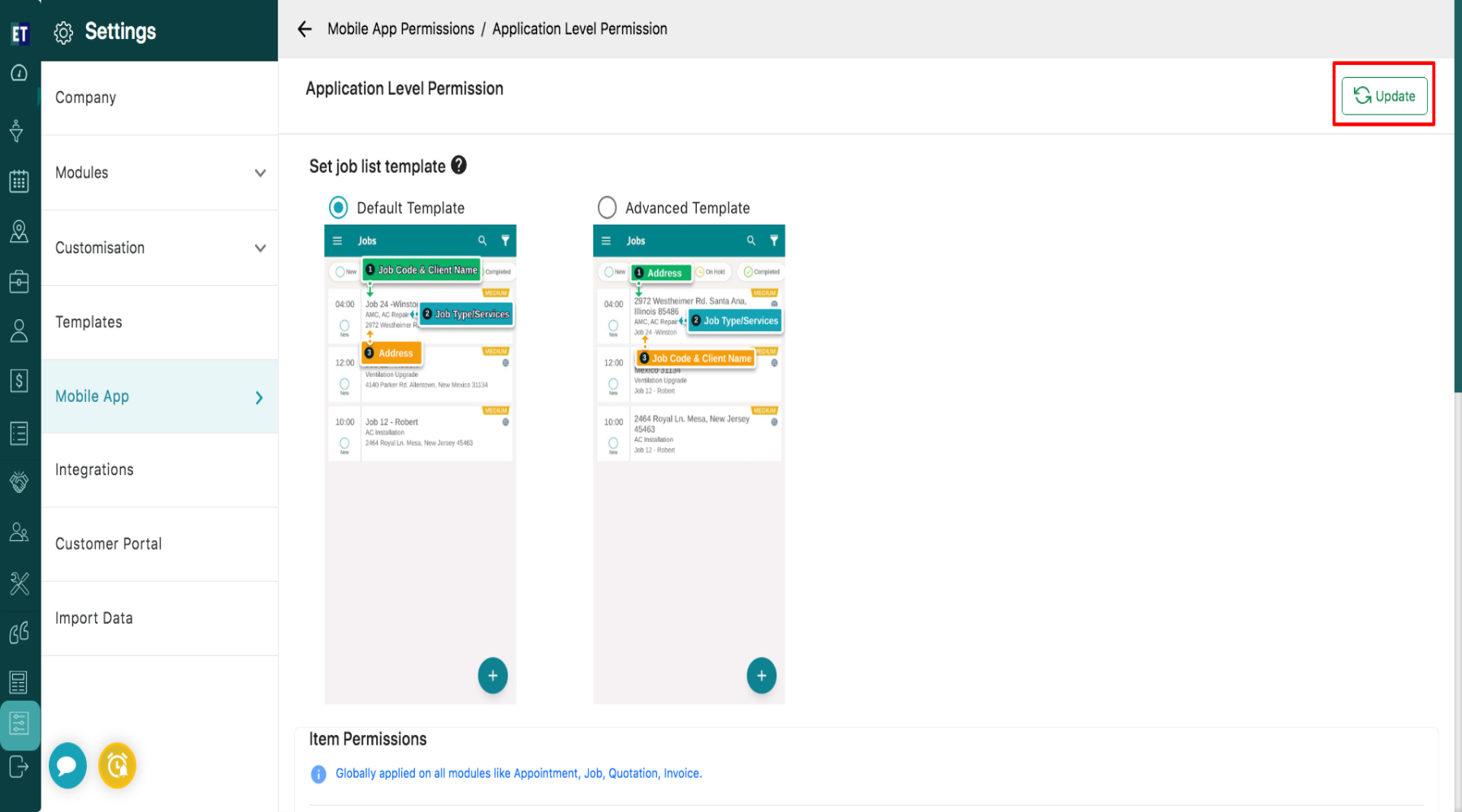 To manage job related permission, go to the Mobile App Settings window and navigate to the second option, Job Level Permission.
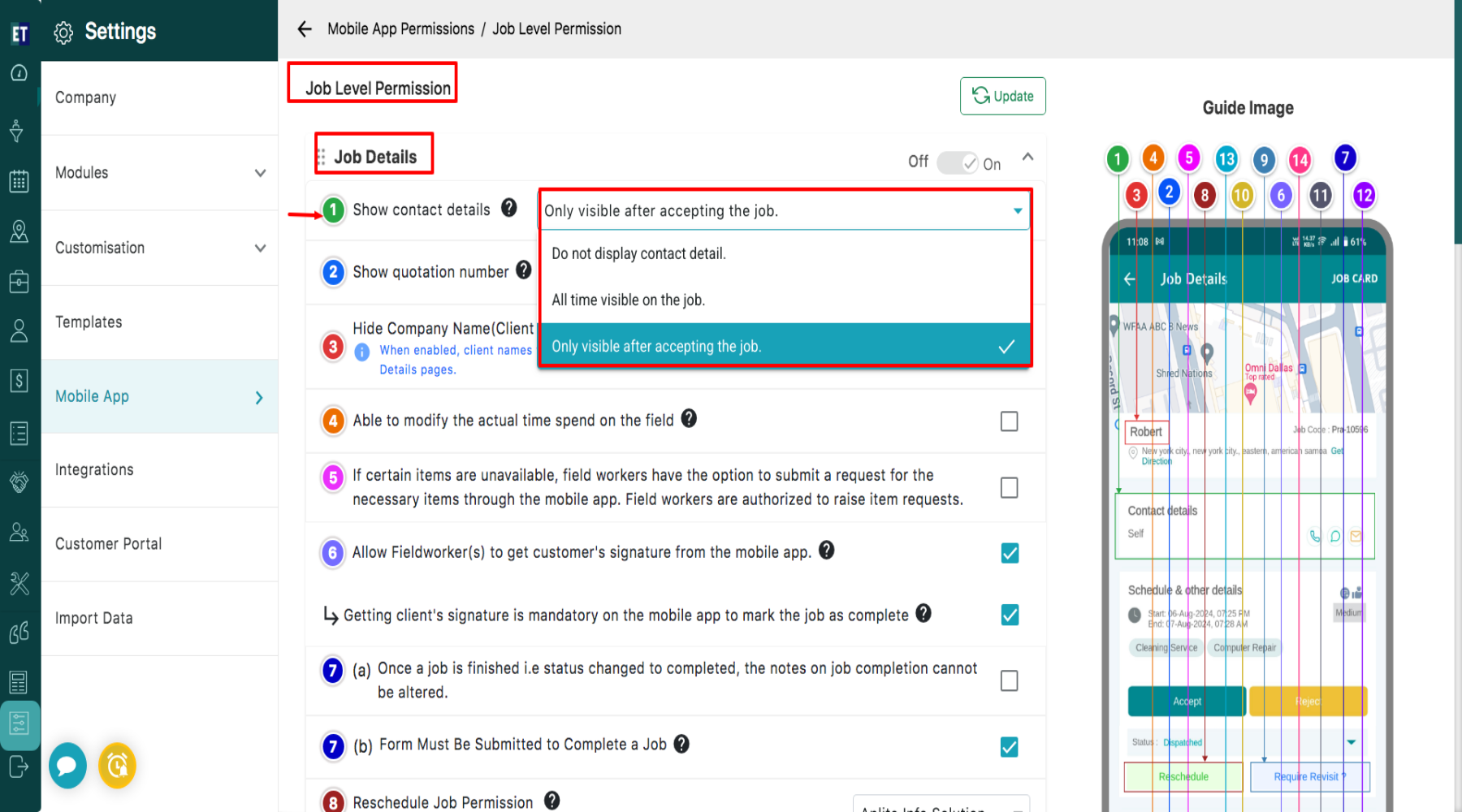
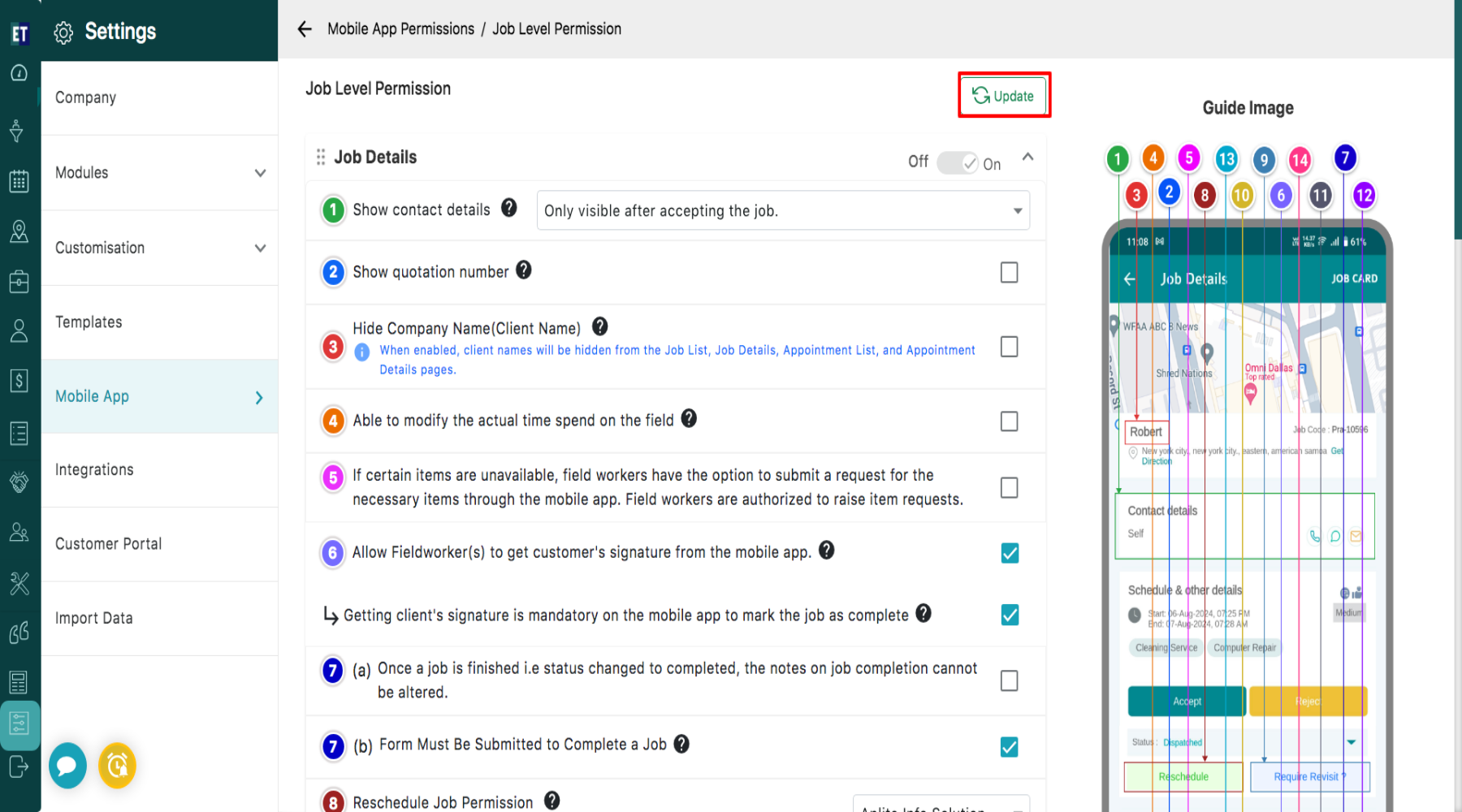
 A) In Job Level Permission, under Job Details, you can configure permissions that control fieldworkers' access to job-related information in the mobile application.
- Show Contact Details option controls when fieldworkers can view customer contact information in the mobile application. Select one of the following options:
- Do not display contact details – Fieldworkers will not be able to view customer contact information.
- All time visible on the job – Customer contact details will remain visible throughout the job.
- Only visible after accepting the job – Customer contact details will become visible only after the fieldworker accepts the job.
- Enable Show Quotation Number to allow fieldworkers to view the quotation number.
- You can hide Company Name(Client Name) by enabling Hide Company Name(Client Name). Enabling this option will let you conceal client names across the Job and Appointment List and Details pages.
- On enabling Able to modify the actual time spent on the field, fieldworkers can manually adjust the recorded time they spent at the job site.
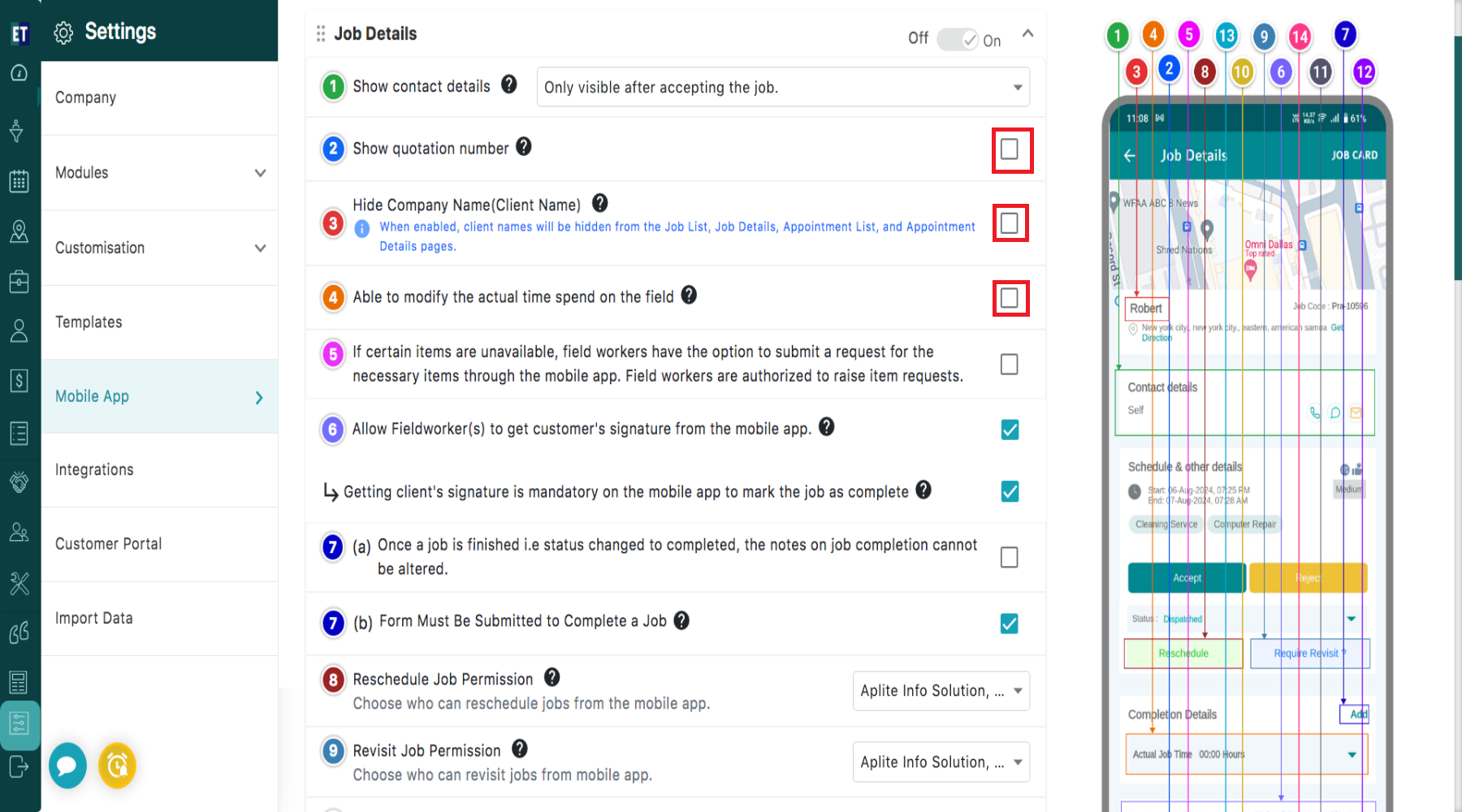
- Enabling “If certain items are unavailable, field workers have the option to submit a request for the necessary items through the mobile app. Field workers are authorized to raise item requests”, fieldworker can generate item requests using the mobile app.
- Enable Allow Fieldworker(s) to get customer’s signature from the mobile app to allow fieldworkers to collect customer signatures through the fieldworker’s mobile application.
- Enable “Getting client’s signature is mandatory on the mobile app to mark the job as complete” if collecting the client’s signature is required before marking the job as completed.
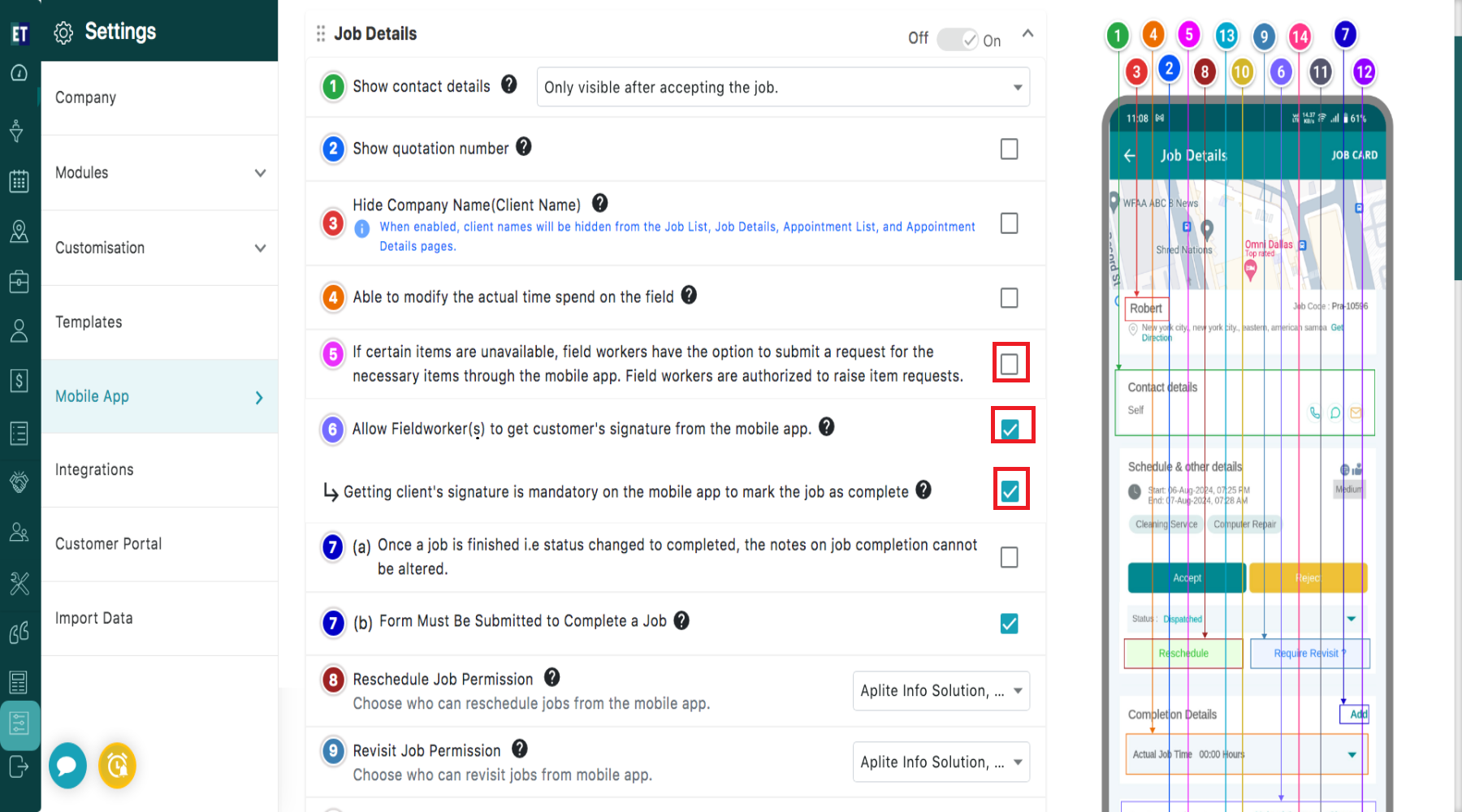
- Enable “Getting client’s signature is mandatory on the mobile app to mark the job as complete” if collecting the client’s signature is required before marking the job as completed.
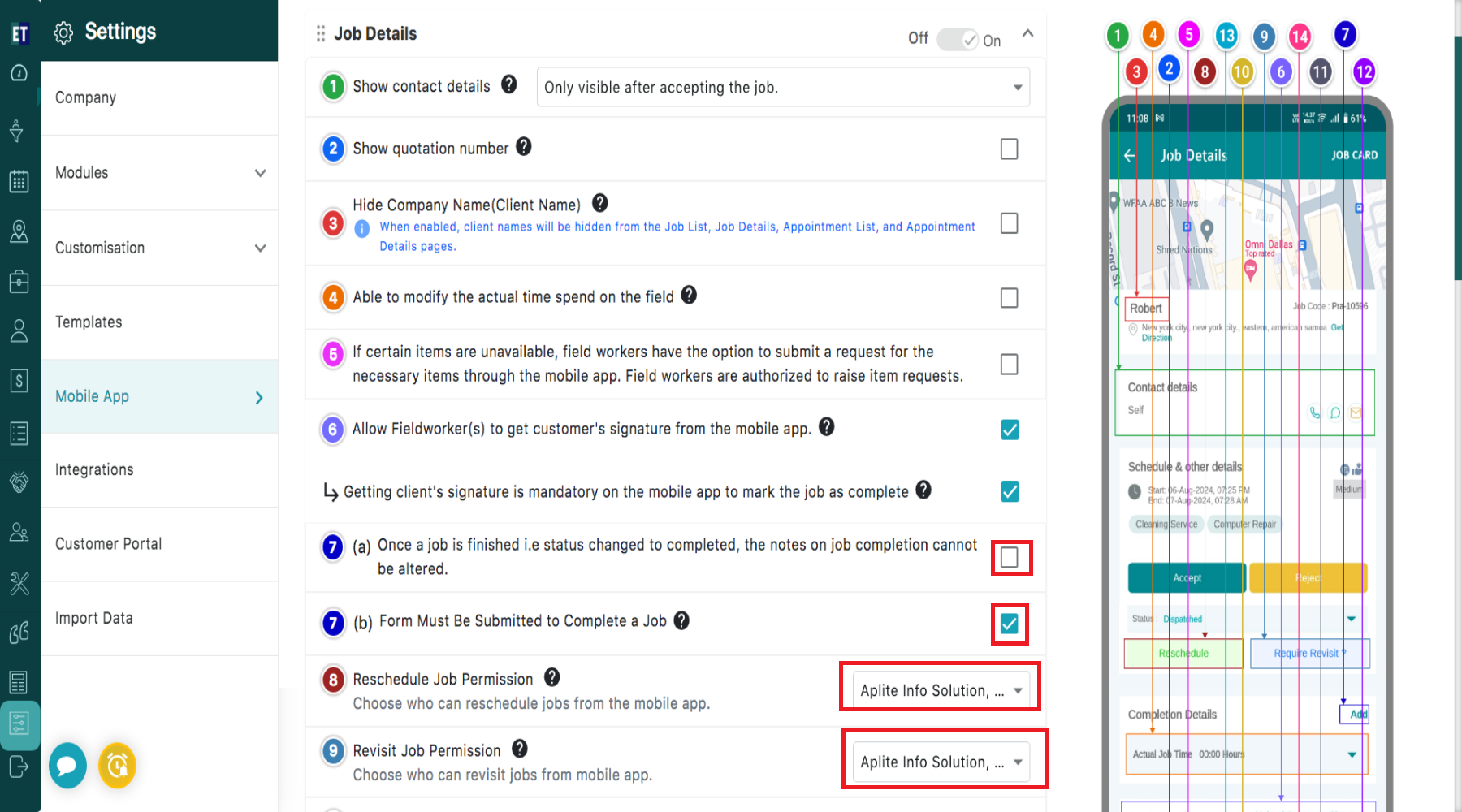
- a) Enable “Once a job is finished (status changed to Completed), the Job Completion Notes cannot be altered” to prevent Fieldworkers from editing completion notes after job completion. b) If form submission is required to complete the job you can enable the checkbox “Form Must Be Submitted to Complete a Job”.
- You can select the user/fieldworker from the dropdown available with “Reschedule Job Permission” to allow them to reschedule jobs from the Fieldworker mobile app.
- Similarly, select the user/fieldworker from the “Revisit Job Permission” dropdown to allow them to revisit jobs.
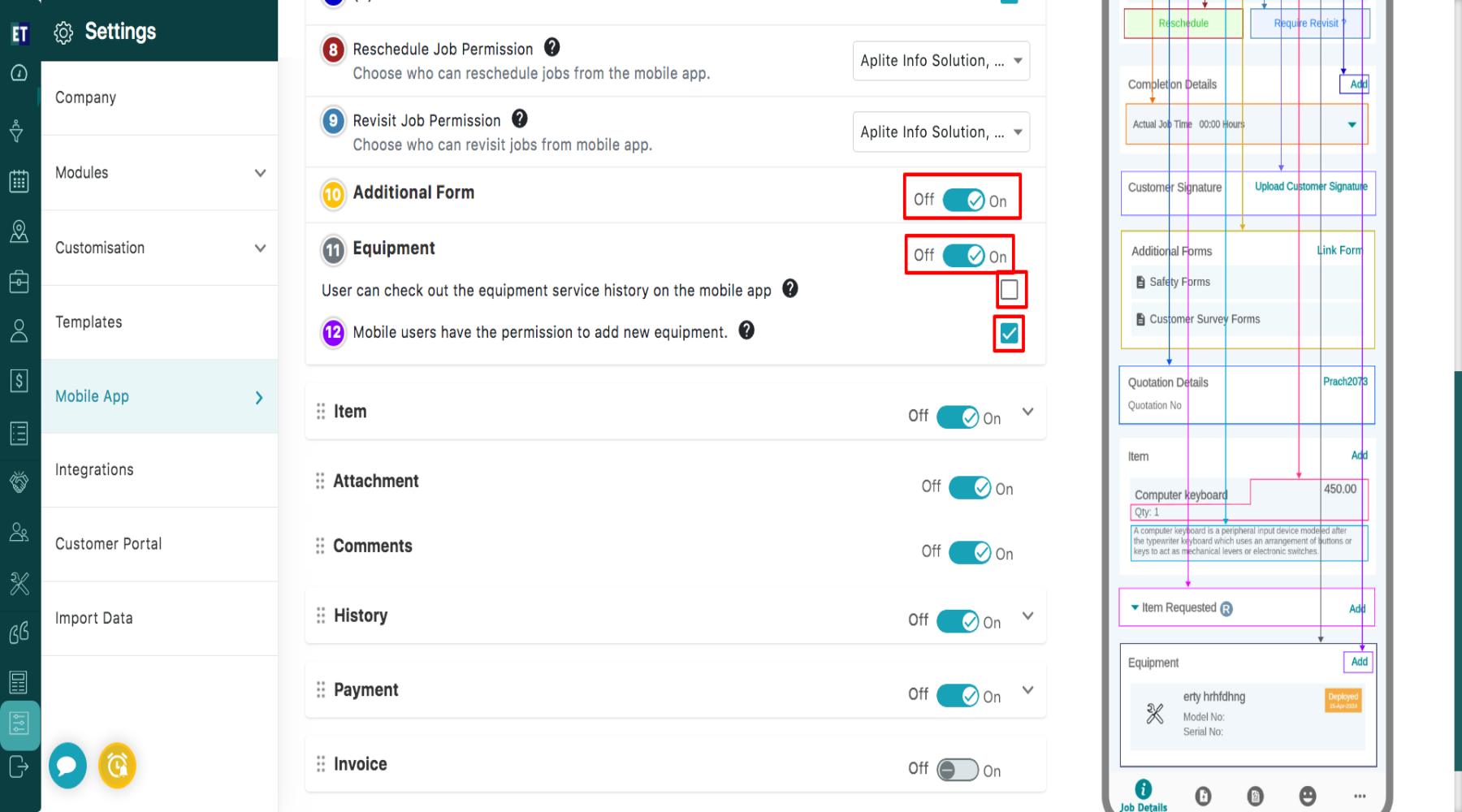
- Turning on the toggle button available with “Additional Form” will let the fieldworker access Additional Form.
- By Turning on Equipment permission, Users can check out the equipment service history on the mobile app.
- Also, Users can add new equipment by enabling the checkbox “Mobile users have the permission to add new equipment”.
- Enable Show & Edit Item Description to allow viewing and editing item descriptions across all modules.
- Enable Show Rate & Amount to allow viewing item rates and amounts, including in Appointments.
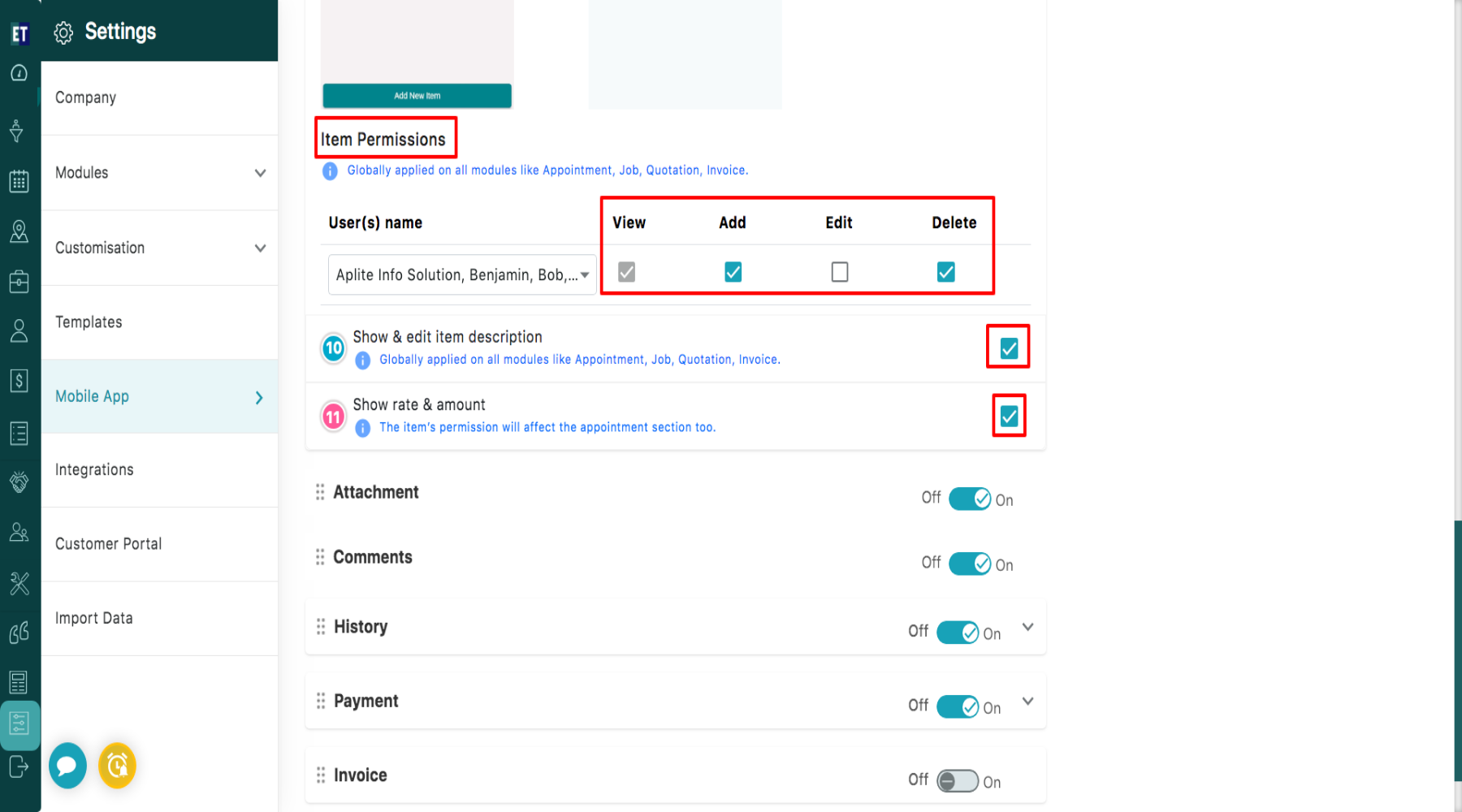
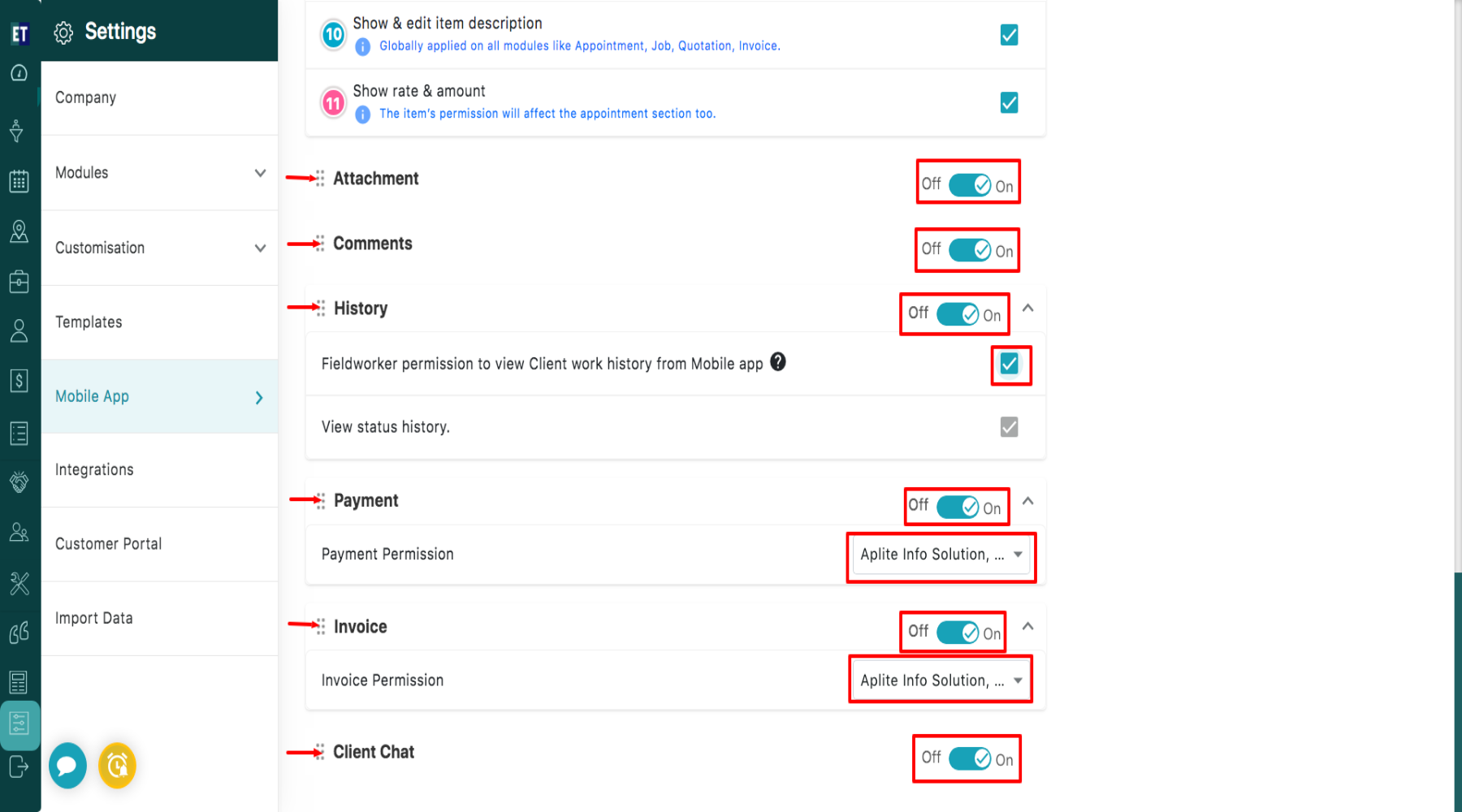
- C) By enabling Attachment permission, users can upload attachments through the mobile app.
- D) Enabling Comments allows Fieldworkers to add comments to jobs.
- E) Turning on History gives Fieldworkers access to view the client’s work history in the mobile app.
- F) Select Fieldworkers from the Payment dropdown and enable the Payment permission to allow them to receive payments.
- G) Similarly, select Fieldworkers from the Invoice dropdown and enable the toggle to allow them to generate and view invoices.
- H) When Client Chat permission is enabled, Fieldworkers can communicate with clients through chat.
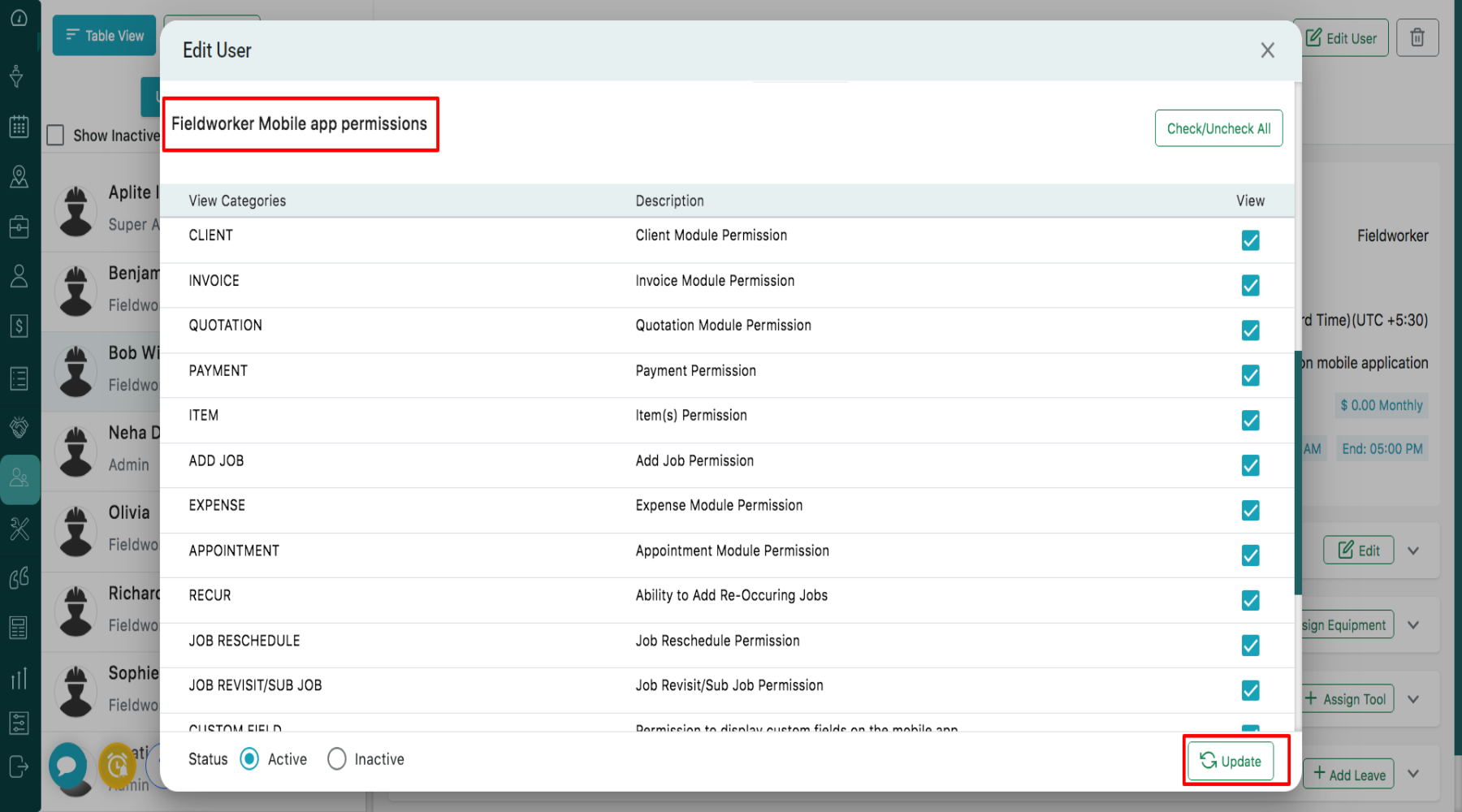
 Alternatively, you can manage permissions through the User menu. Open the hamburger menu, select User.
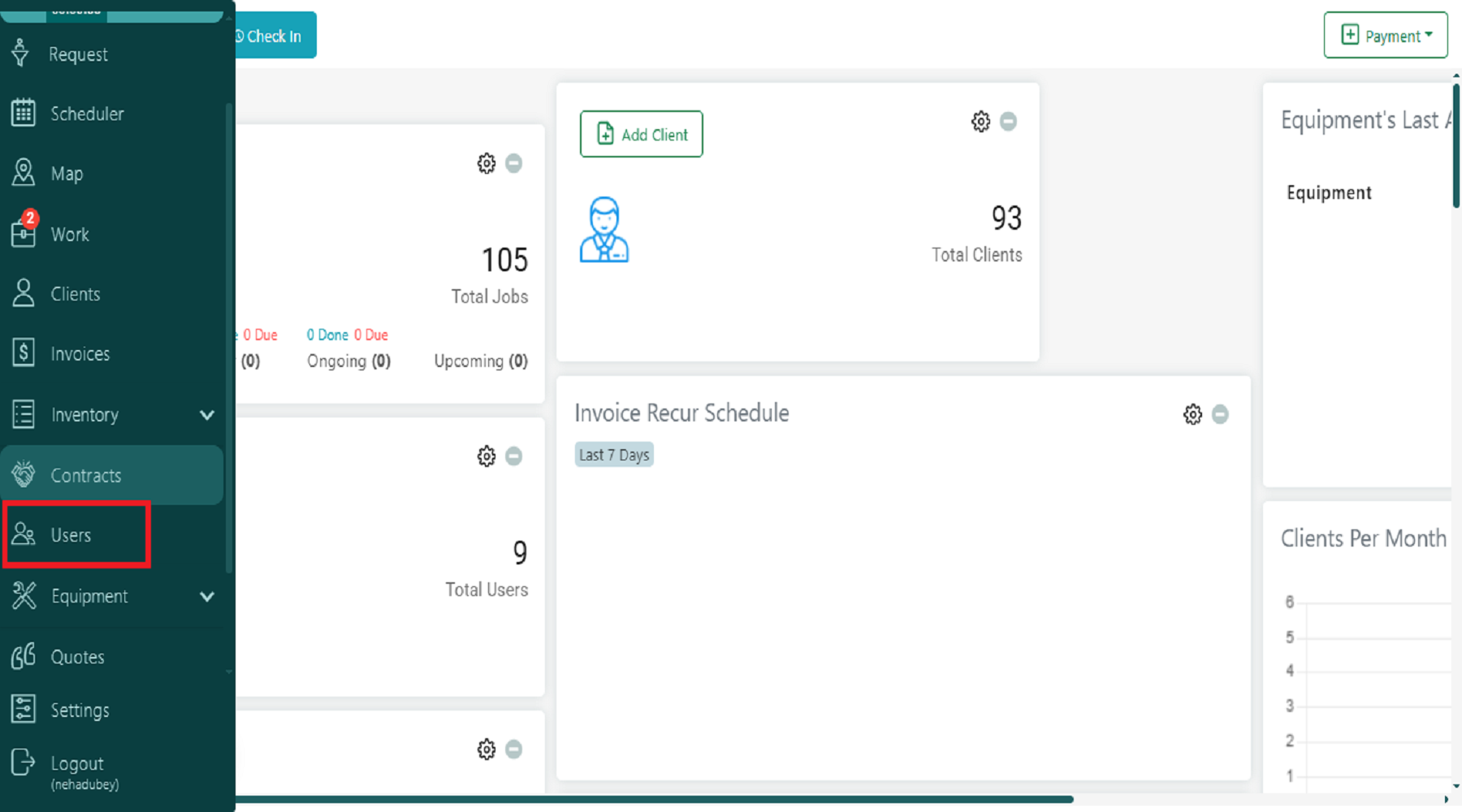 Choose the required user, and then click Edit User from the top-right corner to update their permissions.
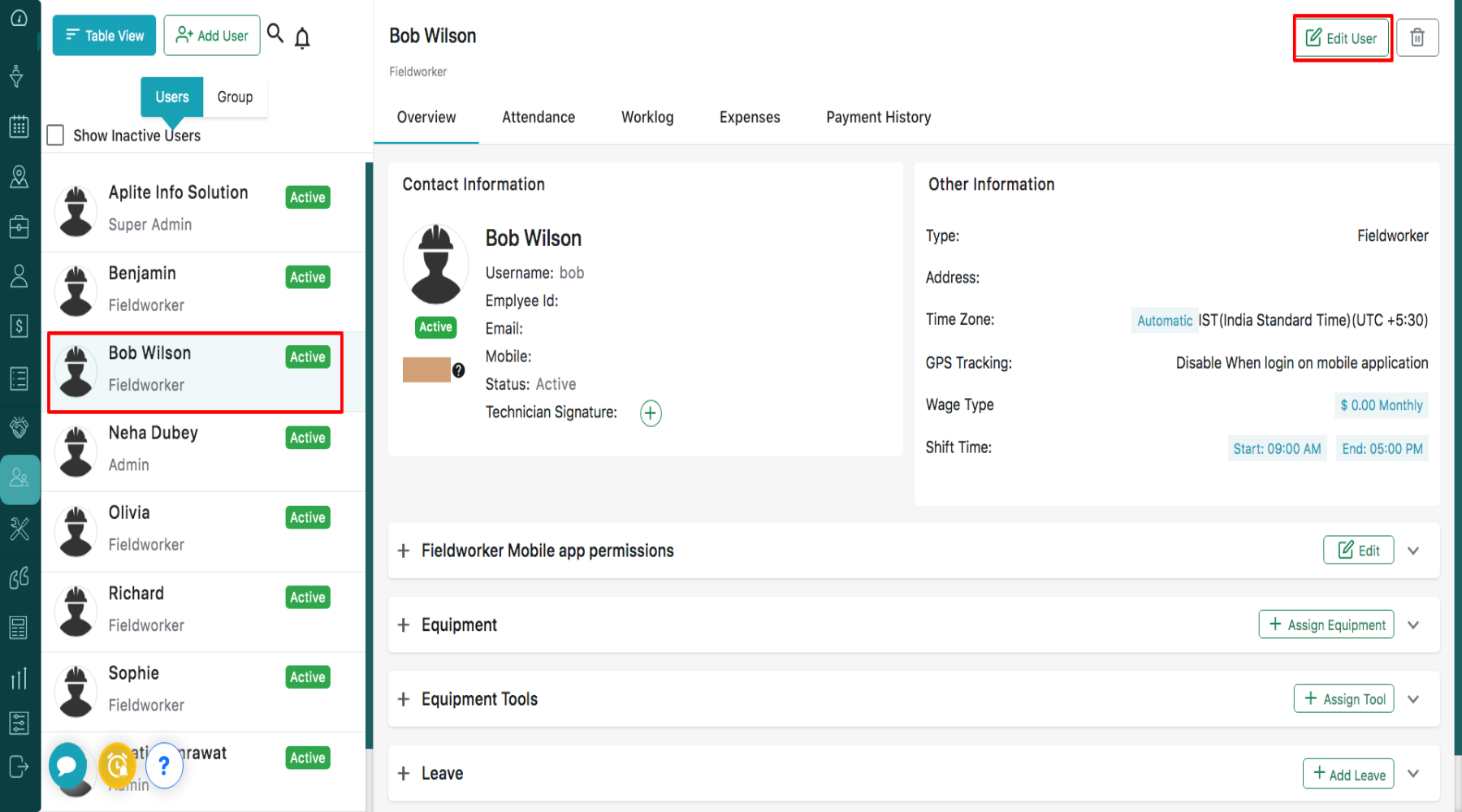 Clicking Edit User will open the Edit User pop-up. Then navigate to the Fieldworker Mobile App Permissions section, where you can manage the available permissions by selecting the required checkboxes. After assigning the required permissions, click on the Update button to save the changes successfully.