How do I manage the company profile under Company settings?
Go to the main menu and you will see the Settings option.Select it.
After selecting the Settings option Select Company here, you will find Seven options to set Company Profile, Change Password, company tax setting, Custom language setting and many more.
Go to the first option.
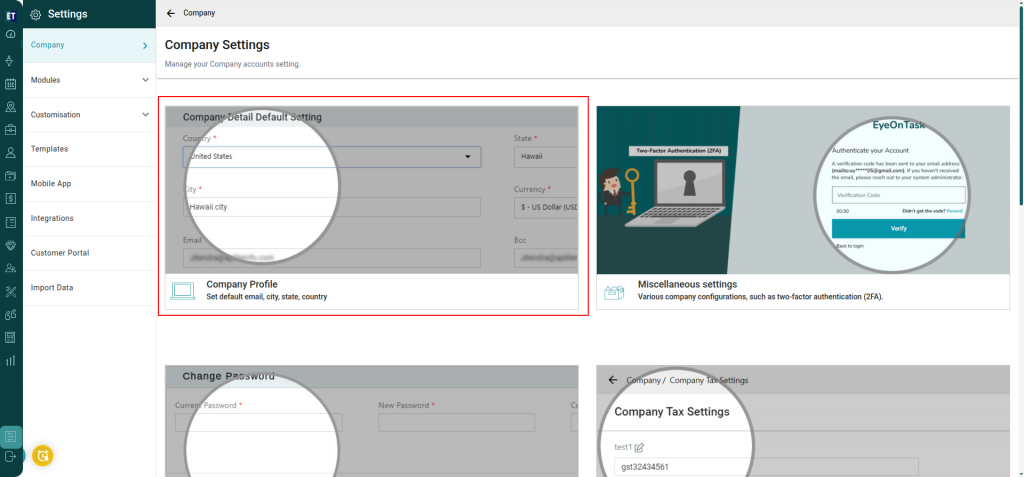 Selecting this option will open the Company settings on the screen to manage your company account.
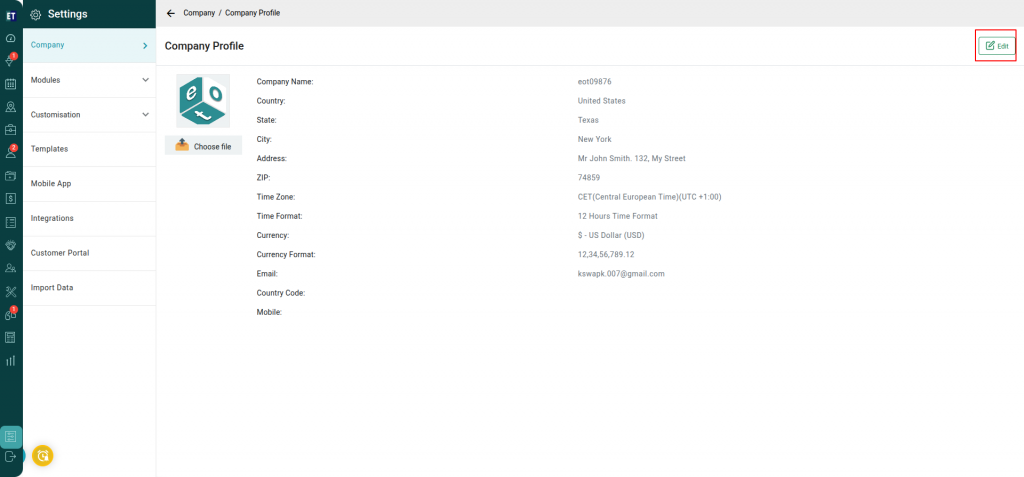
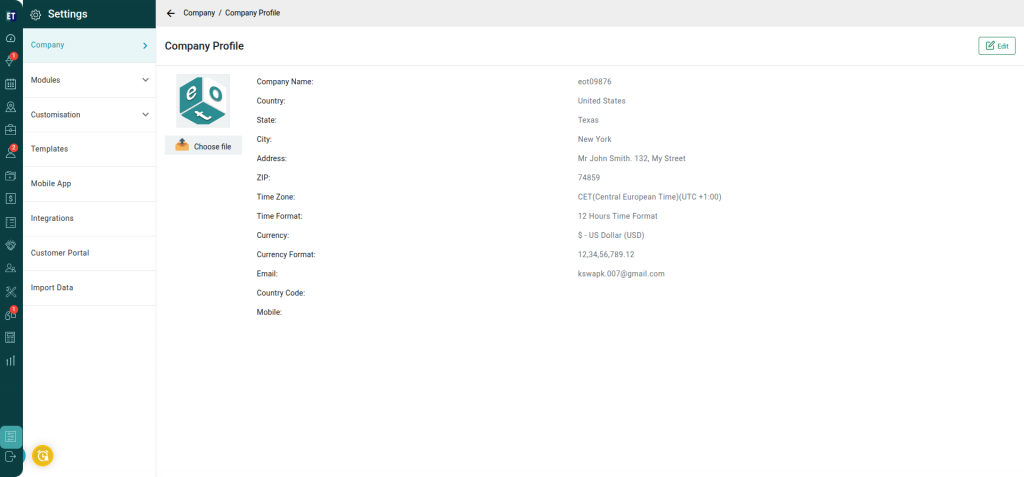 You can set the default Company Name, Country, State, City, Address, Zip, Time Zone, Time Format, Currency, Currency Format, Email, Country Code and Mobile for a Company on this page by clicking on the Edit button.
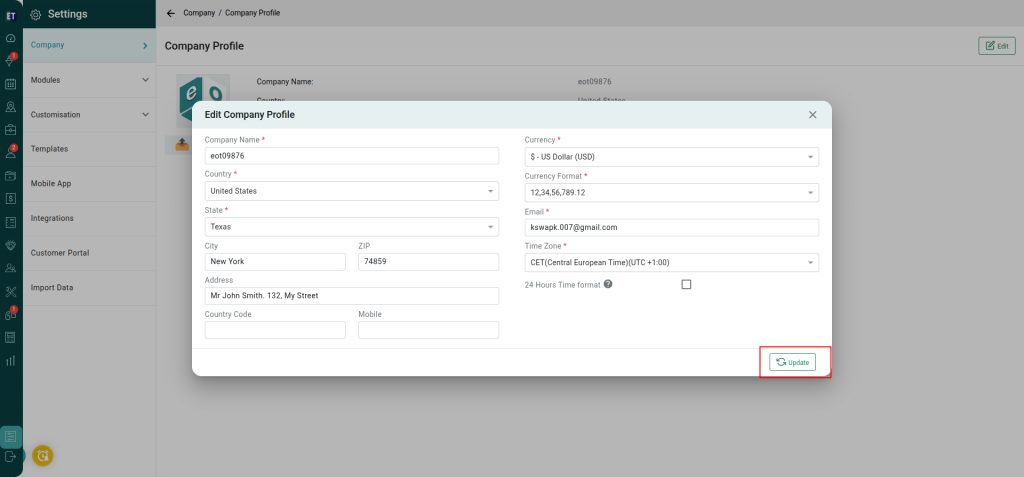
 Clicking on Edit button will open pop up window with auto filled fields. Here, You can edit the details easily.
NOTE: You must fill all the mandatory fields having asterisk sign.
After editing all the details, Click on the Update button to see the changes.
Clicking on Edit button will open pop up window with auto filled fields. Here, You can edit the details easily.
NOTE: You must fill all the mandatory fields having asterisk sign.
After editing all the details, Click on the Update button to see the changes.
 Now, you can view all the details—Country, State, City, Address, ZIP Code, Time Zone, Time Format, Currency, Currency Format, Email, Country Code, and Mobile Number are updated as per the changes made.
You can also set the logo or change it through the button "Choose file" on the left
Now, you can view all the details—Country, State, City, Address, ZIP Code, Time Zone, Time Format, Currency, Currency Format, Email, Country Code, and Mobile Number are updated as per the changes made.
You can also set the logo or change it through the button "Choose file" on the left
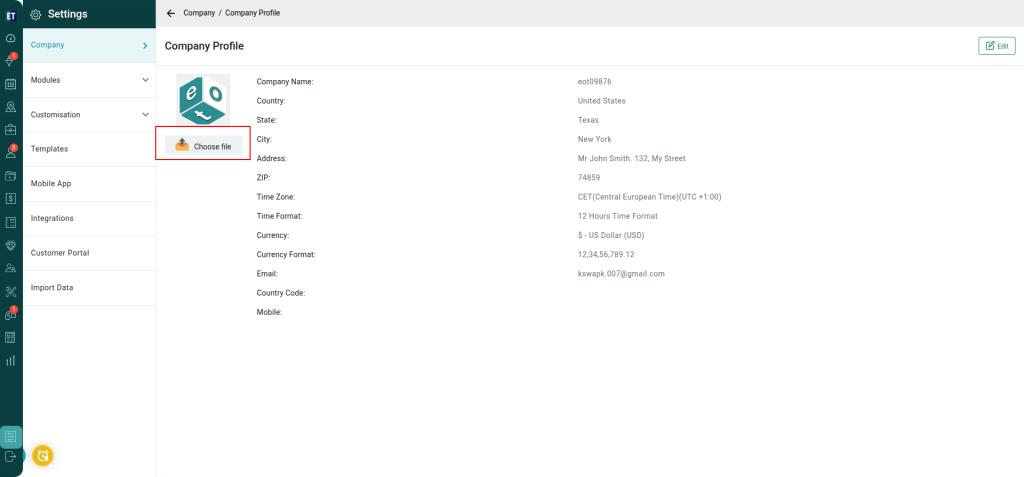 After clicking Choose File, select an image for your company logo and then click Upload File. Once uploaded, the selected image will be set as your company logo.
Selecting this option will open the Company settings on the screen to manage your company account.
You can set the default Company Name, Country, State, City, Address, Zip, Time Zone, Time Format, Currency, Currency Format, Email, Country Code and Mobile for a Company on this page by clicking on the Edit button.
Clicking on Edit button will open pop up window with auto filled fields. Here, You can edit the details easily.
NOTE: You must fill all the mandatory fields having asterisk sign.
After editing all the details, Click on the Update button to see the changes.
Now, you can view all the details—Country, State, City, Address, ZIP Code, Time Zone, Time Format, Currency, Currency Format, Email, Country Code, and Mobile Number are updated as per the changes made.
You can also set the logo or change it through the button "Choose file" on the left
After clicking Choose File, select an image for your company logo and then click Upload File. Once uploaded, the selected image will be set as your company logo.