How to create and set request forms?
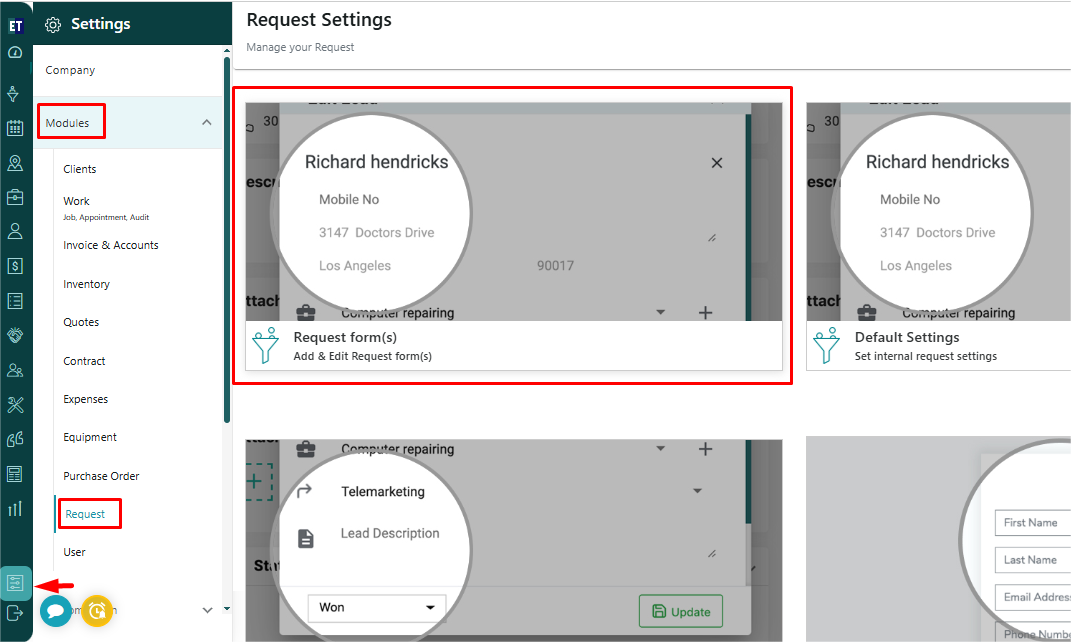
Go to the main menu and you will see the Settings option. Select it. After selecting the Settings option Select Modules and then select Request.
Here, you will find three options to set different Request related settings.
Go to the First option- “Request Form(s)”.
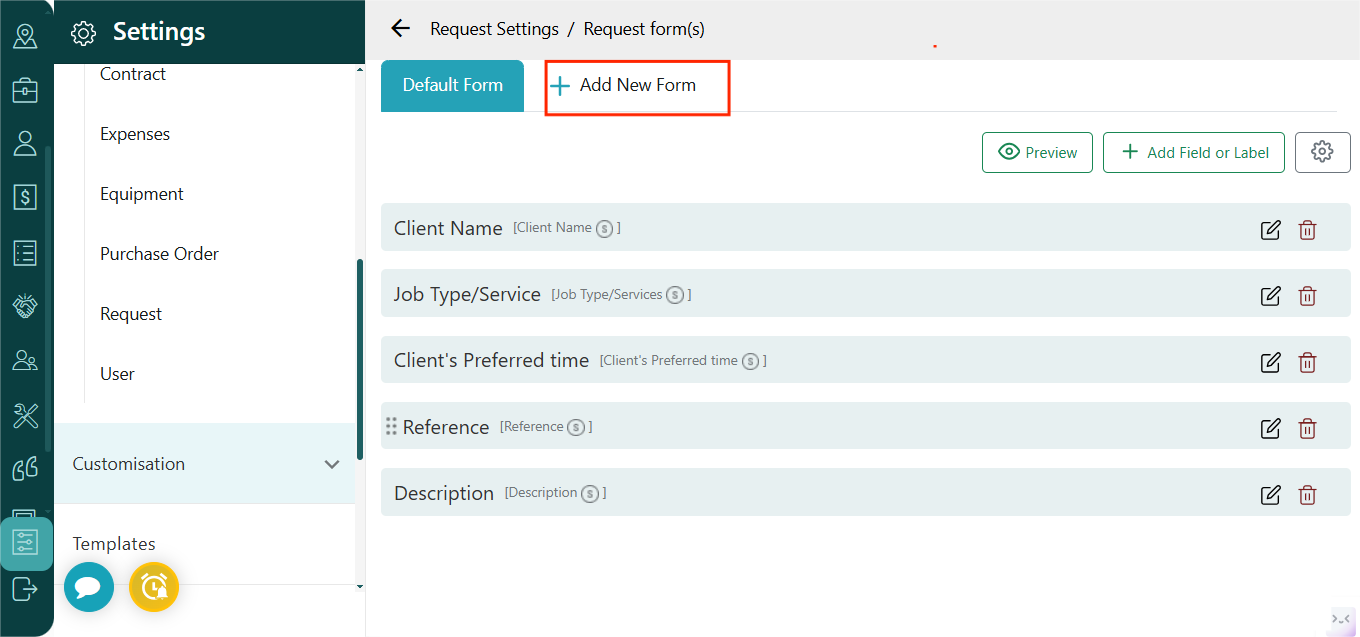
 Then in the next window, click on Add New Form.
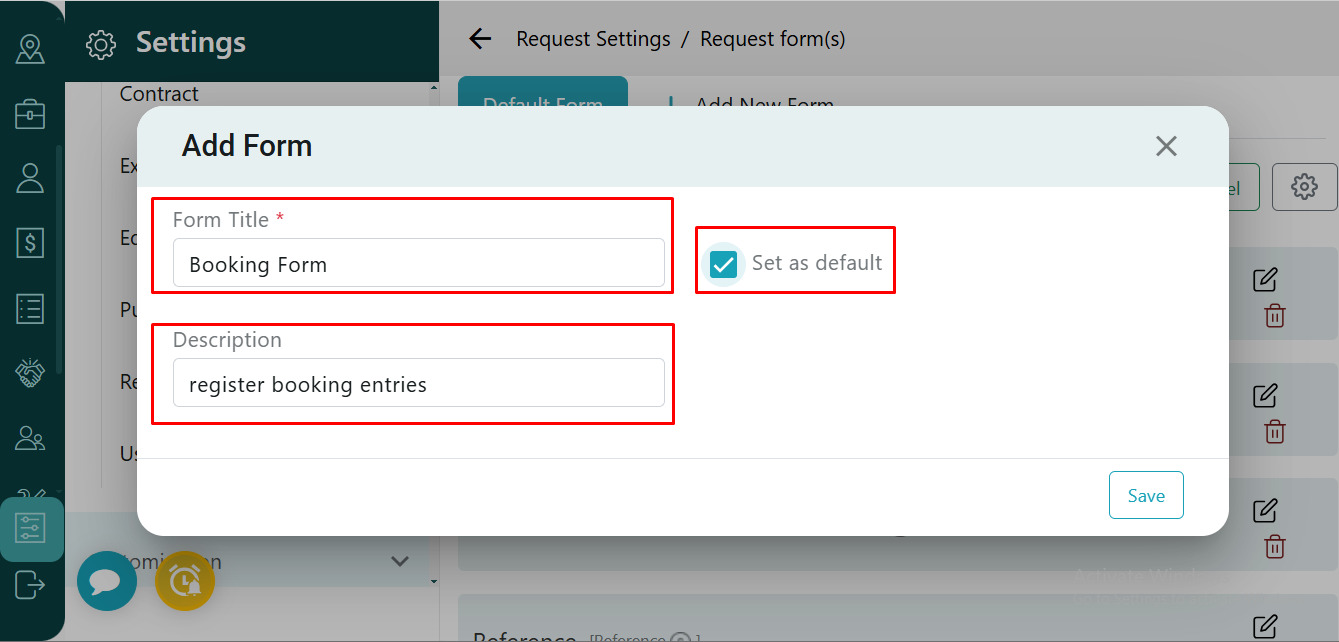
 After clicking on Add New Form a pop up window will appear, where you can give title to the form and description about the form. If you want to make this form the default one, select the Set as Default checkbox.
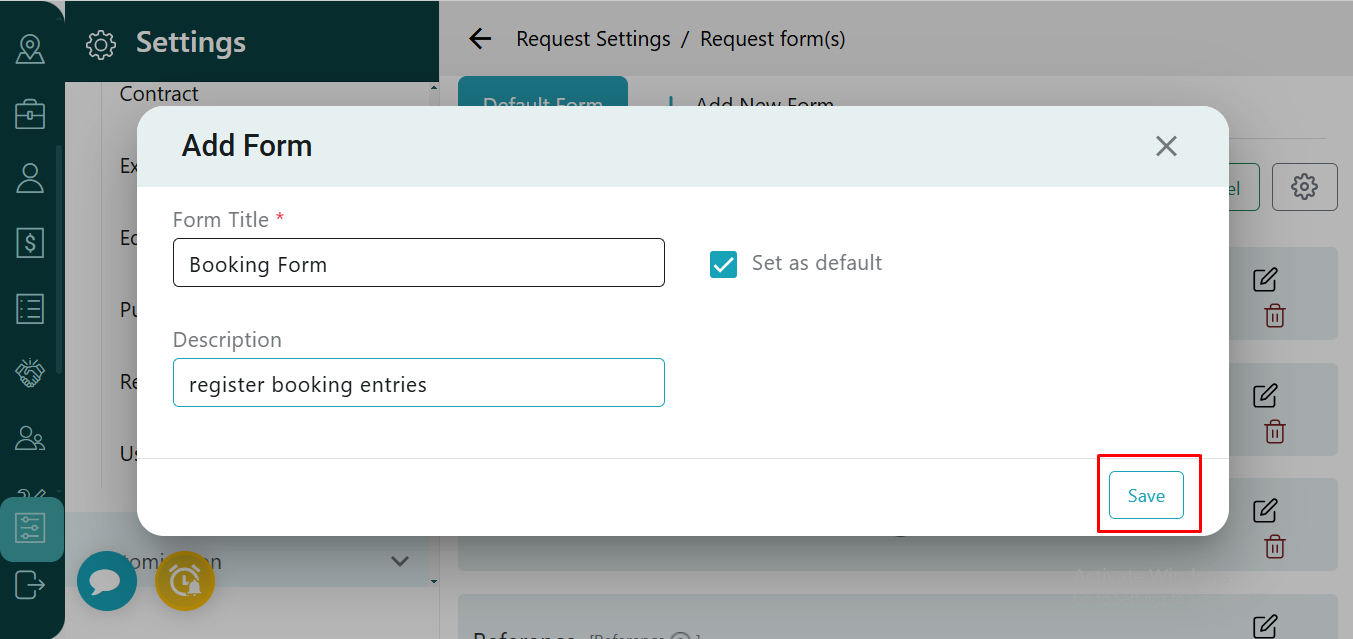
 After entering all the necessary information, click on the Save button to create the form.
 After you create the form, you can add fields or labels in the form by clicking on Add Fields or Label.
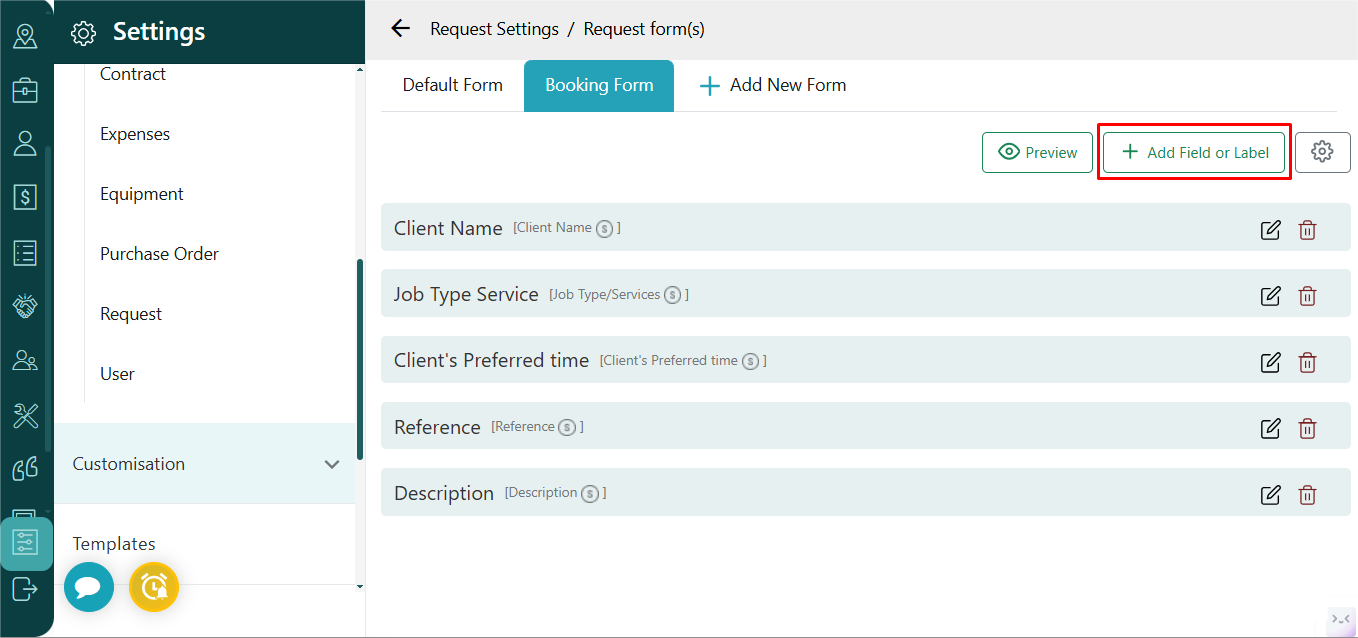 Click on Add Fields or Label to include additional elements.When you click on this option, a pop-up window will appear containing two sections — System Defined Fields and Organization Custom Fields.
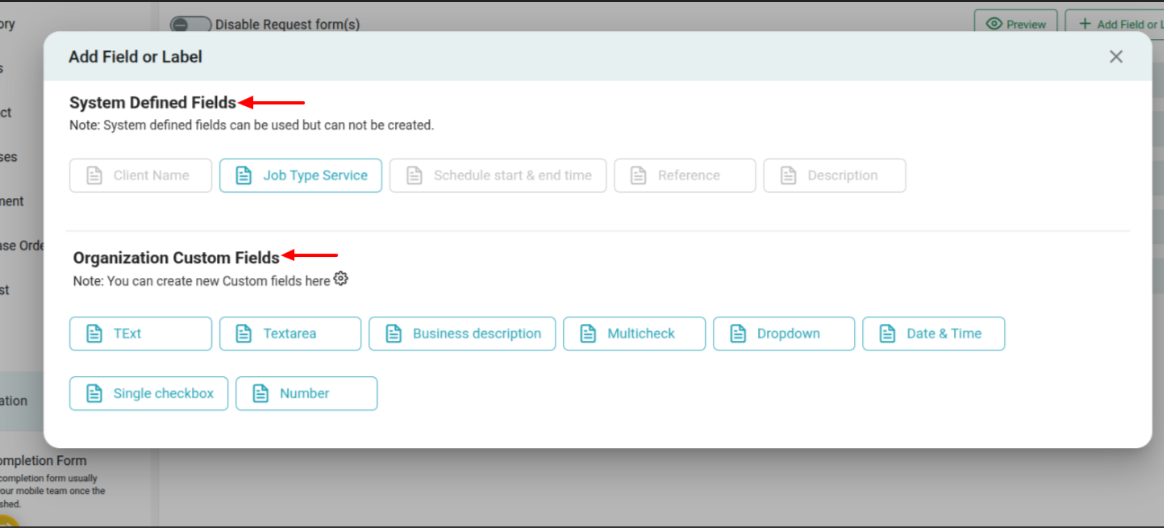 You can select the required fields or labels from these sections and add them to your form as needed. If the required field is not available in the existing list, you can create a new one by clicking the settings icon.
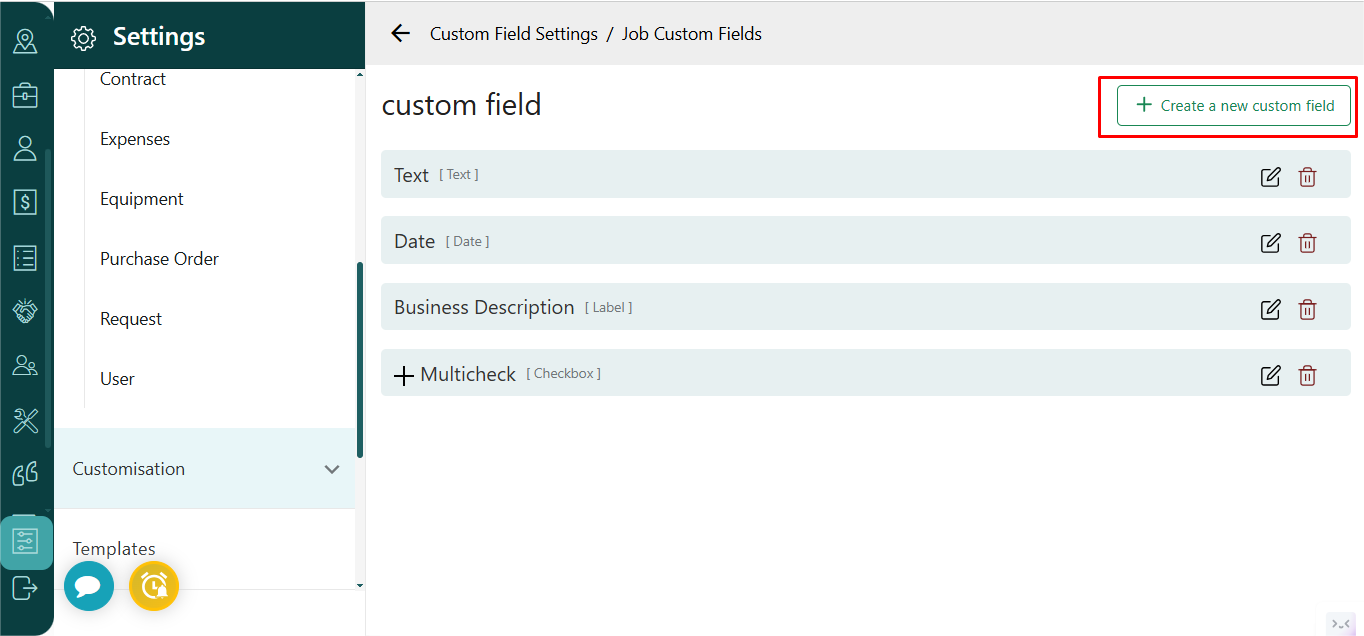
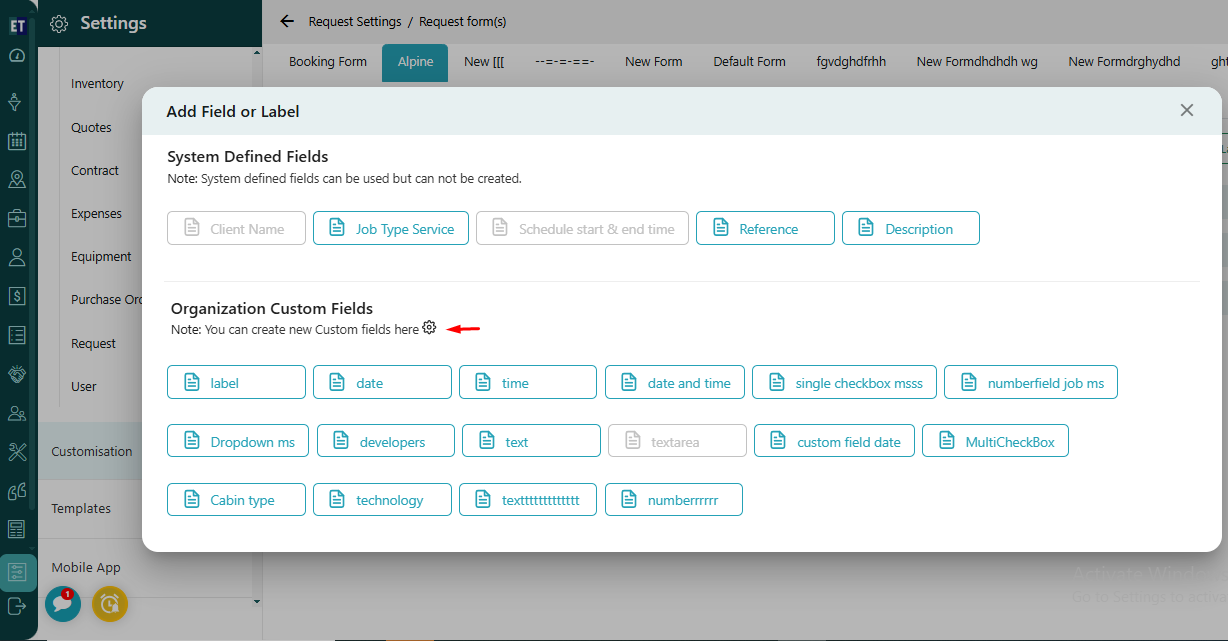 and then click on Create a new custom field. After clicking on create a new custom field a pop up will appear.
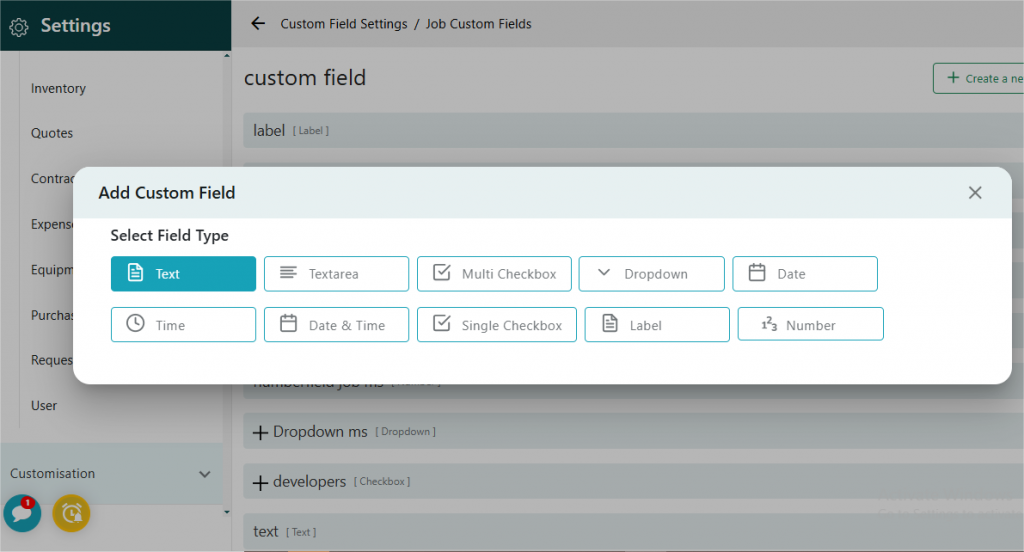
 In the pop-up window, Select the field type as per the requirement of your form.
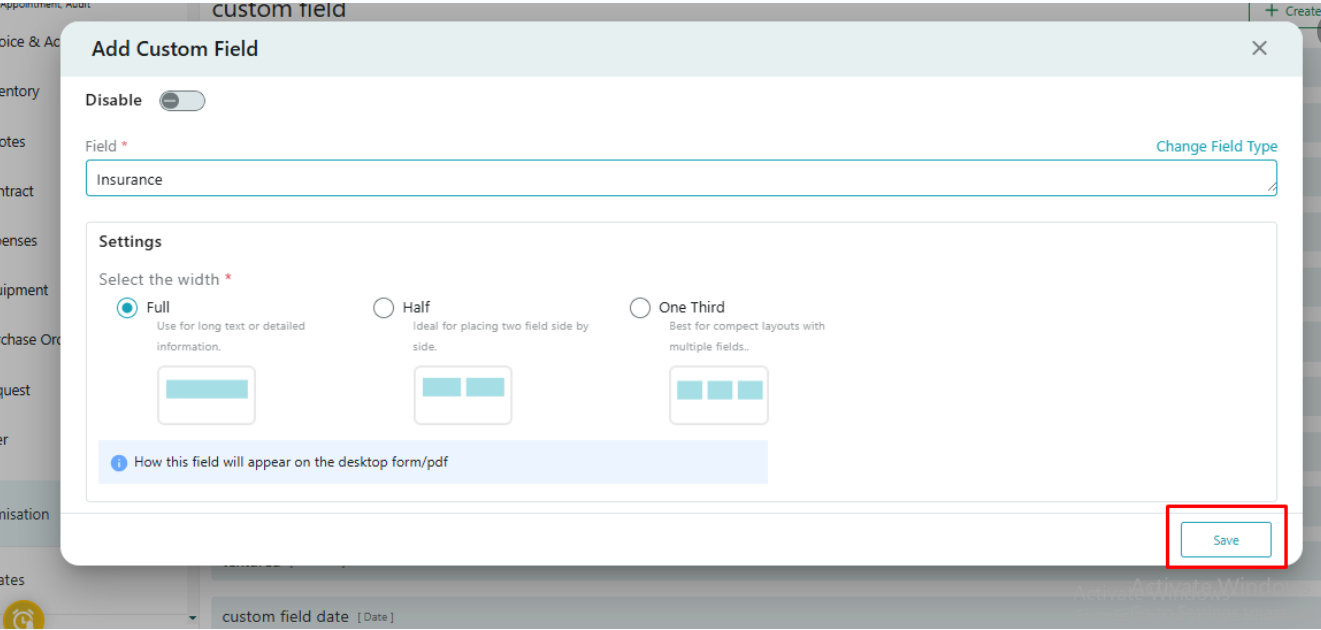
 Enter the field details and click on the Save button.
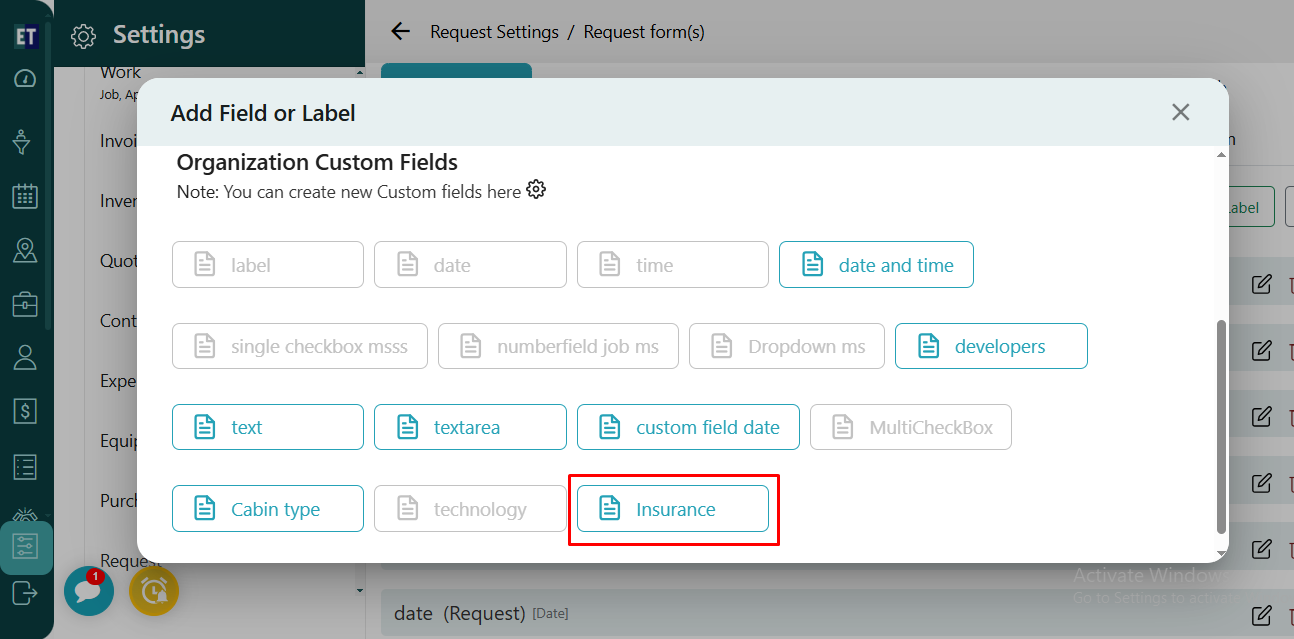
 Once created, the new custom field will appear under the Organization Custom Fields section, and you can add it to your form.
Then in the next window, click on Add New Form.
After clicking on Add New Form a pop up window will appear, where you can give title to the form and description about the form. If you want to make this form the default one, select the Set as Default checkbox.
After entering all the necessary information, click on the Save button to create the form.
After you create the form, you can add fields or labels in the form by clicking on Add Fields or Label.
Click on Add Fields or Label to include additional elements.When you click on this option, a pop-up window will appear containing two sections — System Defined Fields and Organization Custom Fields.
You can select the required fields or labels from these sections and add them to your form as needed. If the required field is not available in the existing list, you can create a new one by clicking the settings icon.
and then click on Create a new custom field. After clicking on create a new custom field a pop up will appear.
In the pop-up window, Select the field type as per the requirement of your form.
Enter the field details and click on the Save button.
Once created, the new custom field will appear under the Organization Custom Fields section, and you can add it to your form.