How do I edit an invoice inside job details?
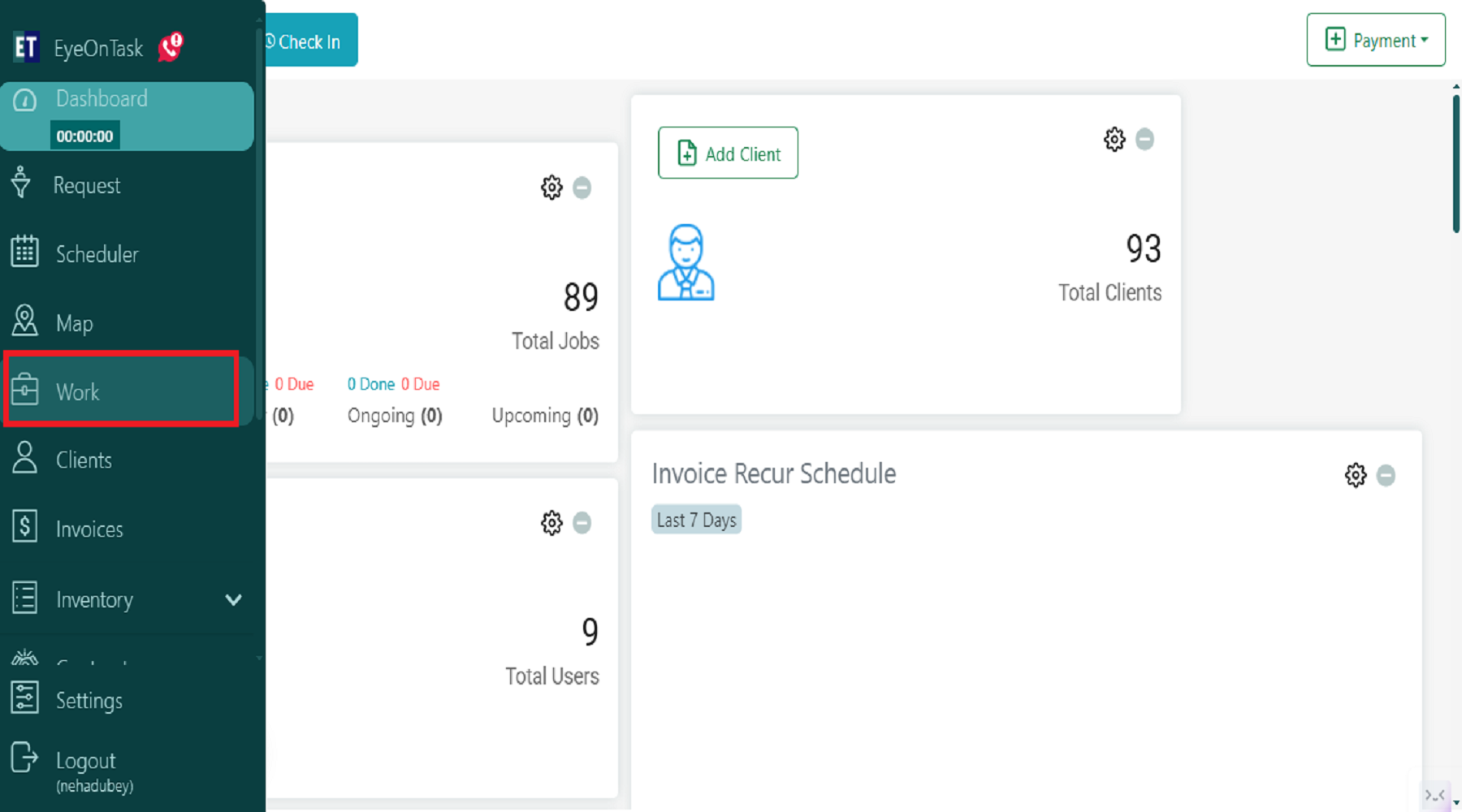
Go to the Work section from the hamburger menu.
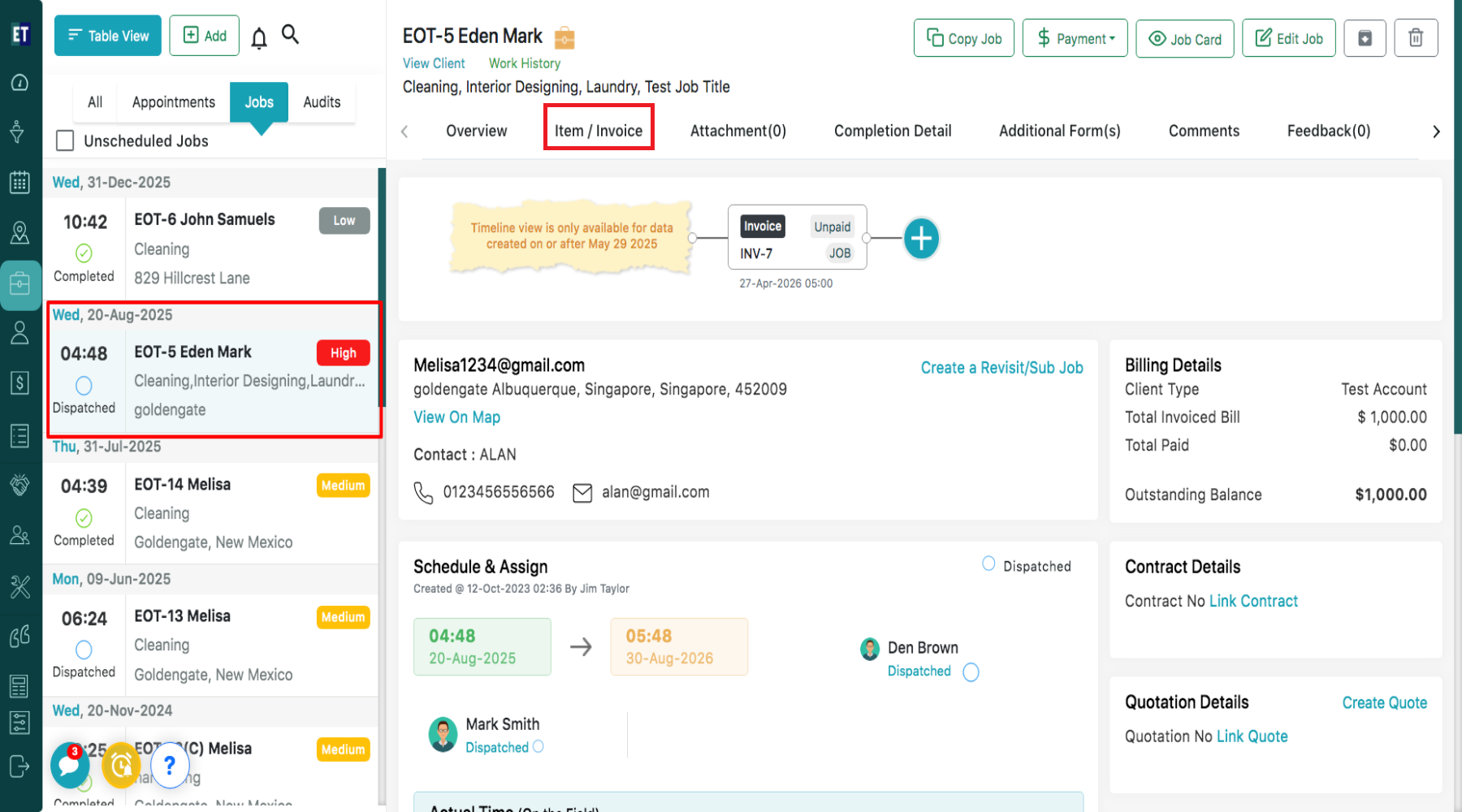
 Select a Job under which you want to edit the invoice, then from the overview select Item/Invoice.
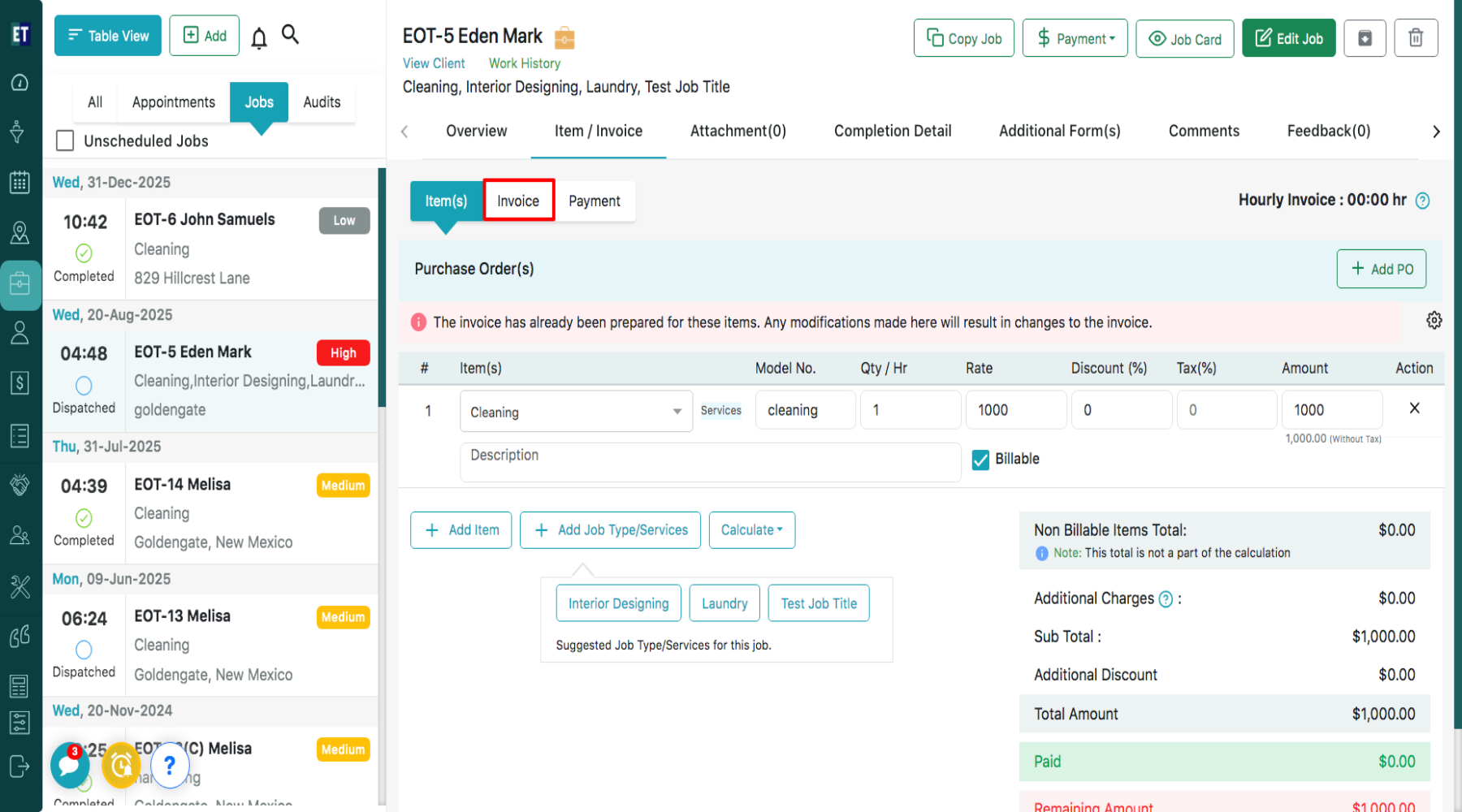
 Then select Invoice Tab.
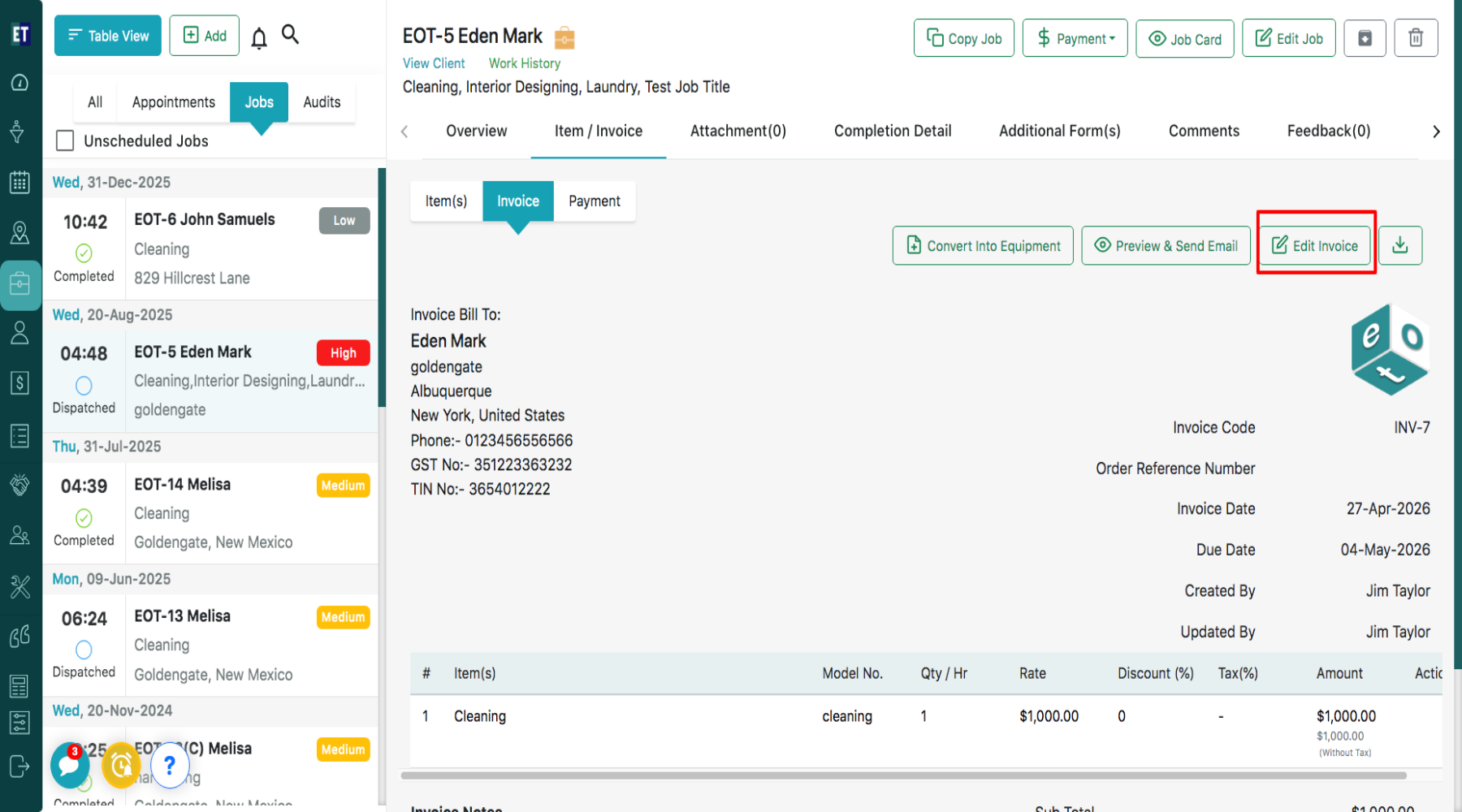
 Selecting Invoice will open an invoice attached with that particular job. Click on Edit Invoice.
 Clicking on Edit Invoice will display a pop up with auto filled fields: Client Name, client address, client email id, Bill To information.
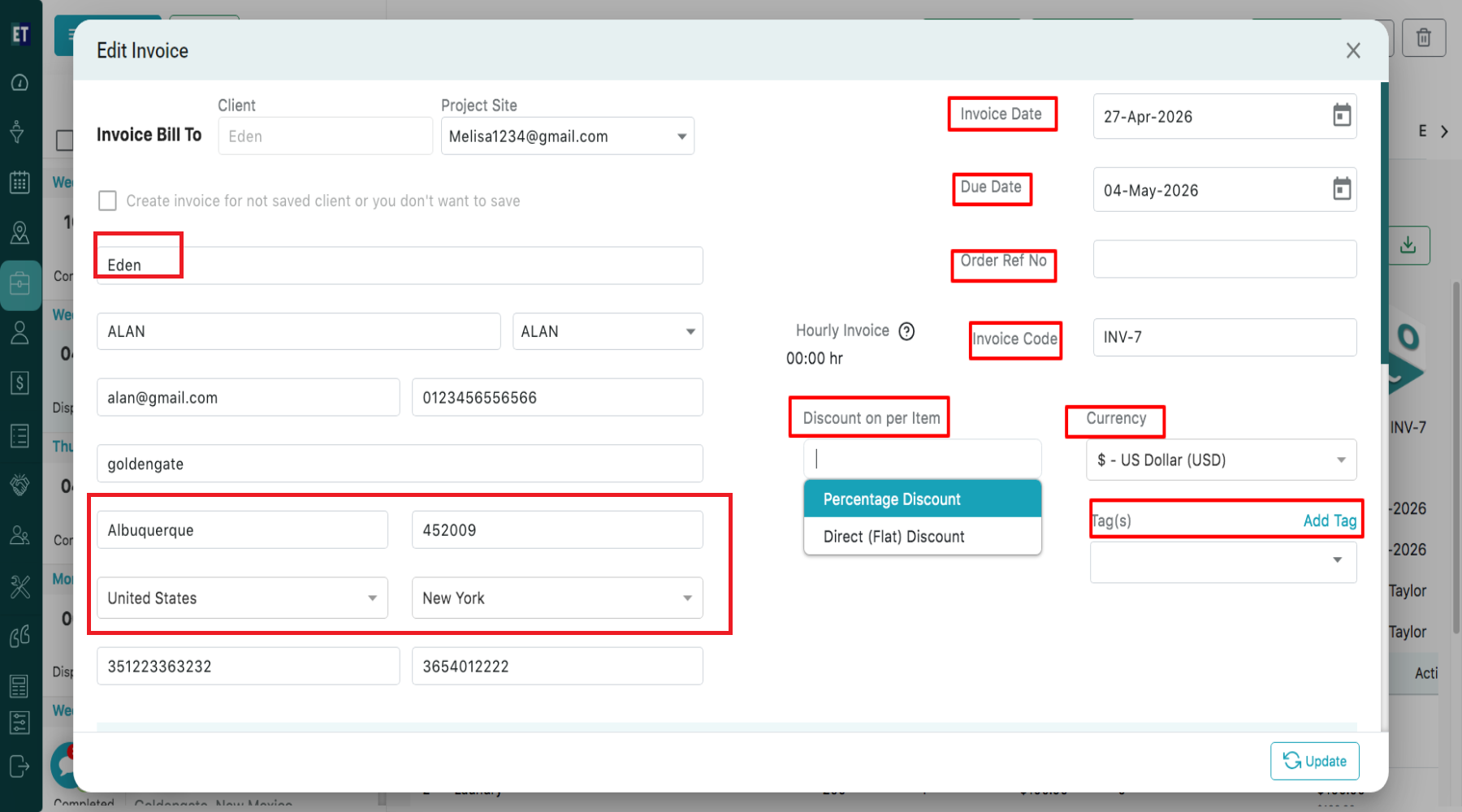
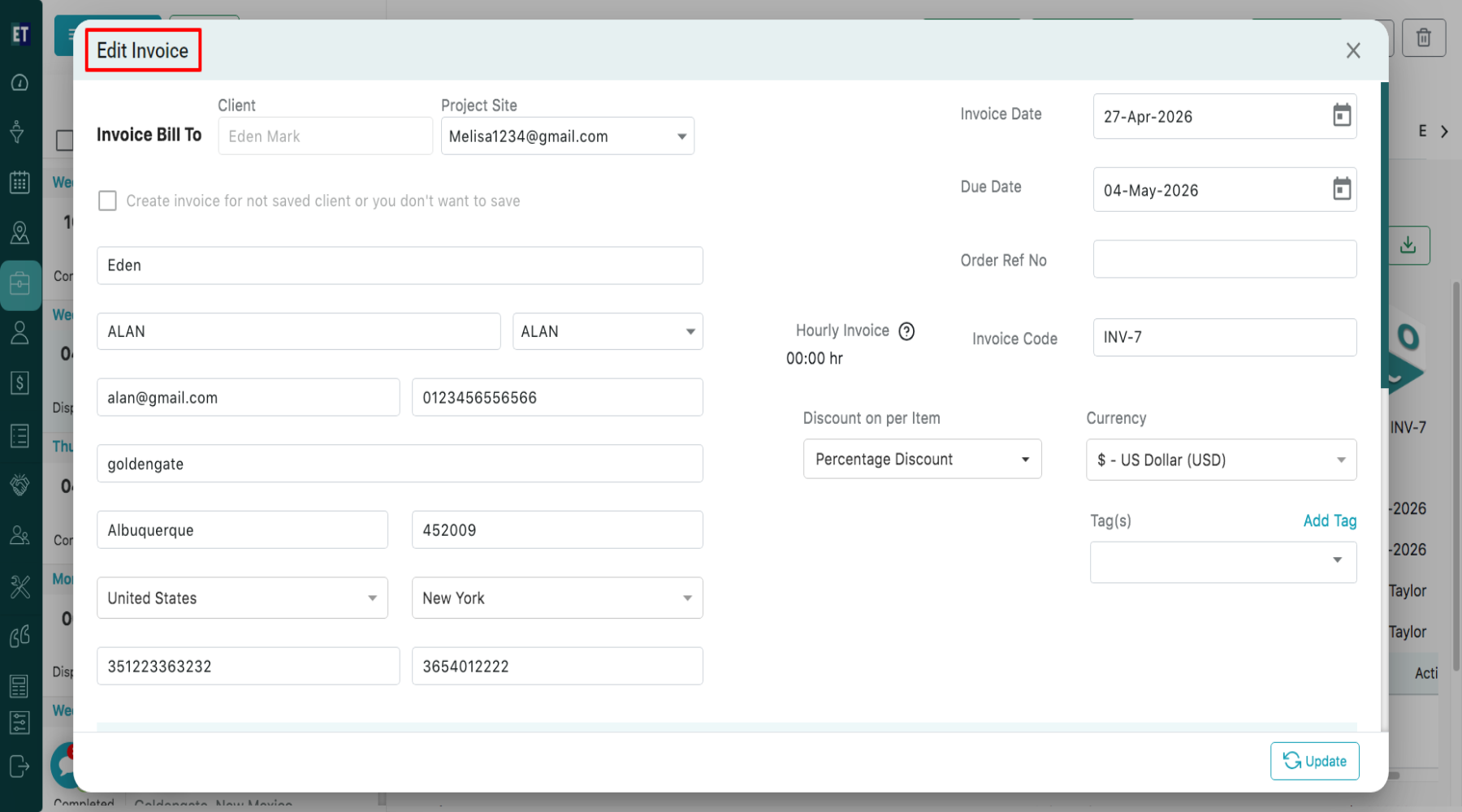 To edit the details, click on the field(s) you want to modify, and they will become editable. You can update information such as Client Name, Address, Invoice Code, Invoice Date, Due Date, Discount on per item, Currency Type and Tags here.
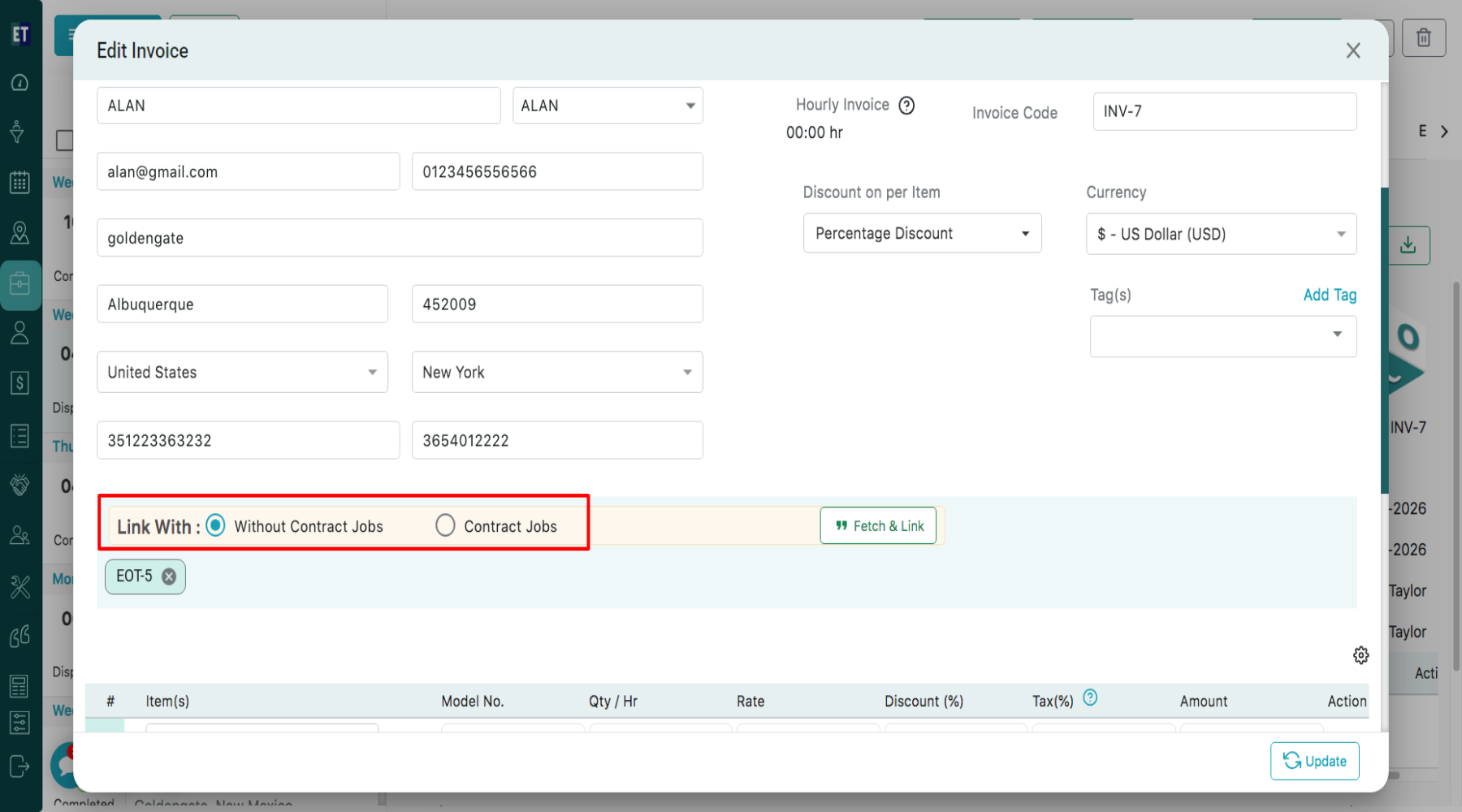
 You can also link the invoice with : Without Contract Jobs and Contract Jobs
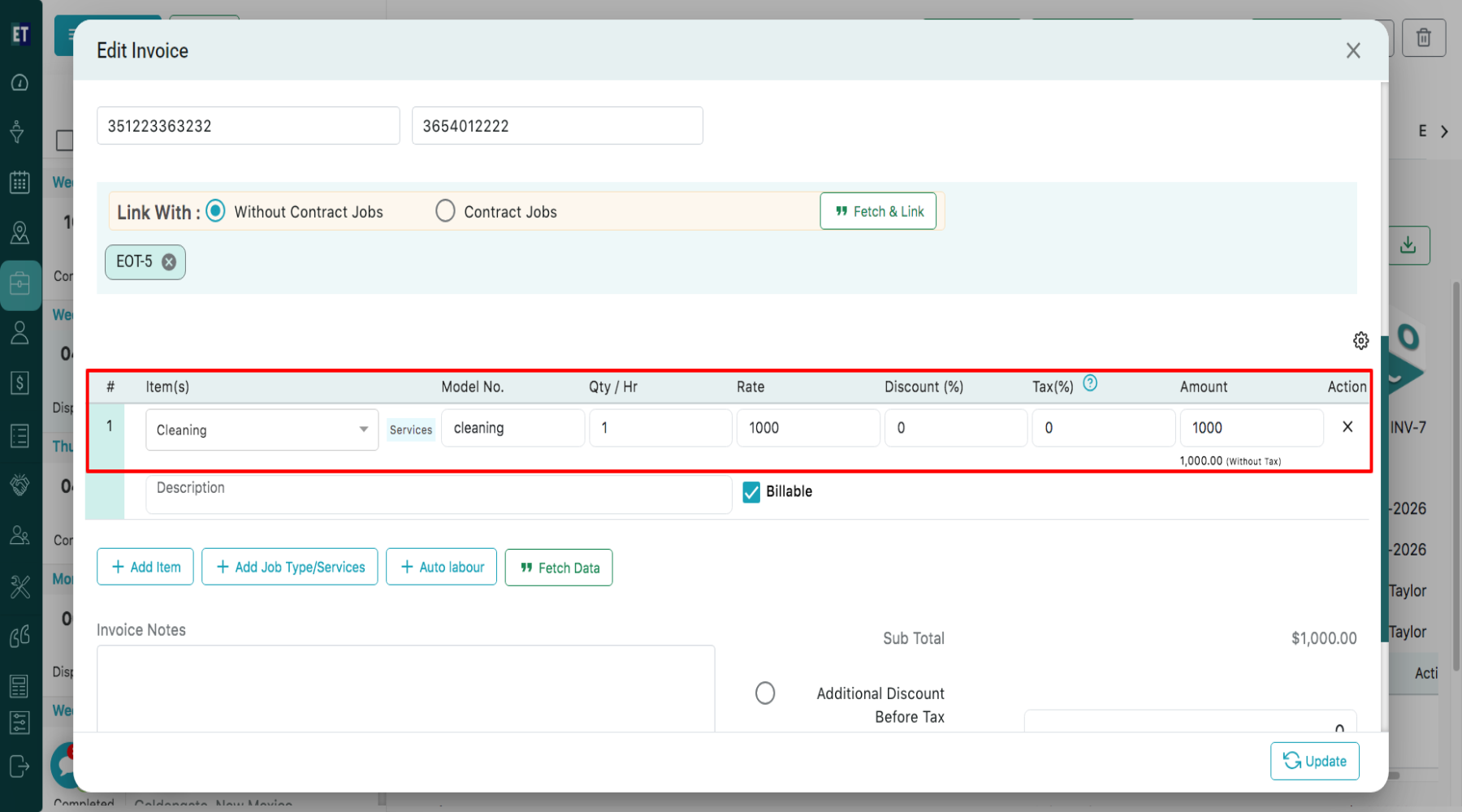
 You can edit invoice line item details such as Item(s), Model No., Quantity/Hour, Rate, Discount (%), Tax (%), and Amount directly in the editable fields. You can also update the item description and mark the item as Billable, if required.
 Use Add Item to include a new invoice item, Add Job Type/Services to add service-related entries, and Auto Labour to include labor charges automatically in the invoice.
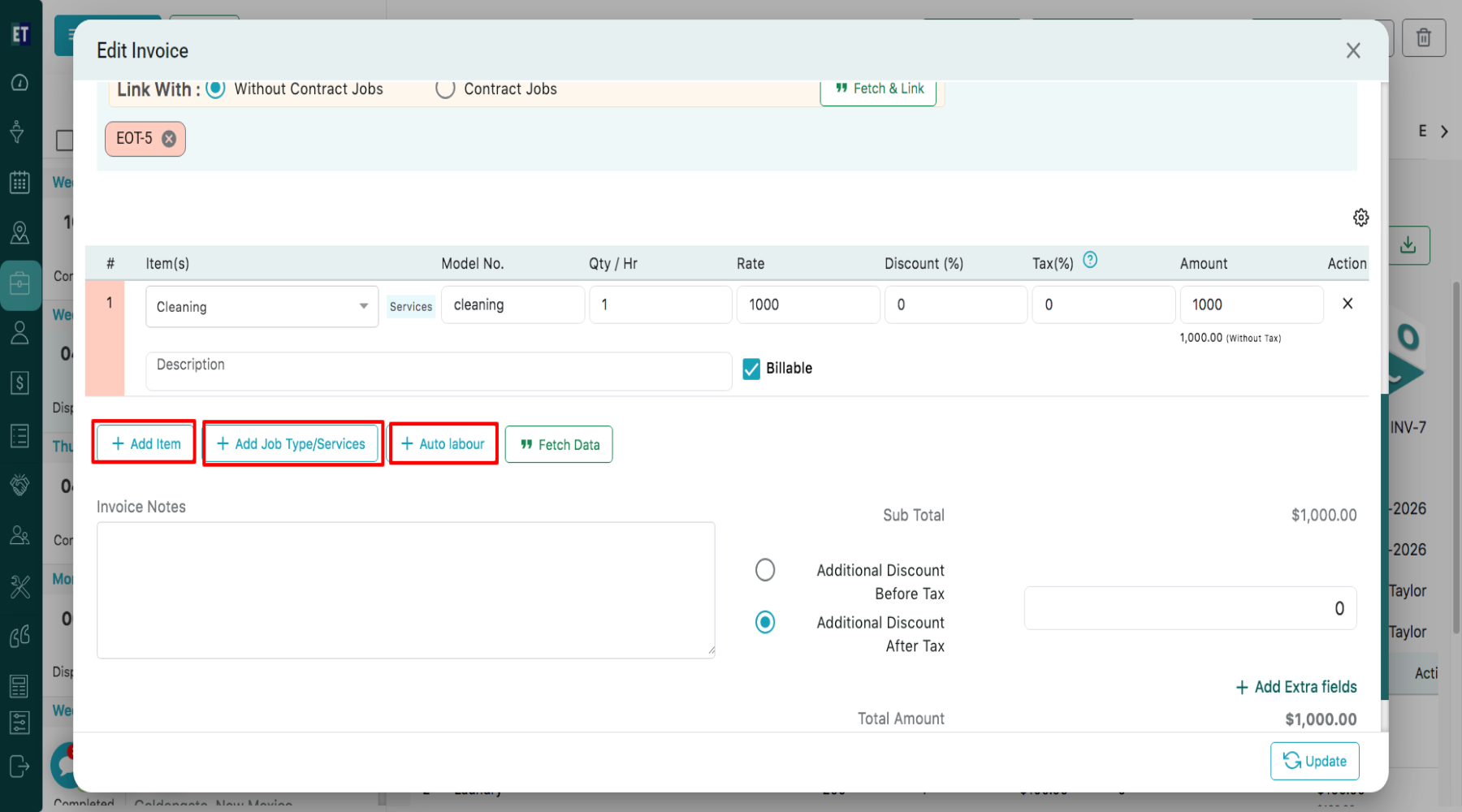 When you add an Item, Service, or Auto Labour, enter the required details in the editable fields and they will appear in the invoice line item section. As you update the Quantity, Rate, Discount, or Tax, the Amount field will automatically recalculate and display the updated final amount.
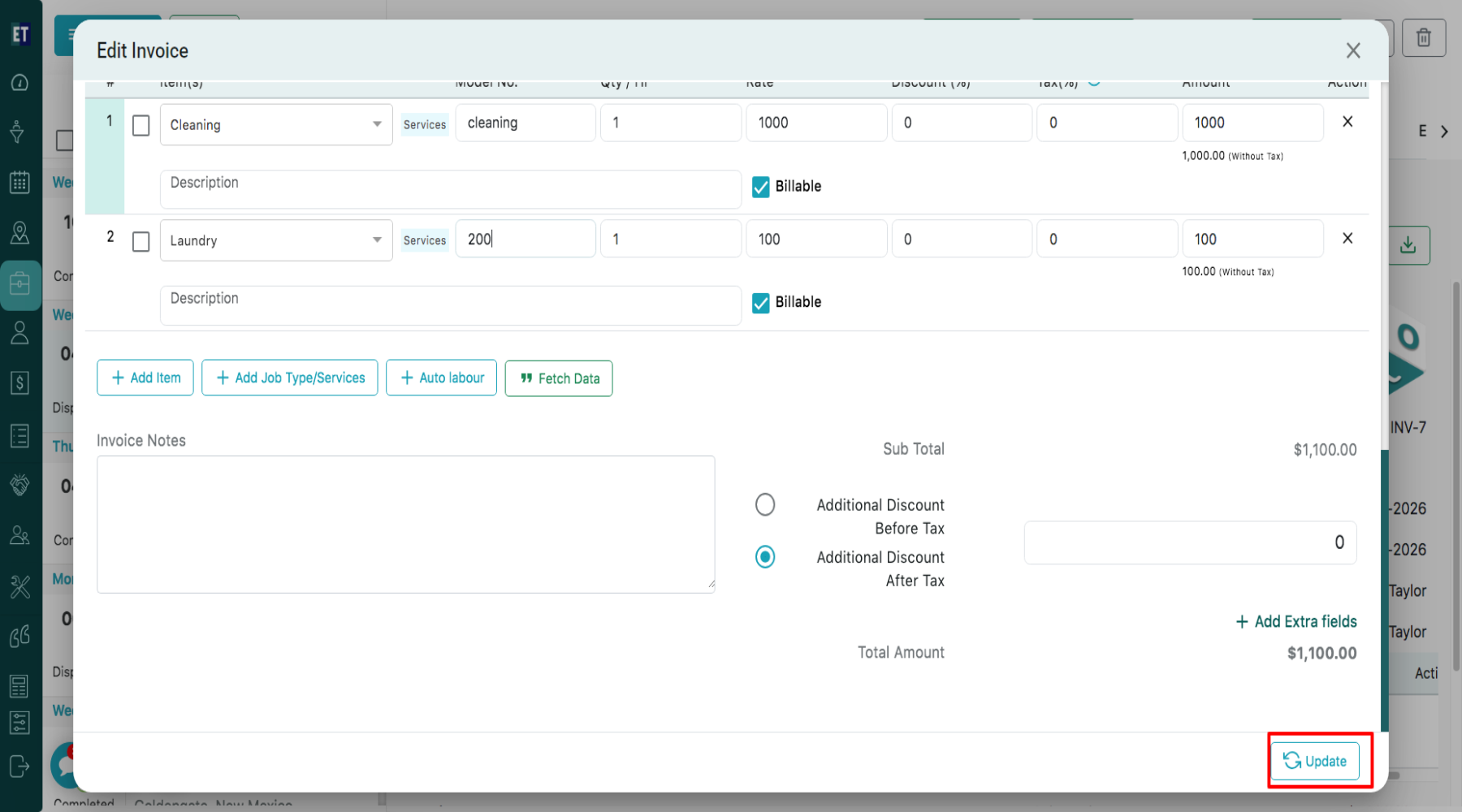
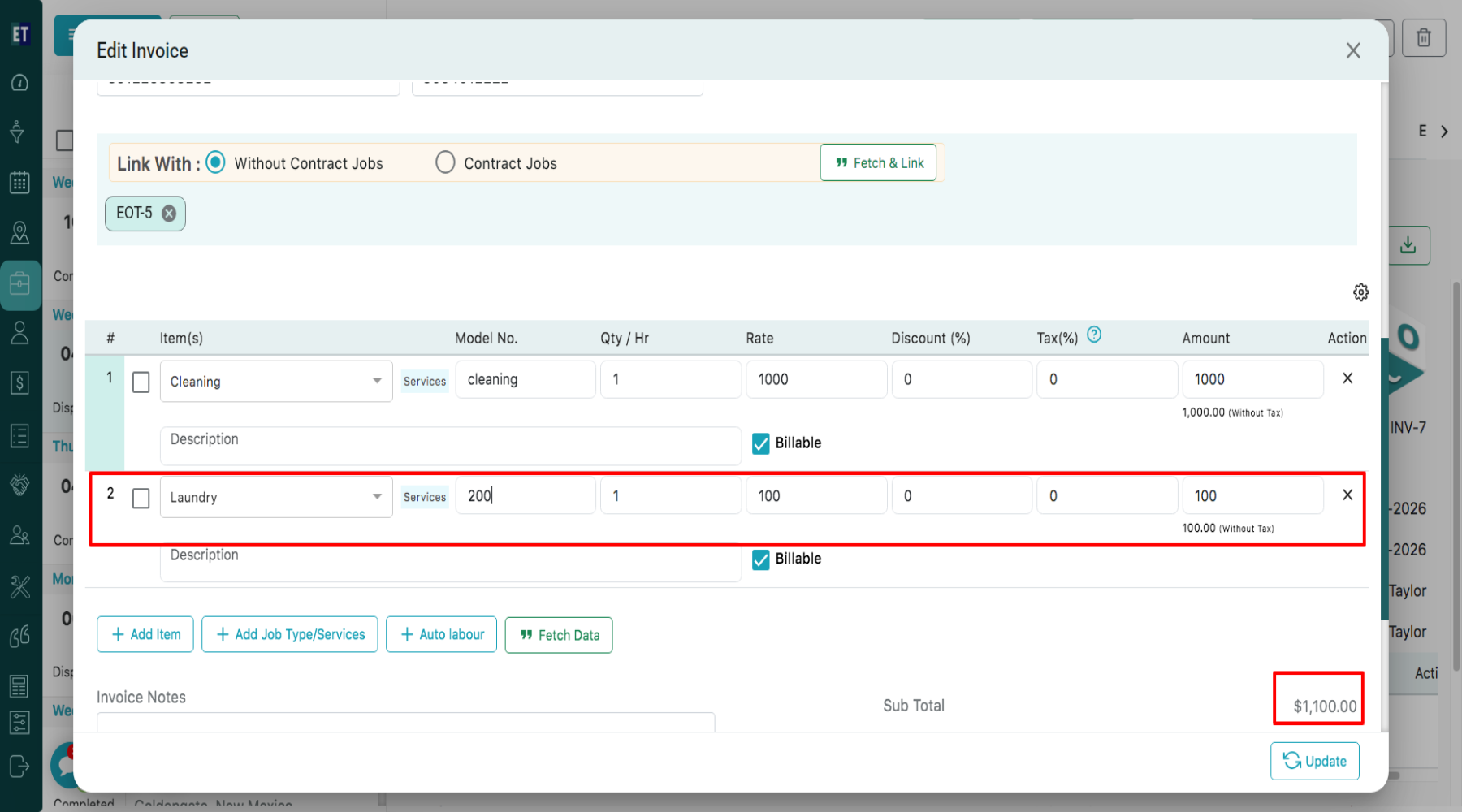 After editing the details, click on the Update button to save the changes.
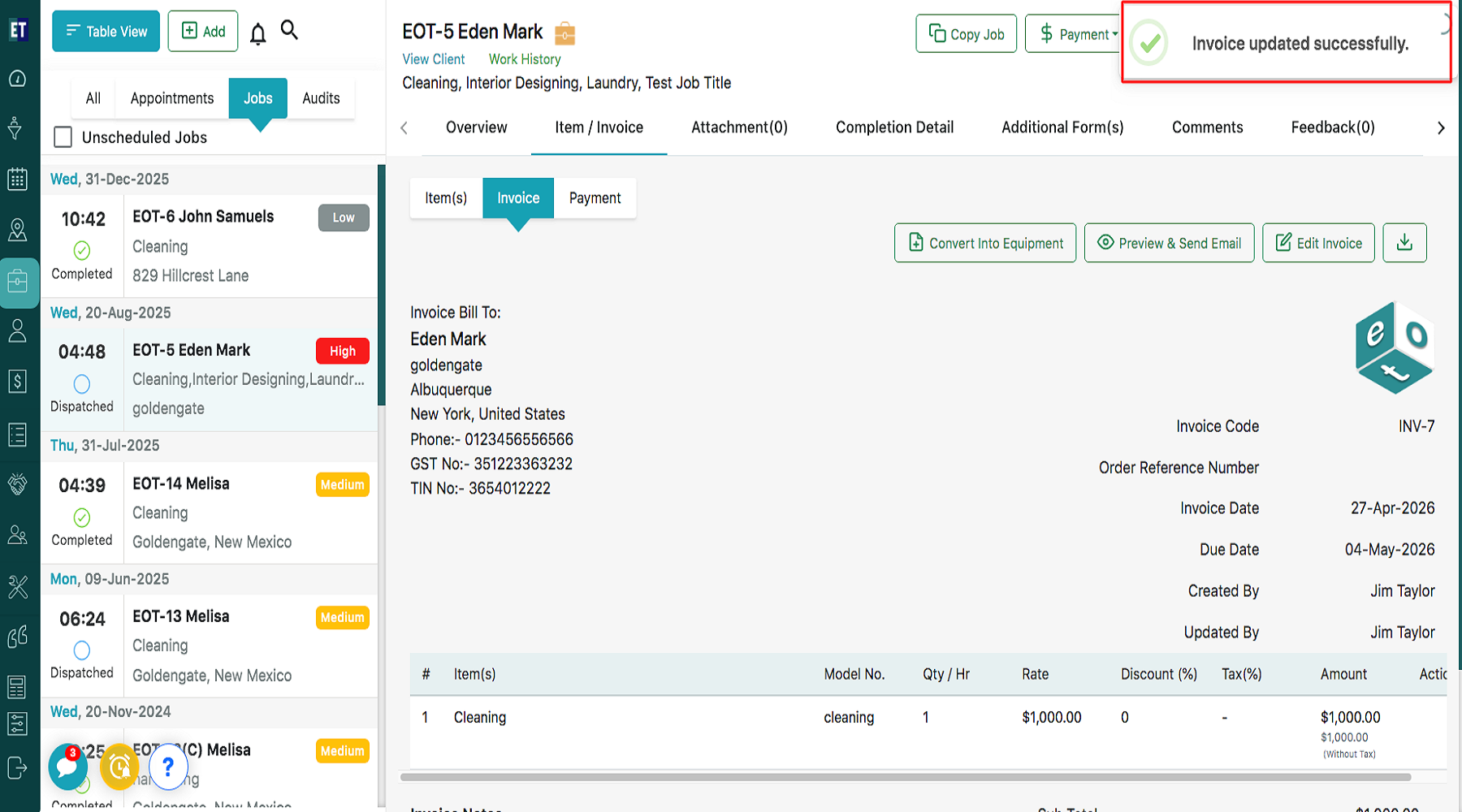
 Clicking on the Update button will show a Success Alert “Invoice updated successfully” that means invoice has been updated and will appear on the invoice section inside job details.
Select a Job under which you want to edit the invoice, then from the overview select Item/Invoice.
Then select Invoice Tab.
Selecting Invoice will open an invoice attached with that particular job. Click on Edit Invoice.
Clicking on Edit Invoice will display a pop up with auto filled fields: Client Name, client address, client email id, Bill To information.
To edit the details, click on the field(s) you want to modify, and they will become editable. You can update information such as Client Name, Address, Invoice Code, Invoice Date, Due Date, Discount on per item, Currency Type and Tags here.
You can also link the invoice with : Without Contract Jobs and Contract Jobs
You can edit invoice line item details such as Item(s), Model No., Quantity/Hour, Rate, Discount (%), Tax (%), and Amount directly in the editable fields. You can also update the item description and mark the item as Billable, if required.
Use Add Item to include a new invoice item, Add Job Type/Services to add service-related entries, and Auto Labour to include labor charges automatically in the invoice.
When you add an Item, Service, or Auto Labour, enter the required details in the editable fields and they will appear in the invoice line item section. As you update the Quantity, Rate, Discount, or Tax, the Amount field will automatically recalculate and display the updated final amount.
After editing the details, click on the Update button to save the changes.
Clicking on the Update button will show a Success Alert “Invoice updated successfully” that means invoice has been updated and will appear on the invoice section inside job details.