How to enable and send E-sign Pad while emailing the invoice to the client?
The E-sign Pad feature is used to collect the customer’s signature. To send the E-sign Pad in the email body while emailing the invoice to clients/customers, you need to activate the E-sign Pad option in the invoice template settings.
To enable E-sign Pad in the mail body while sending the invoice to client/customers go to Settings.
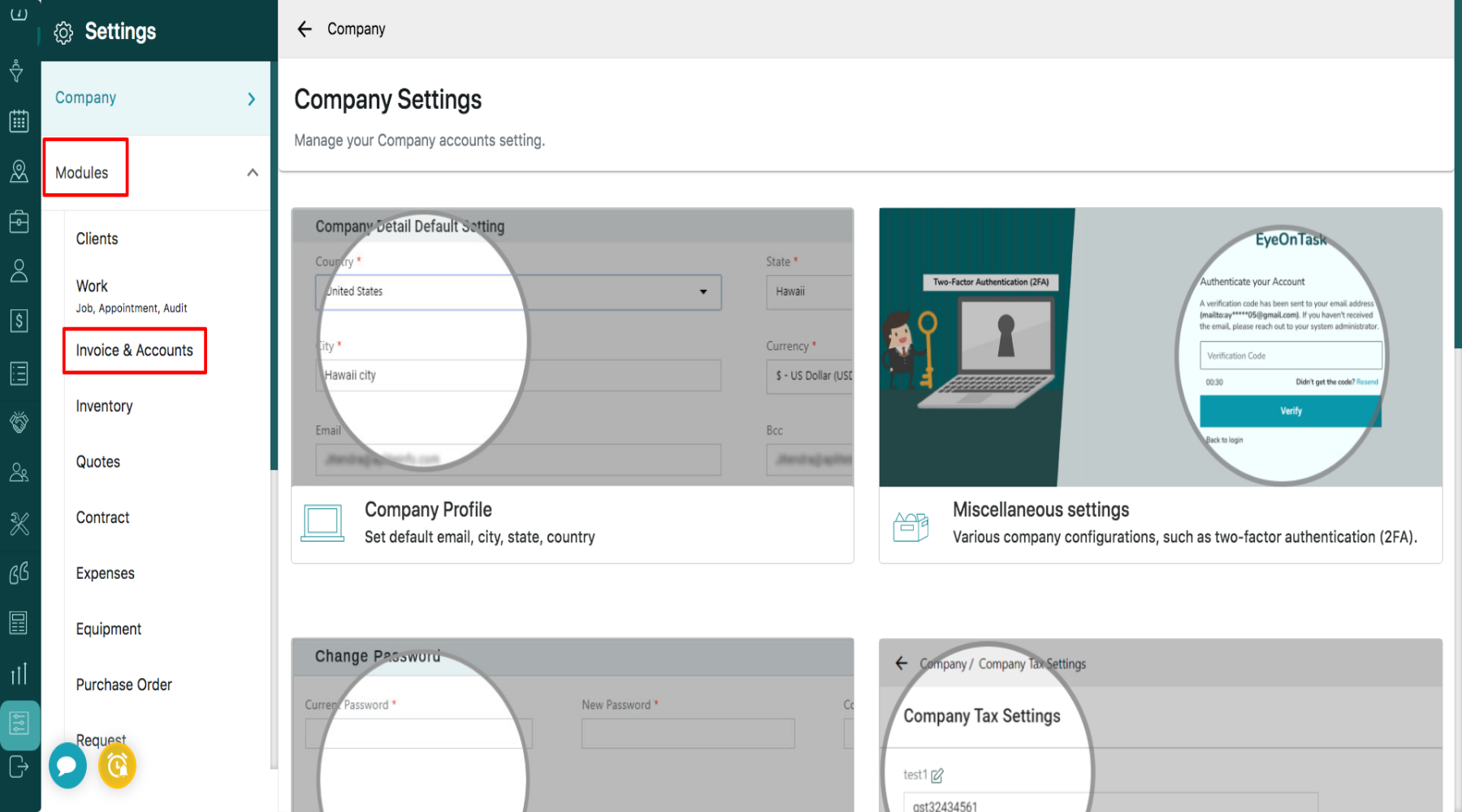
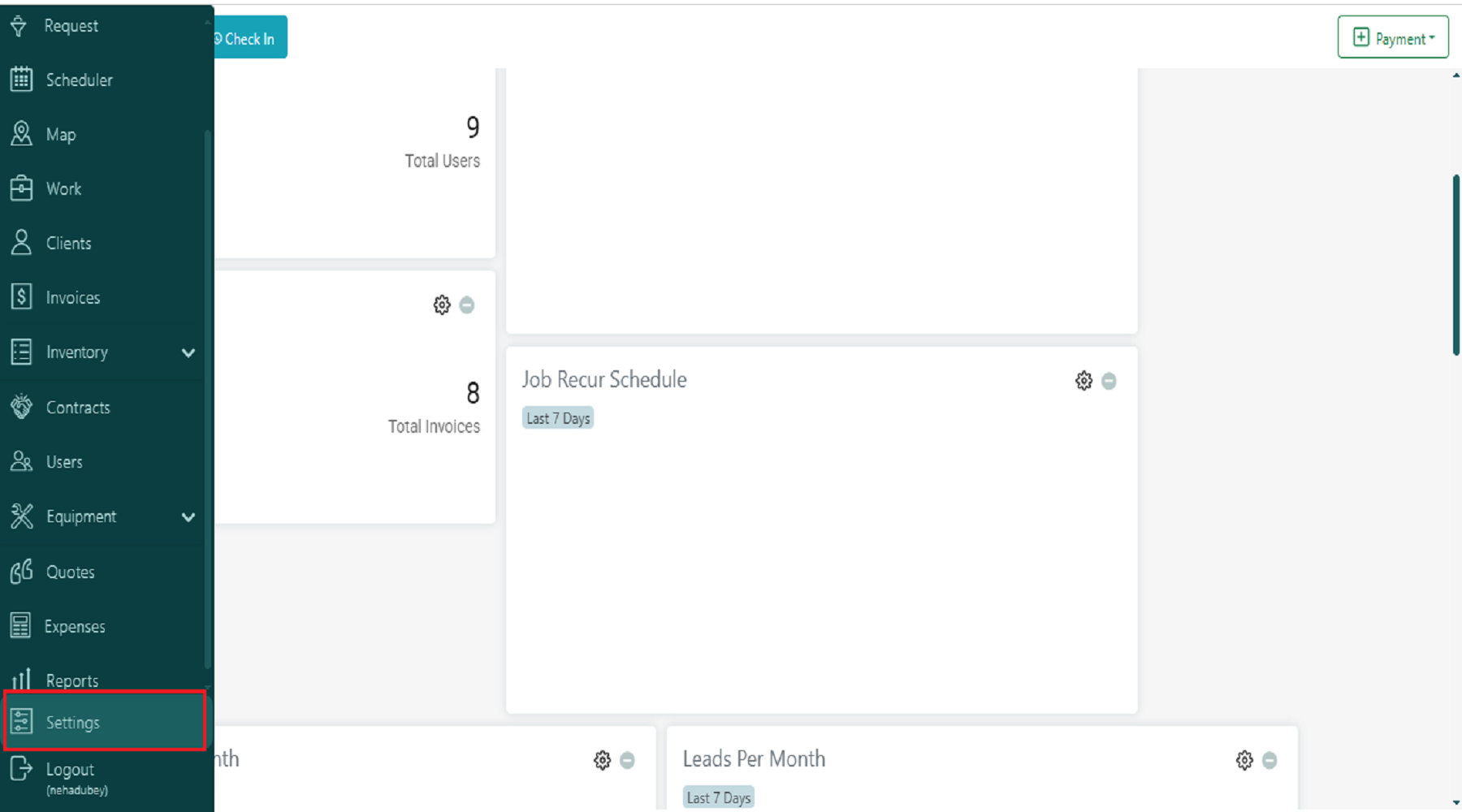 Click on Invoice & Accounts from the Modules section.
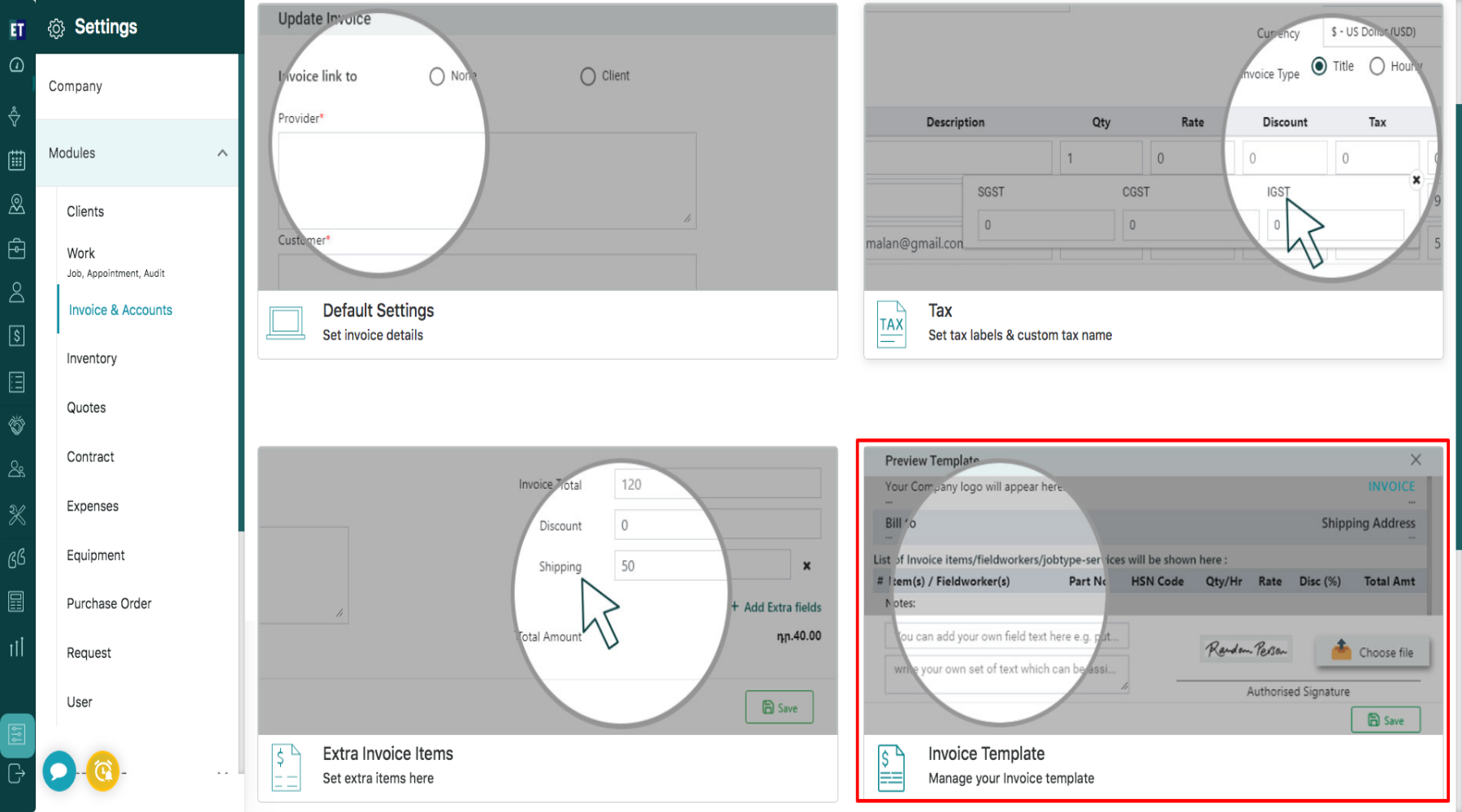
 In Invoice & Accounts Settings you will see 5 options. Go to the Fourth Option which is the Invoice Template.
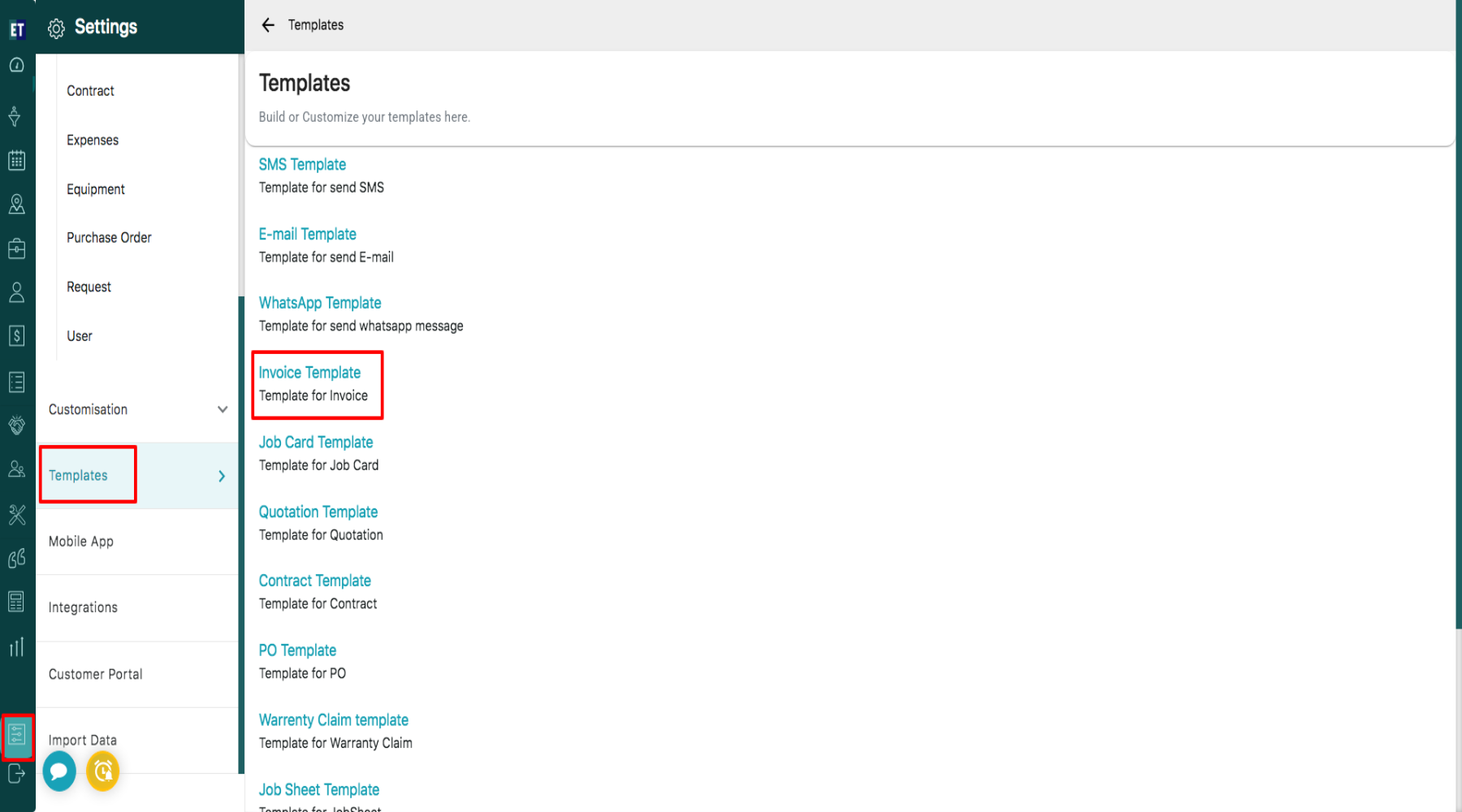
 You can also navigate by going to Settings > Template > Invoice Template.
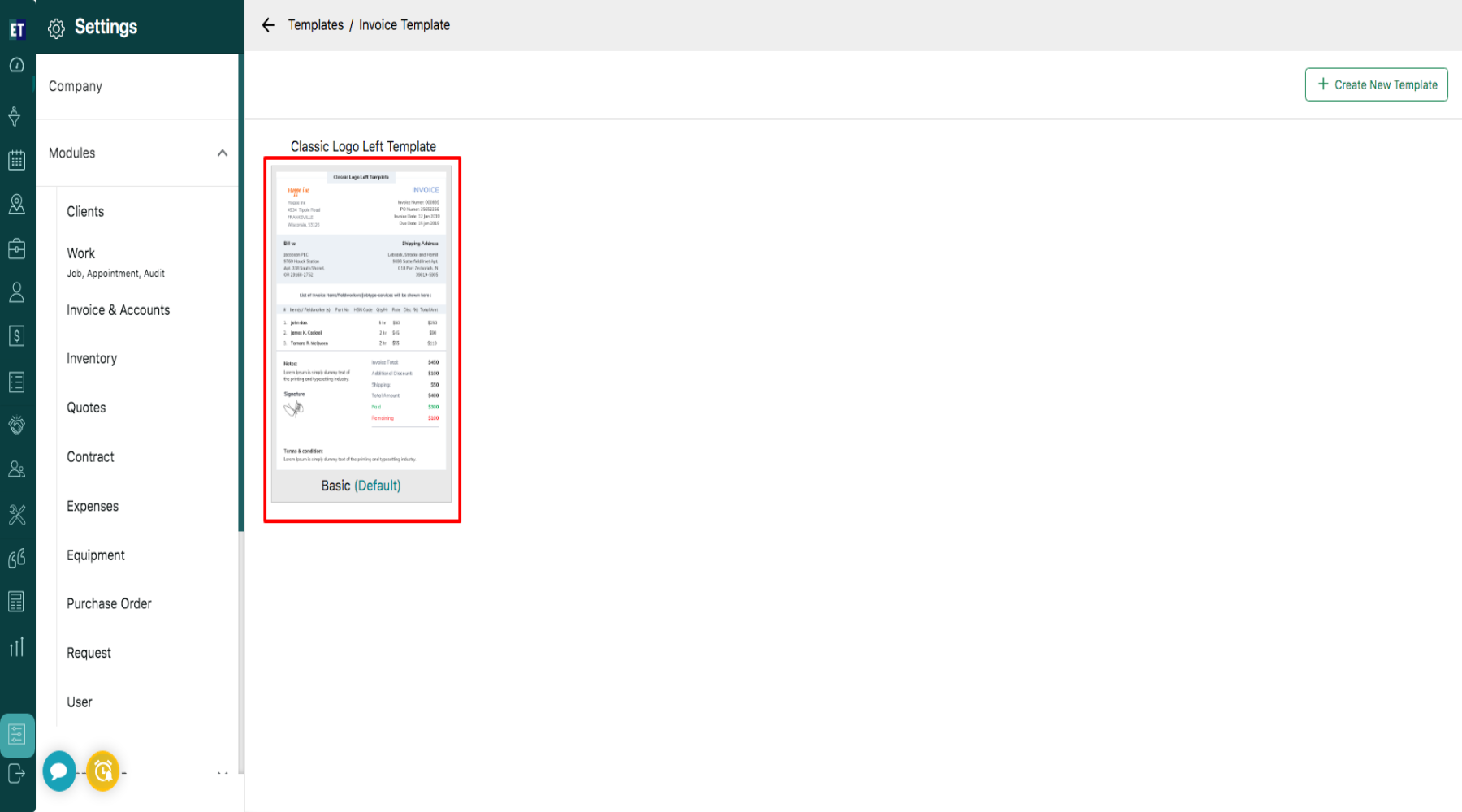
 In Invoice Template, select the invoice template in which you want to collect the customer’s signature.
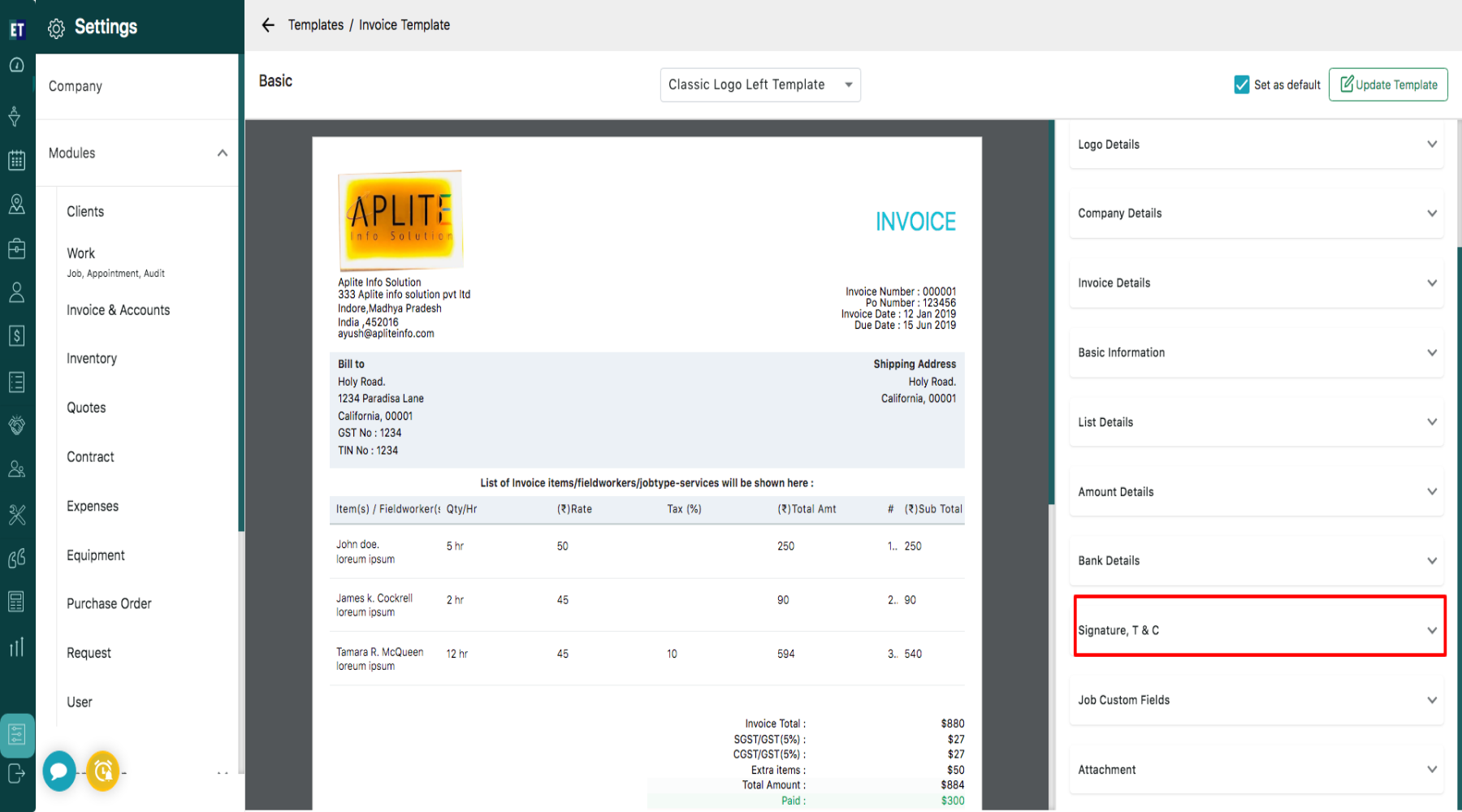
 Then on the right hand side, open the Signature, T & C dropdown.
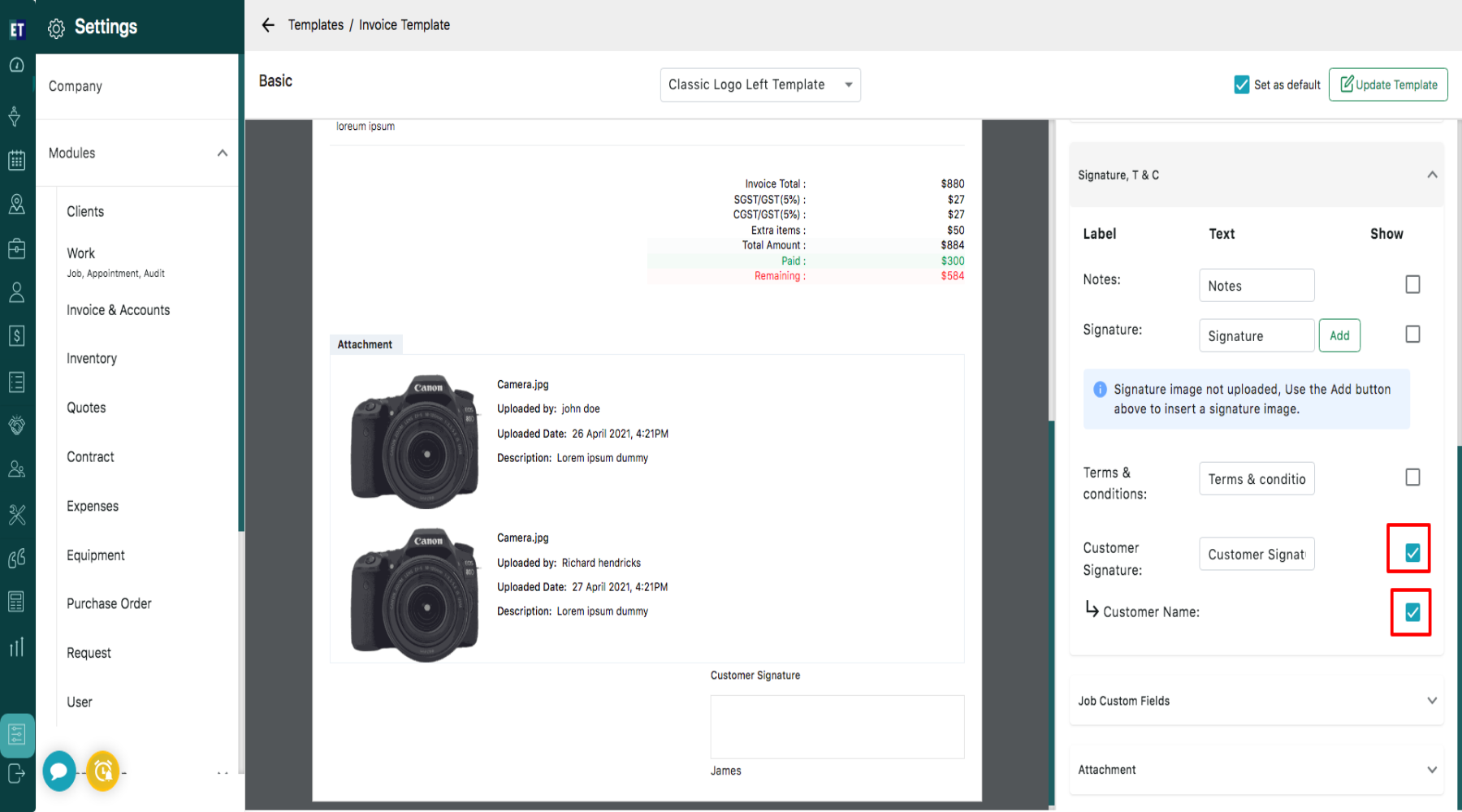
 Under the Signature, T & C dropdown, Enable the check box Customer Signature and Customer Name.
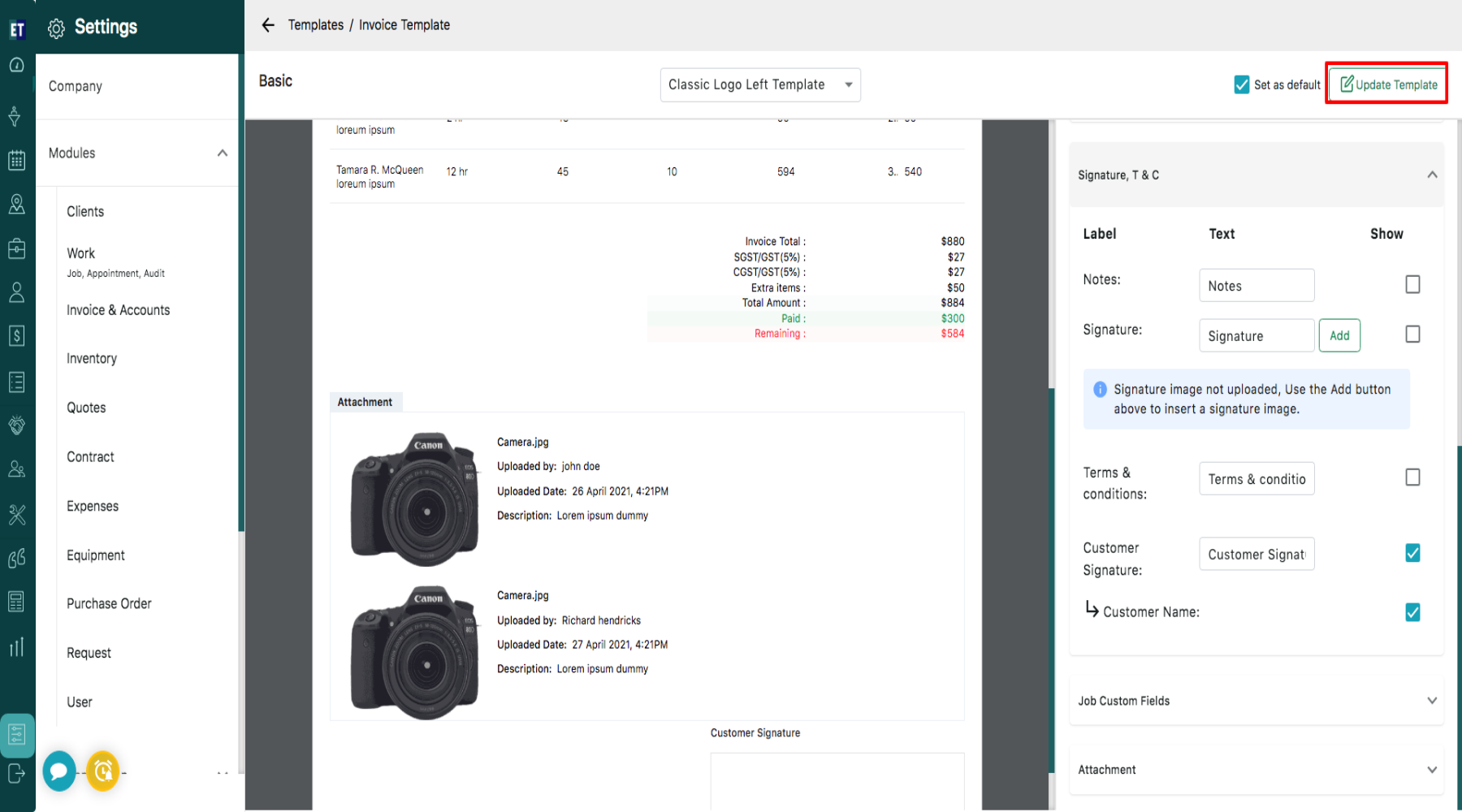
 Then click on the Update Template button to save the changes.
 After enabling these settings, while mailing the invoice to the client:
The E-Sign option will appear highlighted in the mail body under the Message field.
After enabling these settings, while mailing the invoice to the client:
The E-Sign option will appear highlighted in the mail body under the Message field.
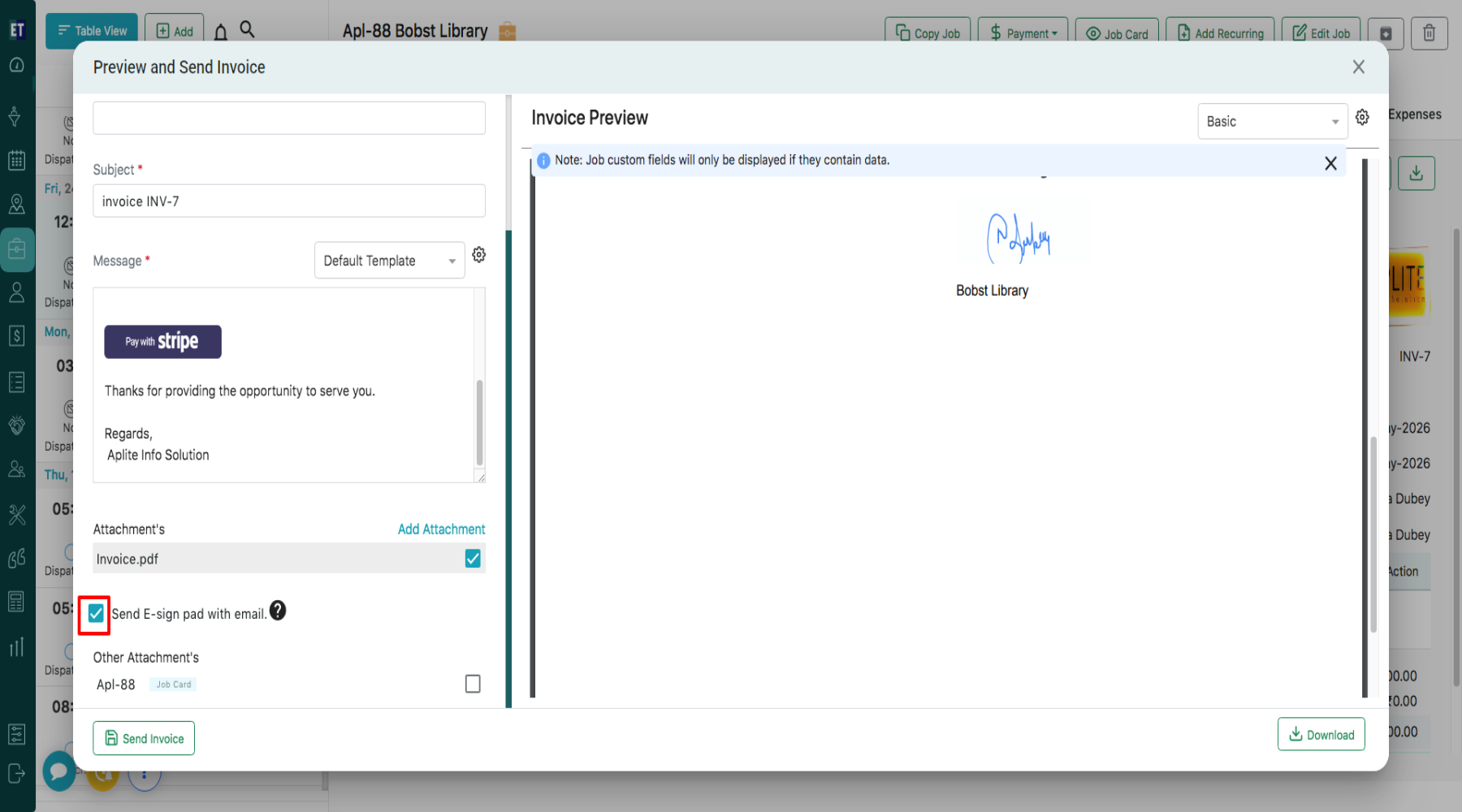
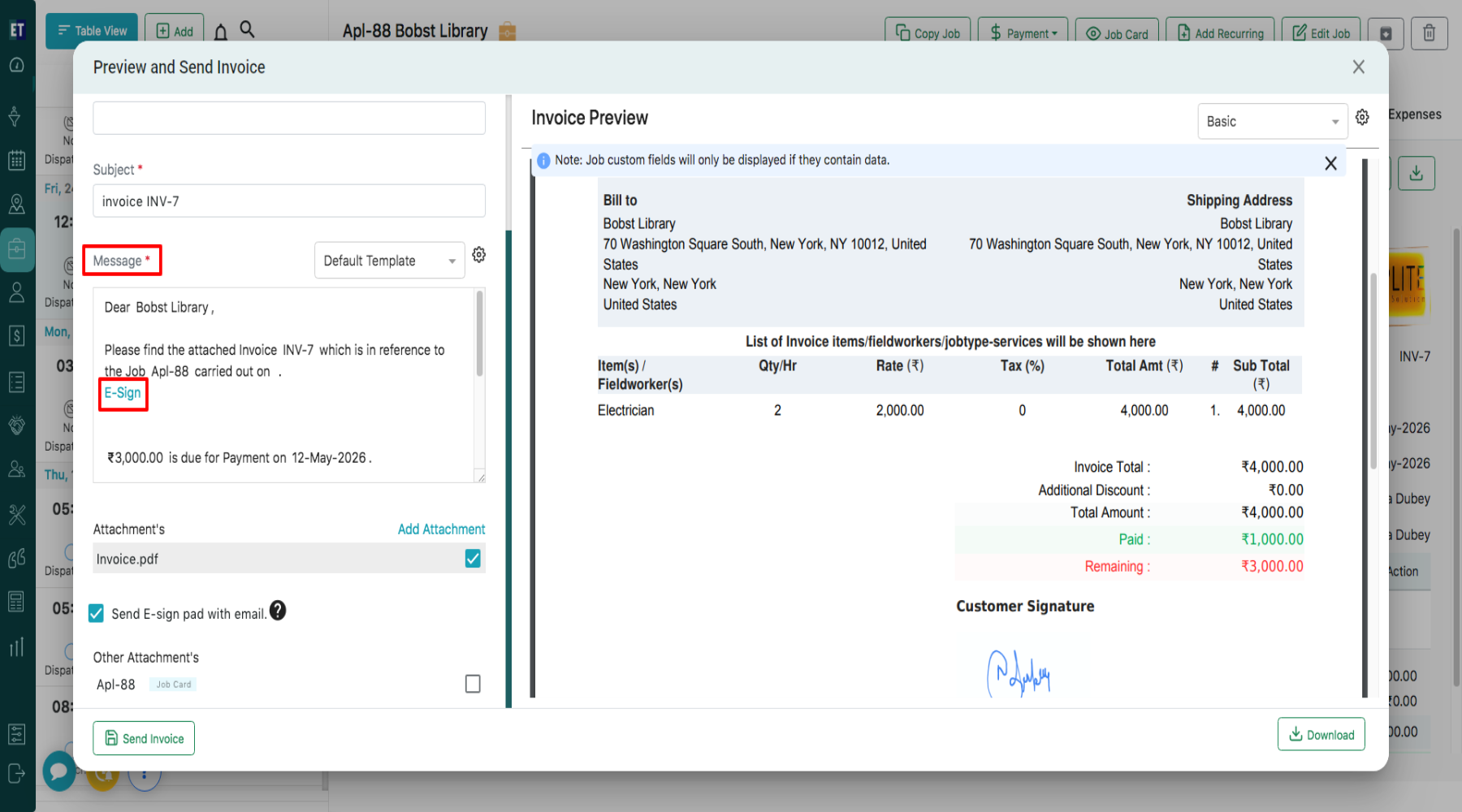 An additional option, “Send E-sign Pad with Email”, will also be displayed. Enable the checkbox available with “Send E-sign Pad with Email” to send the E-sign Pad to the customer.
Click on Invoice & Accounts from the Modules section.
In Invoice & Accounts Settings you will see 5 options. Go to the Fourth Option which is the Invoice Template.
You can also navigate by going to Settings > Template > Invoice Template.
In Invoice Template, select the invoice template in which you want to collect the customer’s signature.
Then on the right hand side, open the Signature, T & C dropdown.
Under the Signature, T & C dropdown, Enable the check box Customer Signature and Customer Name.
Then click on the Update Template button to save the changes.
After enabling these settings, while mailing the invoice to the client:
The E-Sign option will appear highlighted in the mail body under the Message field.
An additional option, “Send E-sign Pad with Email”, will also be displayed. Enable the checkbox available with “Send E-sign Pad with Email” to send the E-sign Pad to the customer.